REPLACEMENT PARTS
— 9-7 — SYSTEM UTILITIES
&A9>C*5BC(5BD<CB
To print test results for any patient, touch the desired test to generate an on-screen report then
t
ouch <Print> to print the test results.
)9>7<5&1C95>CG@?AC
To export the results of any saved test, touch <Export Data>. The data will immediately be sent
to the export program
)9>7<5&1C95>C5<5C5
Although the BioSway can store hundreds of CTSIB patient tests, more patients if you do less
CTSIB conditions, you may want to decrease the number of stored records from time to time. To
delete any full page display of saved reports, touch <Delete>. Respond <OK> to the delete
prompt. The page displayed will be deleted from the display memory. The delete function only
works with pages; you cannot select a specific test or patient to delete without deleting every
test and patient displayed on the screen.
#D<C9@<5&1C95>CG@?AC
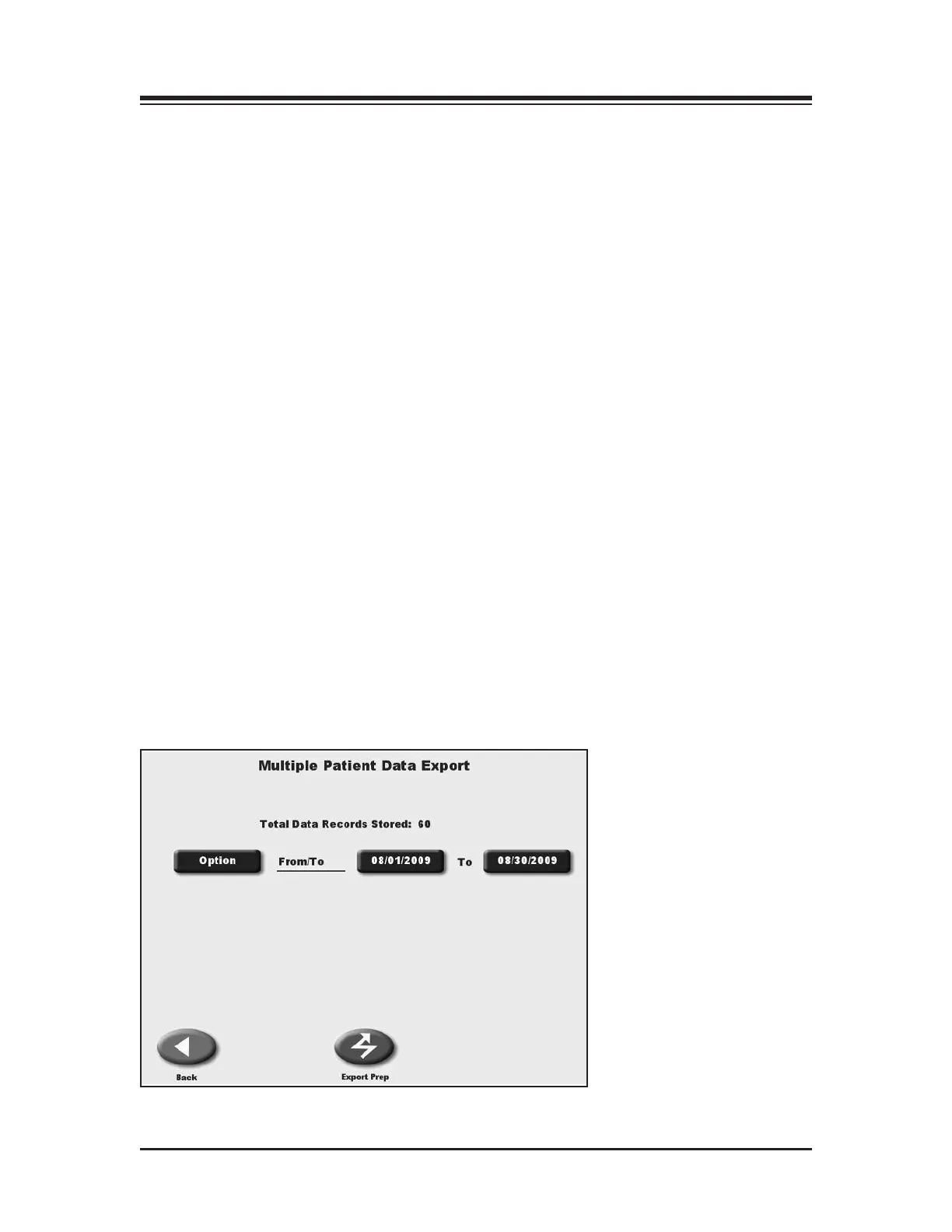
(See Figure 9.8.)
NOTE: This process requires Patient Data Export Software. Install the software as per instructions and
connect the serial interface cable from the BioSway display to the target computer. The program allows
both multiple and single patient export. In addition to exporting any single patient record, multiple
patient records can be exported.
1. At the Patient Management screen touch <Multiple Export> to export multiple patient
records. The Multiple Patient Data Export screen should now be displayed.
2. Four options are available for multiple export: all (export all patient records); prior-to (export
all patient records prior to selected date); from (delete all patient records after a selected
date); and from-to (export all records between selected dates.) Touch <Options> until the
desired option is displayed.
• For prior-to and from-to, touch the date displayed to advance to the date screen. Touch the
date section to change and use the arrows to adjust.
3. Touch <Export Now> to export the selected patient files.
Figure 9.8. The Multiple Patient Data Export screen.



 To Next Page