15
3. A File Explorer window will open. Open the file called, “Pulse IRController.exe”
4. The User Account Control pop up window will display. Press the "Yes" Button to proceed.
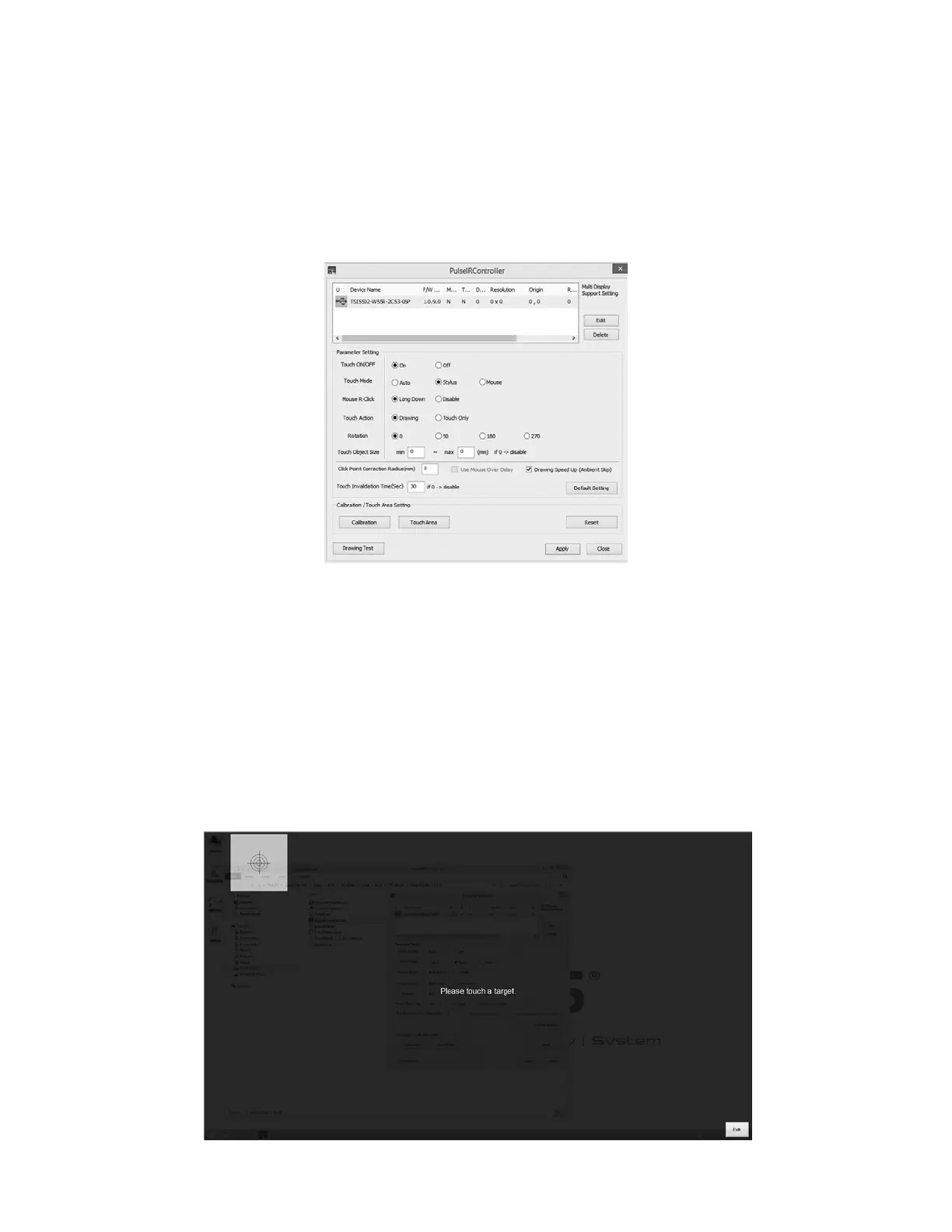
5. The PulseIRController window will appear. Touch the Reset Button.
6. Confirm that the Parameter Settings shown on the PulselRController window are the following:
• Touch ON/OFF: On
• Touch Mode: Stylus
• Mouse R-Click: Long Down
• Touch Action: Drawing
• Rotation: 0
7. Once the settings have been confirmed, touch the Apply Button. See Figure 19.
Figure 19: PulseIRController Window
8. A pop up window will appear stating, "Complete!" Touch the OK Button.
9. To calibrate the touch area, press the Calibration Button on the PulseIRController Window. See Figure 19. The
calibration screen will display. See Figure 20.
10. Position your body in the center of the Display Monitor and press the center of each consecutive target. Targets will
appear in the top left, top right, and bottom left corners of the touchscreen. Once all targets have been accurately
touched, the user will need to press the OK Button.
11. The display screen will go back to the PulseIRController Window. Touch the Apply Button.
12. A pop up window will appear stating, "Complete!" Touch the OK Button.
13. To verify that the calibration was completed accurately, drag the tip of a finger across the desktop and confirm that the



 To Next Page