6
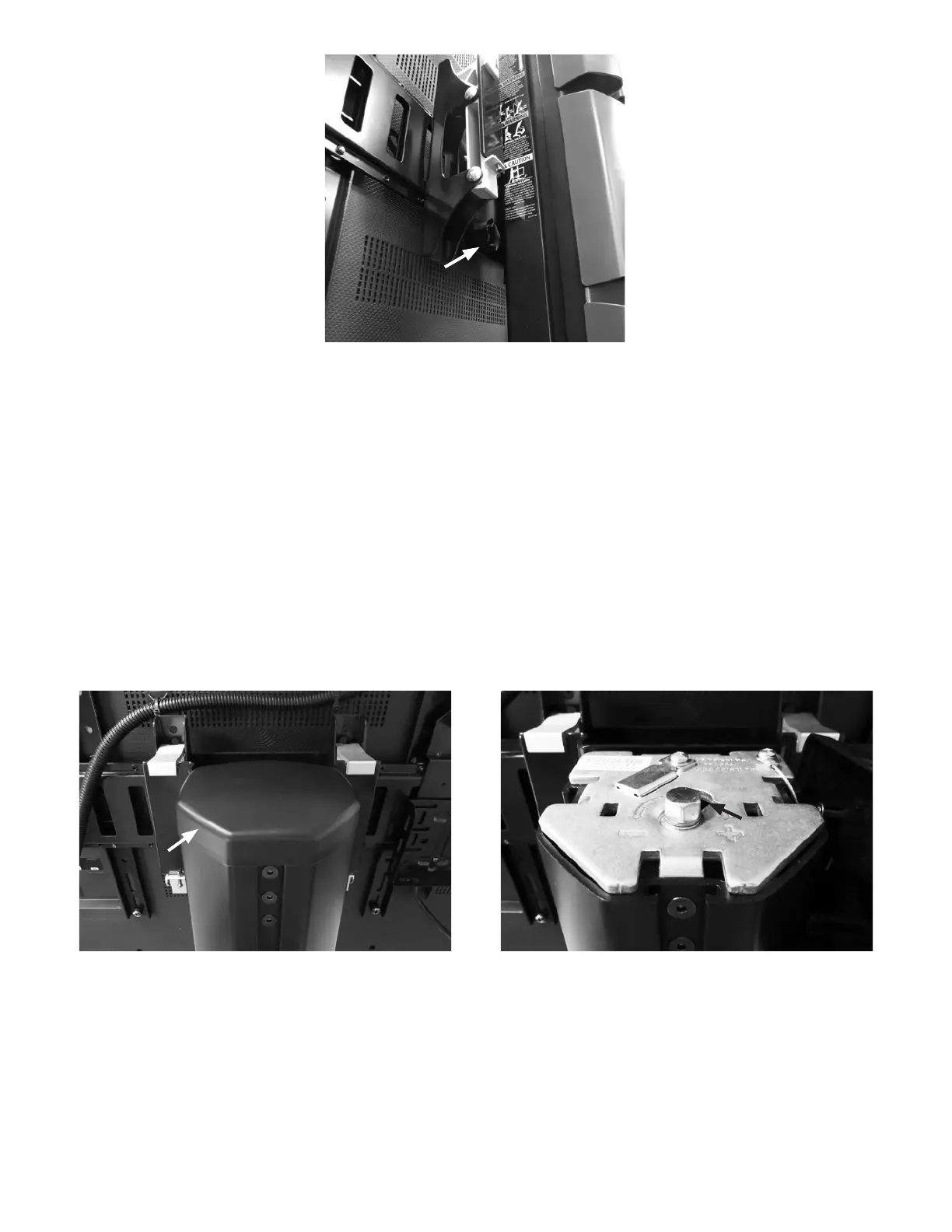
Figure 3: Knob, Back of Mounting Bracket
Adjusting Display Stand Lift Tension
The display monitor should be able to move smoothly and easily on the tower of the portable display stand and stay in place.
If movement is difficult or the display monitor does not stay in the desired position, then adjustment to the tension in the tower
is needed. Depending on the display monitor and the adjustment it may take several turns to notice a difference in tension.
To adjust the display stand tower tension:
1. Make sure the touchscreen display monitor has been moved to the highest position on the stand tower.
2. Remove the cover on the top of the portable stand tower. See Figure 4.
3. To tighten the tension, use a 14 mm wrench to turn the nut clockwise (turn toward the plus symbol). See Figure 4.
4. To loosen the tension, use a 14 mm wrench to turn the nut counter-clockwise (turn toward the minus symbol). See
Figure 4 .
5. Put the cover back on the portable stand tower.
Figure 4: Portable Stand Tower Cover (Left), Adjustment Nut on Portable Stand Tower (Right)
Computer Installation
1. Open the computer package and verify that the computer, mounting bracket, hardware, and power adapter
are present.
2. Attach the computer mounting bracket to the CPU Mount. See Figure 5. Secure with the four screws provided in the
Hardware Kit. The screws are located in a small bag in the box containing the remote control, Touchscreen Cleaning
Kit, stylus, and literature.



 To Next Page