8
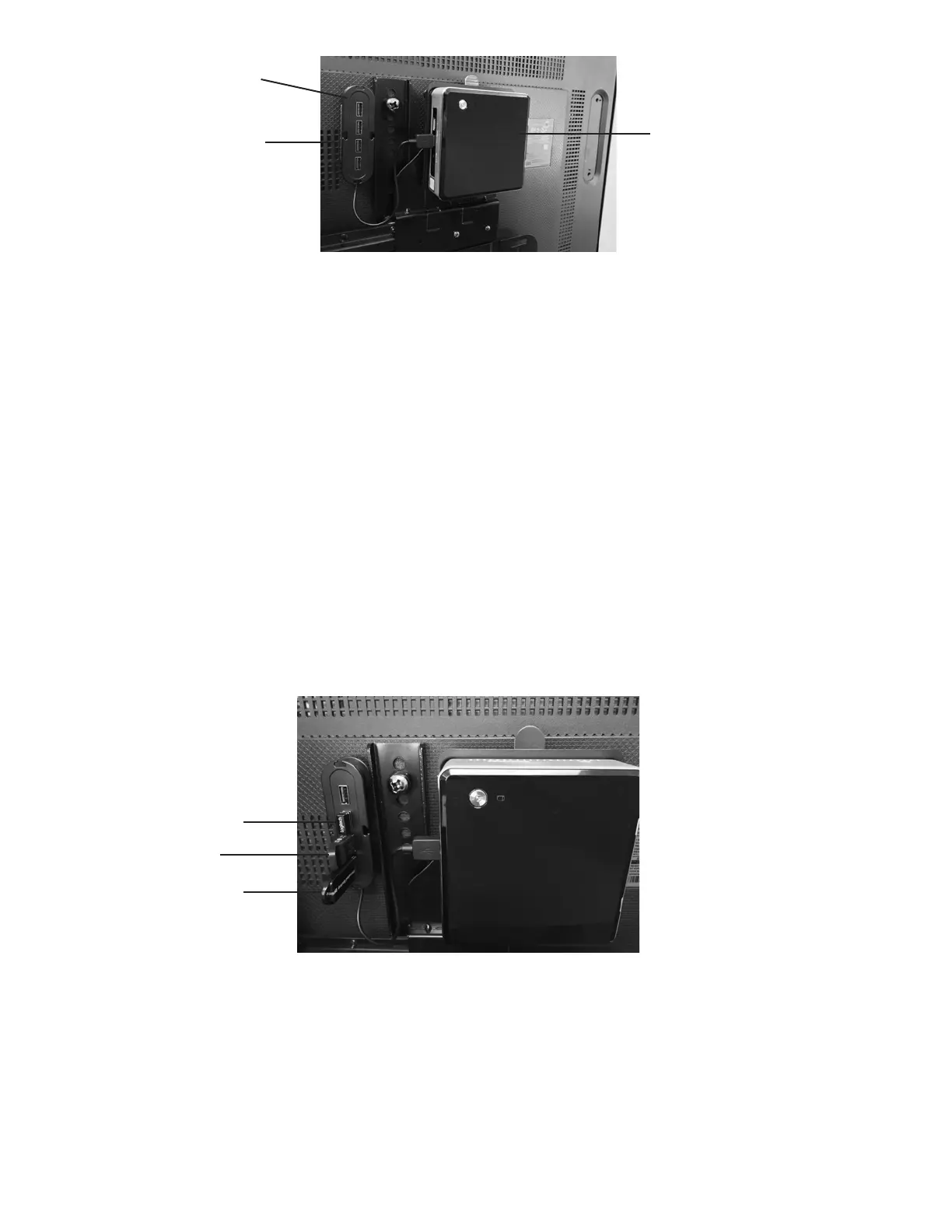
Figure 7: Securing the USB Hub
BITS License Key
1. Remove the BITS License Key from the box located in the Software Kit package.
2. Remove the protective cover from the BITS License Key.
3. Plug the BITS License Key into the USB Hub. See Figure 8.
Encrypted Backup USB
1. Remove the Encrypted Backup USB from the box located in the Software Kit package.
2. Remove the protective cover from the Encrypted Backup USB.
3. Plug the Encrypted Backup USB into the USB hub. See Figure 8.
Wireless Keyboard
1. Remove the Wireless Keyboard with integrated touch pad and small USB from package.
2. Plug the small USB into the USB Hub. See Figure 8.
3. Remove the battery protection strip(s) from the bottom of the keyboard. Turn the keyboard on by sliding the switch
located on the front panel of the keyboard to the ON position.
Figure 8: Connection Locations of BITS License Key, Encrypted Backup USB, and Small Keyboard USB
Touchscreen USB
1. Remove the tape securing the Touchscreen USB cable in the lower left corner of the Display Monitor.
2. Plug the Touchscreen USB cable directly into one of the USB ports located on the ride side of the computer.
Note: The Touchscreen USB must be plugged directly into the computer and not the USB Hub in order for the
Touchscreen to function properly.
USB Hub
Computer
Fastener



 To Next Page