EasyManua.ls Logo

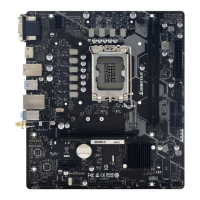
Biostar B660MX-E PRO - User Manual

Biostar B660MX-E PRO
147 pages
Print Icon
To Next Page IconTo Next Page
Loading...
https://tehnoteka.rs
Uputstvo za upotrebu (EN)
Biostar B660MX-E PRO matična ploča
Tehnoteka je online destinacija za upoređivanje cena i karakteristika bele tehnike,
potrošačke elektronike i IT uređaja kod trgovinskih lanaca i internet prodavnica u Srbiji.
Naša stranica vam omogućava da istražite najnovije informacije, detaljne karakteristike
i konkurentne cene proizvoda.
Posetite nas i uživajte u ekskluzivnom iskustvu pametne kupovine klikom na link:
https://tehnoteka.rs/p/biostar-b660mx-e-pro-maticna-ploca-akcija-cena/
1 / 147

Table of Contents

Questions and Answers

  • S
    Susan BallAug 7, 2025
    What to do if Biostar Motherboard does not boot from hard disk?
    • M
      Mary Hernandez MDAug 7, 2025
      If your Biostar Motherboard system fails to boot from a hard disk but boots from the optical drive, check the cable running from the disk to the disk controller board to ensure both ends are securely plugged in. Also, verify the drive type in the standard CMOS setup. It's also important to back up your hard drive, as hard disks can fail at any time.
  • E
    Elizabeth JonesAug 14, 2025
    What to do if Biostar B660MX-E PRO keyboard lights are on but system is inoperative?
    • S
      ssparksAug 14, 2025
      If your Biostar Motherboard system is inoperative but the keyboard lights are on, the power indicator lights are lit, and the hard drives are running, press down firmly on both ends of the DIMM until the module snaps into place, applying even pressure.
  • E
    emilyedwardsAug 22, 2025
    What to do if Biostar Motherboard shows “Invalid Configuration” or “CMOS Failure”?
    • M
      Mr. Charles Spears DVMAug 22, 2025
      If your Biostar Motherboard shows an “Invalid Configuration” or “CMOS Failure” message, review the system’s equipment and make sure the correct information is in the setup.
  • D
    David WilsonAug 29, 2025
    How to troubleshoot no power in Biostar B660MX-E PRO system?
    • K
      kramercherylAug 29, 2025
      If there is no power in your Biostar Motherboard system, and the power LED does not shine while the fan of the power supply does not work, make sure the power cable is securely plugged in. If it is, try replacing the cable. If the problem persists, contact technical support.

Summary

FCC Information and Copyright

Chapter 1: Introduction

1.1 Before You Start

Guidance on preparing a safe and suitable environment before installing the motherboard.

1.2 Package Checklist

List of items included in the motherboard package, noting potential regional variations.

1.3 Specifications

Detailed technical specifications of the Biostar B660MX-E PRO motherboard.

1.4 Rear Panel Connectors

Diagram and description of rear panel input/output connectors on the motherboard.

1.5 Motherboard Layout

Visual representation of motherboard components and connector locations.

Chapter 2: Hardware installation

2.1 Install Central Processing Unit (CPU)

Step-by-step guide for safely installing the CPU into the motherboard socket.

2.2 Install a Heatsink

Instructions for mounting the CPU heatsink and fan assembly correctly.

2.3 Connect Cooling Fans

Details on connecting CPU and system cooling fans to motherboard headers.

2.4 Install System Memory

Procedure for installing DDR4 memory modules into the DIMM slots.

2.5 Expansion Slots

Overview of PCI-Express and M.2 expansion slot types and capabilities.

Install an Expansion Card

Step-by-step process for installing expansion cards into the motherboard slots.

2.6 Jumper & Switch Setting

Explanation of jumper configurations for motherboard settings, focusing on Clear CMOS.

2.7 Headers & Connectors

Detailed pin assignments for various motherboard headers like ATX power and USB.

Chapter 3: UEFI BIOS & Software

3.1 UEFI BIOS Setup

Guide to accessing and configuring BIOS settings for the motherboard.

3.2 BIOS Update

Methods and steps for updating the motherboard's BIOS using utilities.

3.3 Software

Instructions for installing and launching system software and utilities provided.

BIOScreen Utility

Guide to using the BIOScreen utility for customizing the boot logo.

Vivid LED DJ

Instructions for controlling RGB LED lighting effects using the Vivid LED DJ software.

Chapter 4: Useful help

4.1 Driver Installation

Process for installing essential drivers from the provided DVD for optimal system performance.

4.2 AMI BIOS Beep Code

List of beep codes and their meanings for diagnosing boot issues.

4.3 AMI BIOS post code

Reference table of POST codes indicating system initialization status.

4.4 Troubleshooting

Common problems and their solutions for diagnosing system issues.

4.5 Intel Optane Technology (powered by 3 D XPoint memory)

Explanation of Intel Optane Technology features and requirements for use.

APPENDIX: Specifications in Other Languages

Arabic

Technical specifications of the motherboard presented in Arabic.

German

Technical specifications of the motherboard presented in German.

Spanish

Technical specifications of the motherboard presented in Spanish.

Thai

Technical specifications of the motherboard presented in Thai.

Japan

Technical specifications of the motherboard presented in Japanese.

Biostar B660MX-E PRO Specifications

General IconGeneral
BrandBiostar
ModelB660MX-E PRO
CategoryMotherboard
LanguageEnglish

Related product manuals