EasyManua.ls Logo

Biostar H81MHV3 - User Manual

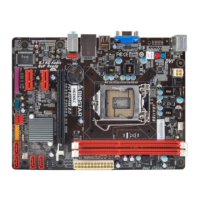
Biostar H81MHV3
37 pages
Print Icon
To Next Page IconTo Next Page
Loading...
H81MHV3/H81MDV3/H81MGV3/H81MLV3/H81MHV3L Setup Manual
FCC Information and Copyright
This equipment has been tested and found to comply with the limits of a Class B
digital device, pursuant to Part 15 of the FCC Rules. These limits are designed
to provide reasonable protection against harmful interference in a residential
installation. This equipment generates, uses, and can radiate radio frequency
energy and, if not installed and used in accordance with the instructions, may
cause harmful interference to radio communications. There is no guarantee that
interference will not occur in a particular installation.
The vendor makes no representations or warranties with respect to the contents
here and specially disclaims any implied warranties of merchantability or fitness
for any purpose. Further the vendor reserves the right to revise this publication
and to make changes to the contents here without obligation to notify any party
beforehand.
Duplication of this publication, in part or in whole, is not allowed without first
obtaining the vendor’s approval in writing.
The content of this user’s manual is subject to be changed without notice and we
will not be responsible for any mistakes found in this user’s manual. All the brand
and product names are trademarks of their respective companies.
Dichiarazione di conformità
sintetica
Ai sensi dell’art. 2 comma 3 del D.M.
275 del 30/10/2002
Si dichiara che questo prodotto è
conforme alle normative vigenti e
soddisfa i requisiti essenziali richiesti
dalle direttive
2004/108/CE, 2006/95/CE e
1999/05/CE
quando ad esso applicabili
Short Declaration of conformity
We declare this product is complying
with the laws in force and meeting all
the essential requirements as specified
by the directives
2004/108/CE, 2006/95/CE and
1999/05/CE
whenever these laws may be applied

Questions and Answers

  • A
    andersonbrittanyJul 29, 2025
    What to do if my Biostar H81MHV3 Motherboard system doesn't boot from the hard disk drive?
    • S
      Sarah SingletonJul 29, 2025
      If your system doesn't boot from the hard disk drive but boots from the optical drive, check the cable running from the disk to the disk controller board, ensuring both ends are securely plugged in. Also, check the drive type in the standard CMOS setup. Backing up the hard drive is extremely important, as all hard disks are capable of breaking down at any time.
  • M
    millsmichaelAug 4, 2025
    What to do if my Biostar H81MHV3 system only boots from an optical drive?
    • C
      Cynthia DavisAug 4, 2025
      If your system only boots from an optical drive, but hard disks can be read and applications can be used, back up your data and application files. Then, reformat the hard drive and reinstall the applications and data using backup disks.
  • R
    Richard FergusonAug 10, 2025
    What to do if Biostar H81MHV3 screen message shows “Invalid Configuration” or “CMOS Failure”?
    • M
      Matthew ReynoldsAug 10, 2025
      If the screen displays an “Invalid Configuration” or “CMOS Failure” message, review your system’s equipment and ensure the correct information is in the setup.
  • F
    frankpaulAug 16, 2025
    What to do if Biostar H81MHV3 system cannot boot after user installs a second hard drive?
    • B
      Benjamin FergusonAug 16, 2025
      If the system cannot boot after installing a second hard drive, set the master/slave jumpers correctly. Then, run the SETUP program and select the correct drive types. You may also call the drive manufacturers for compatibility information with other drives.
  • E
    Elizabeth CarpenterAug 23, 2025
    How to troubleshoot no power in Biostar Motherboard system?
    • I
      Ian FergusonAug 23, 2025
      If there is no power in the system, and the power LED does not shine while the fan of the power supply does not work, make sure the power cable is securely plugged in. If it is, try replacing the cable. If the issue persists, contact technical support.

Summary

FCC Compliance and Copyright Information

Chapter 1: Introduction

Before You Start

Essential preparation steps and safety guidelines before installing the motherboard.

Package Checklist

Lists all components included in the motherboard package for verification.

Motherboard Specifications

Rear Panel Connectors

Motherboard Layout

Chapter 2: Hardware Installation

Install Central Processing Unit (CPU)

Step-by-step guide for installing the CPU onto the motherboard socket.

Install a Heatsink

Connect Cooling Fans

Install System Memory

Expansion Slots

Jumper Setting

Clear CMOS Jumper

Guide to using the JCMOS1 jumper to clear CMOS settings and restore BIOS defaults.

Headers & Connectors

Chapter 3: UEFI BIOS & Software

UEFI BIOS Setup

Instructions on accessing and configuring BIOS settings for the motherboard.

BIOS Update

Procedures for updating the motherboard's BIOS using provided utilities.

Software Installation and Utilities

Installing Software

Guide to installing drivers and bundled software from the setup DVD.

Launching Software

How to start installed software applications from the desktop icon.

BIOScreen Utility

Utility to personalize the boot logo by selecting BMP images.

eHot-Line Utility

Chapter 4: Useful Help

Driver Installation

Steps to install essential drivers after operating system installation.

AMI BIOS Beep Codes

Troubleshooting Common Issues

CPU Overheating Protection

Biostar H81MHV3 Specifications

General IconGeneral
Form FactorMicro ATX
ChipsetIntel H81
CPU SocketLGA 1150
Memory Slots2 x DIMM
Maximum Memory16GB
Memory StandardDDR3 1600/1333
Expansion Slots1 x PCIe 2.0 x16, 1 x PCIe 2.0 x1
Storage Interface2 x SATA 6Gb/s, 2 x SATA 3Gb/s
AudioRealtek ALC662 6-Channel
LANRealtek RTL8111G - 10/100/1000 Mbps
Video Outputs1 x VGA, 1 x HDMI
Power Connector24-pin ATX, 4-pin ATX 12V
USB Ports2 x USB 3.0, 4 x USB 2.0

Related product manuals