EasyManua.ls Logo

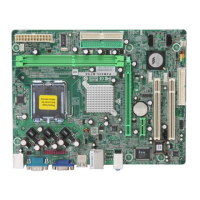
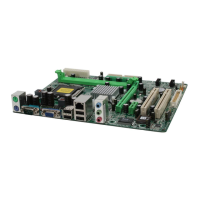
Biostar P4M900-M7 FE - User Manual

Biostar P4M900-M7 FE
43 pages
Go to English
Print Icon
To Next Page IconTo Next Page
Loading...
P4M900-M7 FE/P4M890-M7 FE Setup Manual
FCC Information and Copyright
This equipment has been tested and found to comply with the limits of a Class
B digital device, pursuant to Part 15 of the FCC Rules. These limits are designed
to provide reasonable protec tion against harmful interfe re nce in a residential
installation. This equipment generates, uses, and can radiate radio frequency
energy and, if not installed and used in accordance with the instructions, may
cause harmful interference to radio communications. There is no guarantee
that interference will not occur in a particular ins tallation.
The vendor makes no re presenta tions or wa rranties with respec t to the
contents here and specially disclaims any implied warranties of merchantability
o r fi tness fo r a ny p urpose . F urthe r t he ve ndo r rese rves t he ri ght to rev ise t h is
publication and to make changes to the contents here without obligation to
notify any party beforehand.
D uplica tion of this publication, in pa rt or in whole, is not allowed without first
obtaining the vendors approval in writing.
The content of this user’s manual is subject to be changed without notice and
we will not be res ponsible for any mis takes found in this users manual. All the
brand and product names are trademarks of their respective companies.

Questions and Answers

  • T
    Thomas SanchezJul 26, 2025
    What to do if my Biostar P4M900-M7 FE has no power?
    • G
      gonzalesgailJul 26, 2025
      If your Biostar motherboard system shows no signs of power, such as the power light not illuminating and the internal power supply failing to activate, ensure the power cable is securely connected. If the problem persists, try replacing the cable. If neither solution works, contact technical support.
  • J
    Jennifer BauerJul 31, 2025
    What to do if my Biostar P4M900-M7 FE Motherboard system is inoperative but lights are on?
    • S
      steveabbottJul 31, 2025
      If your Biostar motherboard system is inoperative but keyboard lights are on, the power indicator is lit, and the hard drive is spinning, apply even pressure to both ends of the DIMM until the module clicks into place.
  • L
    Lisa CarpenterAug 5, 2025
    What to do if my Biostar Motherboard only boots from optical drive but hard disk can be read?
    • C
      Christopher BakerAug 5, 2025
      If your Biostar motherboard system only boots from the optical drive, but the hard disk can be read and applications can be used, back up your data and application files. Then, reformat the hard drive and reinstall the applications and data using backup disks.
  • S
    Scott BauerAug 10, 2025
    What to do if Biostar Motherboard shows 'Invalid Configuration'?
    • K
      Kelly WilliamsAug 10, 2025
      If you see an 'Invalid Configuration' or 'CMOS Failure' message on your Biostar Motherboard, review your system's equipment and ensure the correct information is in the setup.
  • J
    Jason BuckAug 15, 2025
    How to fix Biostar Motherboard that cannot boot after installing second hard drive?
    • C
      Christina BeckAug 15, 2025
      If your Biostar Motherboard system cannot boot after installing a second hard drive: 1. Set the master/slave jumpers correctly. 2. Run the SETUP program and select the correct drive types. 3. Call the drive manufacturers to ensure compatibility with other drives.
  • B
    bakerannAug 19, 2025
    How to fix Biostar P4M900-M7 FE when there is no power at all?
    • R
      Rebecca WellsAug 20, 2025
      If your Biostar Motherboard system shows no signs of power, with no illuminated power lights, ensure the power cable is securely plugged in. If the issue persists, try replacing the cable. If problems continue after that, further assistance may be needed.

Summary

FCC Information and Copyright

Chapter 1: Introduction

Before You Start

Instructions for preparing the installation environment and handling the motherboard safely.

Package Checklist

Lists the components included in the motherboard package for verification.

Motherboard Features

Details the technical specifications and capabilities of the motherboard models.

Rear Panel Connectors

Describes the physical connectors located on the motherboard's rear I/O panel.

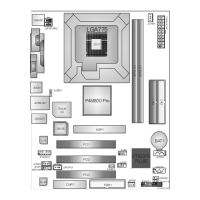
Motherboard Layout

Provides a diagram illustrating the placement of key components and connectors on the motherboard.

Chapter 2: Hardware Installation

Installing Central Processing Unit (CPU)

Step-by-step instructions for safely installing the CPU into its socket on the motherboard.

Fan Headers

Explains the function and pin assignment for CPU and system fan headers for proper cooling.

Installing System Memory

Guide for correctly inserting DDR2 memory modules into the motherboard's DIMM slots.

Connectors and Slots

Details various onboard connectors and expansion slots like PCI, PCI-Express, SATA, and IDE.

Chapter 3: Headers & Jumpers Setup

How to Setup Jumpers

Illustrates how to correctly position jumper caps for various motherboard configurations.

Detail Settings

Provides pin assignments and functions for front panel headers, power connectors, and other onboard headers.

Chapter 4: RAID Functions

Operation System

Lists the compatible operating systems for utilizing the motherboard's RAID features.

RAID Arrays

Defines and differentiates between RAID 0 (striping) and RAID 1 (mirroring) array types.

How RAID Works

Explains the data striping and mirroring techniques used in RAID 0 and RAID 1 configurations.

Chapter 5: Useful Help

Driver Installation Note

Instructions for installing essential drivers and software from the provided CD for optimal system performance.

Award BIOS Beep Code

Lists common BIOS beep codes and their corresponding meanings for system diagnostics.

Extra Information

Provides additional technical details, including CPU overheating protection mechanisms.

Troubleshooting

Offers solutions for common hardware and system boot issues, guiding users through problem resolution.

Biostar P4M900-M7 FE Specifications

General IconGeneral
Form FactorMicro ATX
Socket TypeLGA 775
ChipsetVIA P4M900
Memory TypeDDR2
Maximum Memory4 GB
AudioRealtek ALC662 6-Channel HD Audio
Onboard VideoVIA Chrome9 HC IGP
Video OutputsVGA
CPU SupportIntel Pentium 4, Pentium D, Core 2 Duo
Memory Slots2
Expansion Slots1 x PCI Express x16, 2 x PCI
Storage InterfacesSATA 3.0 Gb/s
USB Ports8 (4 rear, 4 via headers)

Related product manuals