Additional Features
34
Save Screen Picture (jpeg)
Saves a JPEG file of the current Sweep Display Area, press the menu option and
a save dialog is displayed allowing the user to enter a file name or use the
default file name.
Note: If the Site Name option is set to ON an Edit SiteName dialog
box will be displayed each time screen shot is taken.
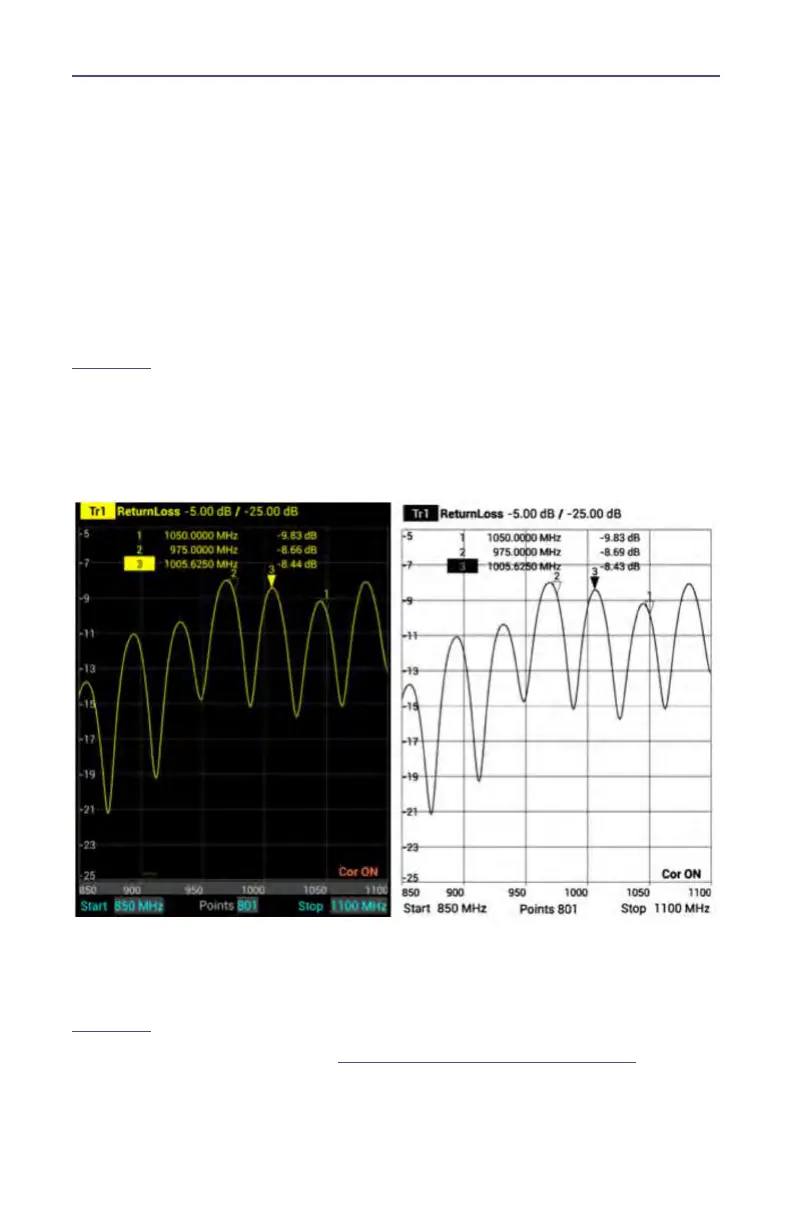
Color Screen Shot
Press to toggle screen shots in color or black and white. When set to OFF screen
shots will be black and white, when set to ON screen shots will be in color. See
Figure 24
Note: The default setting for Color Screen Shot option is OFF. If
the SiteHawk application is exited or SiteHawk is powered off the Color Screen
Shot option is reset to OFF.
Figure 24 Screen Shots in Color or Black and White
Delete User File
Press to display the Delete User File dialog box. The Delete User File dialog box
allows any one file type or all file types to be deleted from the SiteHawk. See
Figure 25
.
For procedure to delete files see
“Data Save and Export” on page 38
.



 To Next Page