CHAPTER 19: Even More Messenging
42
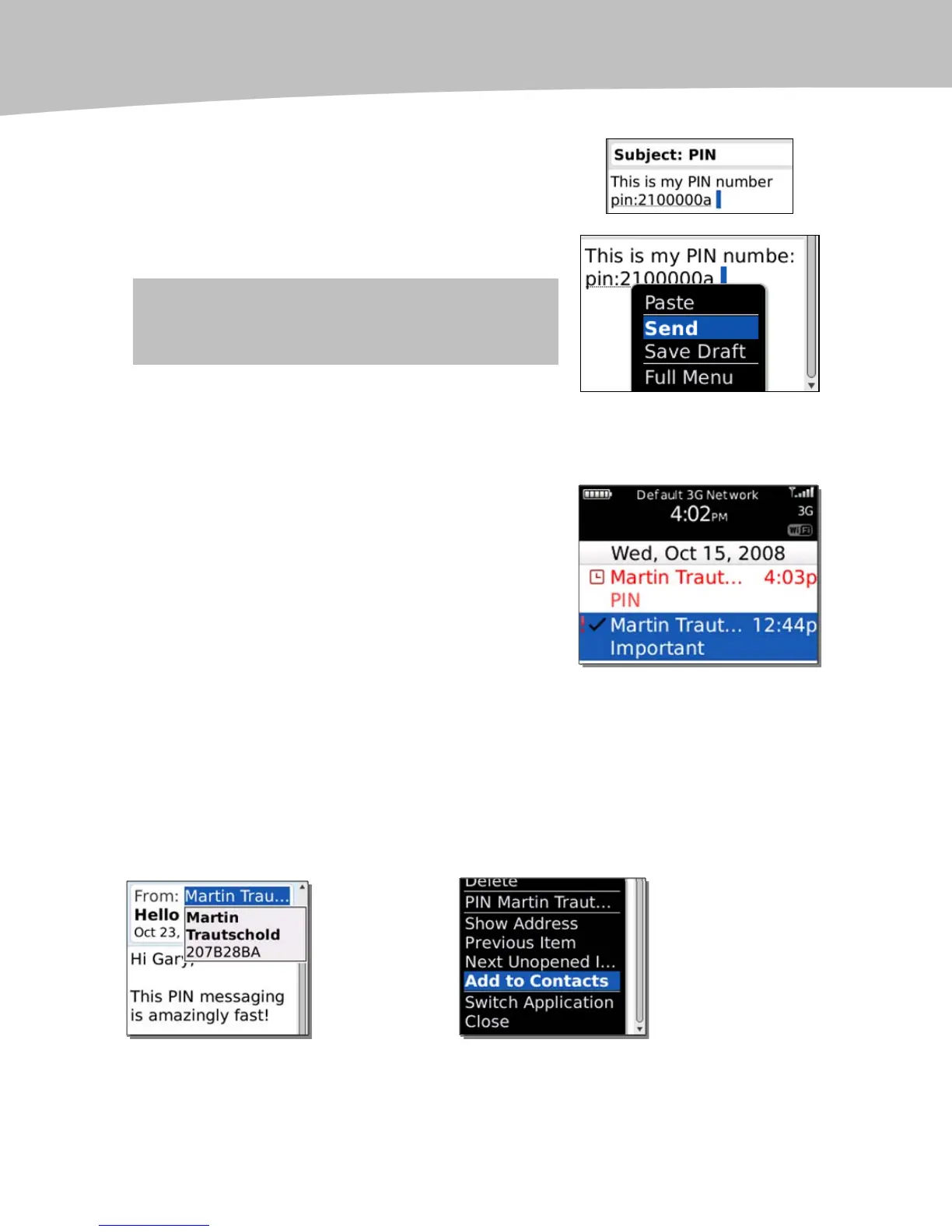
3. Press the Space key to see your own
BlackBerry PIN number inserted right in
the text replacing the mypin text.
4. Click the trackpad and select Send.
TIP: Store your friends’ PINs in your Contact List for
easy access.
Replying to a PIN Message
Once you receive your PIN message, you will see that
it is highlighted in red text in your Inbox.
To reply to a PIN message, simply click the trackpad
to open it, then click the trackpad again and select
Reply (just like with email and other messaging).
Adding Someone’s PIN to Your Contacts
Once you receive an email containing a PIN from your colleague or family member, you
should put this PIN into your Contact list.
If you don’t already have this person in your contact list
, then highlight the PIN and
press the Menu key to select Add to Contacts. Enter their name, phone number, email,
and other information. See Figure 19-1.
Press
Menu key
Figure 19-1. Add a PIN to contact information




 To Next Page