Toimportorexportcontacts:
1.PresstheContactsicontoenterthephonebook.
2.PressthemenukeyandselectImport/Export
3.Selectthesourceyouwanttocopythecontactsfrom.Onceselectedclicknextandselect
thedestinationwhereyouwantthecontacttobecopiedtothenselectthedesiredcontactsto
becopied.
Messaging
Youmayusethisfunctiontoexchangetextmessagesandmultimediamessageswithyour
familyandfriends.Themessagestoandfromthesamecontactorphonenumberwillbe
savedintoasingleconversationsoyoumayseetheentiremessagehistoryconveniently.
SendanSMS
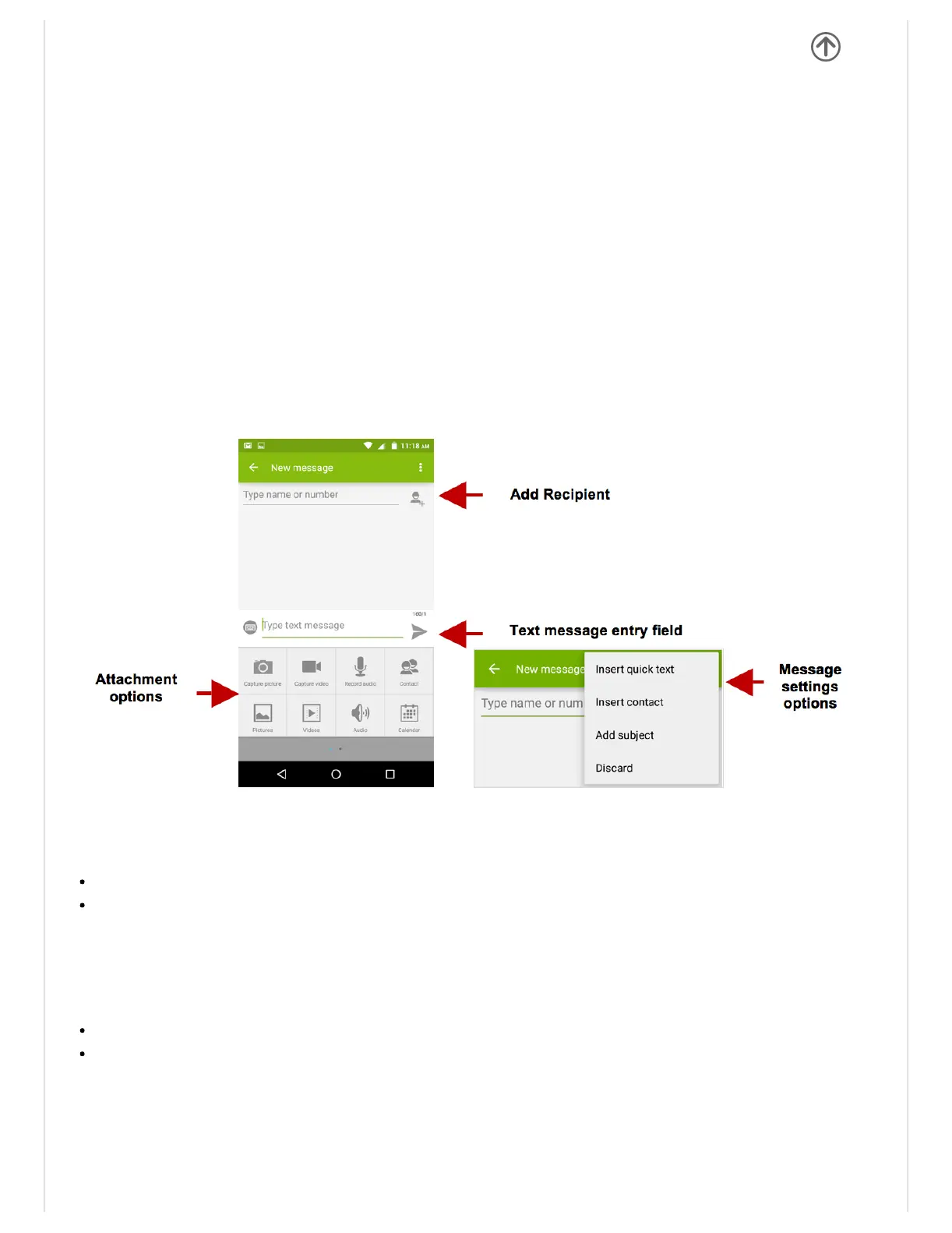
ApplicationMenu»Messaging»Newmessage(orshortcuticon)
Clickthecontacticontoentertextmessagerecipient
ComposeTextMessageandclickSend
SendanMMS
Whencreatingmessage,thedefaultmessagestyleisSMS.Themessagewillautomatically
converttoMMSwhenaddinganattachmentorwhensurpassing10pagesofSMSmessages.
Clicktheattachmenticoninthemessaginginterface.
ClicktoaddattachmentsandcreateanMMSmessage
Bluetooth&WiFi
Bluetoothisashortrangewirelesscommunicationstechnologythatdevicescanuseto


 To Next Page