30
n
Never remove the plastic feet from the device. If
one foot or several feet become loose, the
device must be sent to Bohle AG for installing
new feet and calibrating the device accordingly.
These repair works involve costs. Please contact
your dealer.
n
Repairs may only be performed by the manufac-
turer, please contact your dealer.
11 Installation and Operation
of the GlassBuddy
Software
Installation of the GlassBuddy software must be
done with full administrative rights to the computer.
The enclosed software, suitable for PC and laptop
with an operating system starting from Windows
2000 or later, allows you to comfortably store your
measuring results.
Installation
To install the software, connect the supplied USB to
your computer and start the programme setup.exe in
the Explorer.
The programme will then be installed onto your
computer. After installation you will need to restart
your computer.
Programme Start
To start the GlassBuddy programme, double-click
the GlassBuddy programme icon on your desktop.
Programme Description
This programme allows you to transfer data from the
memory of the GlassBuddy to your computer.
To do this, the device needs to be connected to your
PC via the supplied USB cable.
In addition, you can also call up any previously
imported and saved data using the programme
without a connection to the GlassBuddy.
Programme Screen
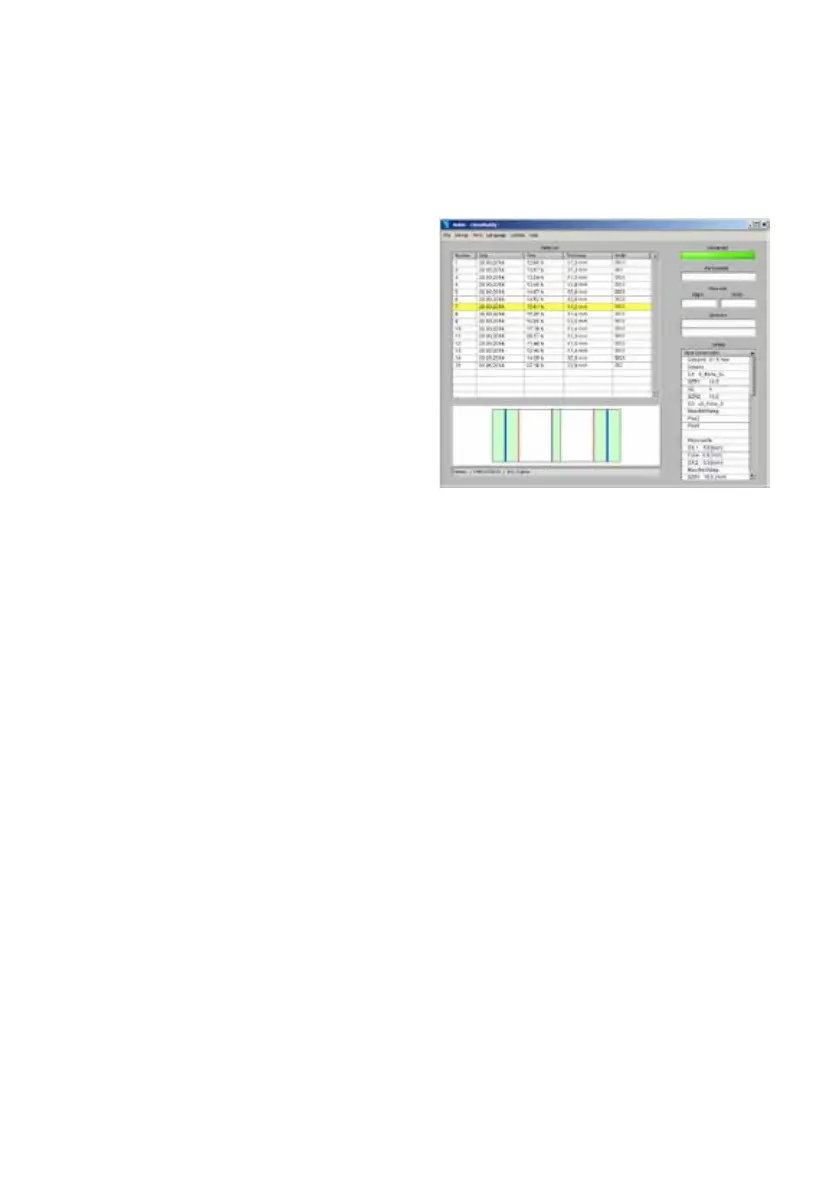
Once the programme has started, you will see the
empty programme screen with the following areas:
Pane List
The measurements transferred from the Glass-
Buddy are listed here according to the sequential
number. The date of the measurement, the time, the
total thickness of the glass structure as well as the
measuring mode are also shown.
The graphic shows you the pane composition of the
selected glass in the corresponding list. The results
for glass (green), film (blue), fire protection gel
(yellow) and layer (purple) are highlighted in differ-
ent colours.
The field below the graphic shows the following
information about the device: name (if applicable),
serial number and model number of the device
firmware.
Connected
This field is dark green if the GlassBuddy is not con-
nected to the programme and light green if the
GlassBuddy is connected to the programme.
Component Number
Here you can assign a component number for the
selected measurement.
Pane Size
Here you can indicate pane width and height for the
selected measurement.
Comments
If you have selected a measurement from the pane
list, you can add an individual comment to this
measurement.


 To Next Page