en
|
20
|
User Manual
|
ADS 325
582819 | REV. A | 07.2018
Bosch Automotive Service Solutions Inc
Data Stream
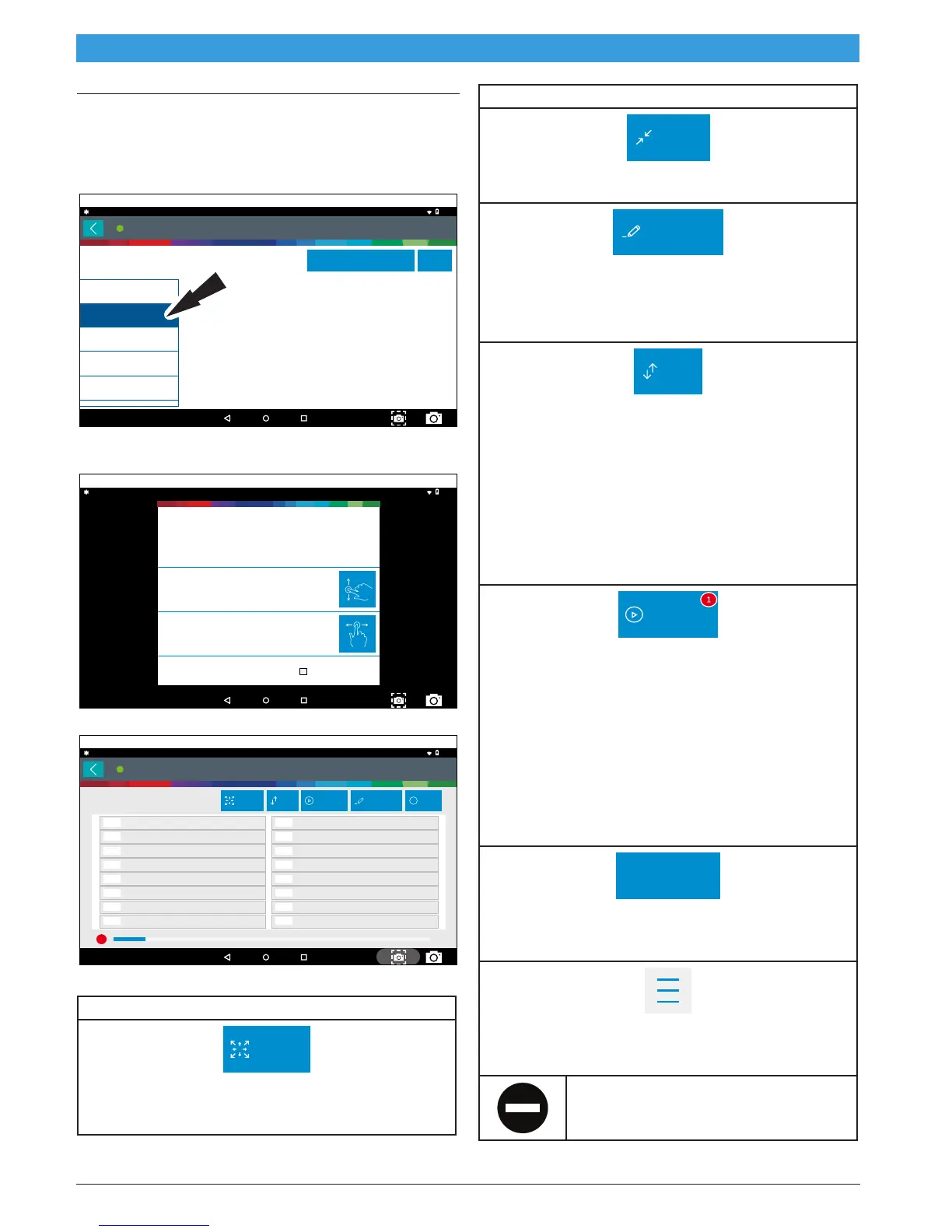
Mode 1 views live vehicle sensor data.
The data stream function shows live sensor and solenoid
data streaming from the vehicle’s electronic control unit
(ECU).
Generic OBDII
10:52
Readiness Mode 1
TAP 'DATA STREAM MODE 1' TO REOPEN
Data Stream Mode 1
DTCs Modes 3, 4, 7, A
Freeze Frame Mode 2
02 Sensors Mode 5
Use Metric Units Help
?
May 31, 2018
Connected
ss03108
1. Select Data Stream Mode 1 from the Generic OBDII
screen.
10:53
Please select how you would like to scroll between pages. This
setting can also be changed from Settings tab
Touch here to use Vertical Scrolling
Touch here to use Horizontal Scrolling
Don't show this again
Scroll Options
ss03109
2. Select scrolling preference.
OBDII
10:56
May 31, 2018
Connected
Boost Pressure Sensor A
psi8.2
Commanded Boost Pressure A
psi37.9
Turbocharger Compressor Inlet Pressure
psi26
Turbocharger A Compressor Inlet
°F414
Westgate A Position
%118.3
Commanded Westgate A Position
1 of 2
BUFFERING DATA..
20 / 200 frames
%223.8
Intake Air Temperature Sensor Bank 1,
°F484
Intake Air Temperature Sensor Bank 2,
°F495
Intake Air Temperature Sensor Bank 2,
°F1042
Intake Air Temperature Sensor Bank 2,
°F144
Boost Pressure Sensor B
psi87.9
Commanded Boost Pressure B
psi82.0
Turbocharger Compressor Inlet Pressure
psi69
Westgate B Position
%560.0
Variable Geometry Turbo A Position
%319.5
Commanded EGR A Duty Cycle/Position
%430.0
Expand Sort OtherPlayback Customize
ss03110
3. Follow the prompts on the screen.
Data Stream Button Definitions
Expand
Expand Screen View Function
To view the data in the enlarge view, press the Expand
button.
Data Stream Button Definitions
Shrink
Shrink Function
To zoom out press the Shrink button
Customize
Customize:
1. Choose only the data you want to view by checking
the box in front of each desired data item.
2. Select the Sort button.
Sort
Sort Function:
• Select Sort to sort data items.
• Data may be sorted alphabetically, by graph, or
by selection (checkbox checked).
• Sorting data items will reset the timeline frame
counter, so sort these items before recording
data. If sorting data while recording the record-
ing will have a period of time where there is no
data available.
Playback
Playback:
• Select Recordings to view previously recorded
data streams.
• Recordings are listed from newest to oldest.
When the folder is full, the newest recording
pushes the oldest one out of the list. Currently,
there is no way to manually delete recordings.
• To view recordings, select the Recordings but-
ton near the top of the display.
• Select the desired recording.
Screen Capture
Screen Capture
Selecting Screen Capture will save a copy of the cur-
rent open screen.
Menu Button
Tapping the Menu button displays a pop-up link that
takes the user to more buttons.
Erase All Recordings.



 To Next Page