EasyManua.ls Logo

Bosch AUTODOME IP starlight 5000i - User Manual

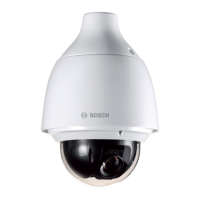
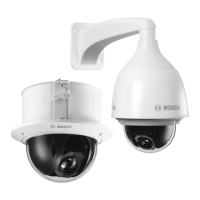
Bosch AUTODOME IP starlight 5000i
40 pages
Print Icon
To Next Page IconTo Next Page
Loading...
AUTODOME IP starlight 5000i (pendant)
NDP‑5512‑Z30│NDP‑5512‑Z30‑P
en
Installation Manual

Questions and Answers

  • K
    Katherine OliverAug 16, 2025
    What to do if there is no video on my Bosch Security Camera?
    • A
      Alexander SanchezAug 16, 2025
      To fix no video on your Bosch Security Camera, first, check that the main power to the power supply is on. If you have no webpage, you may have the wrong IP address. Use Configuration Manager to identify the correct IP address. Also, check that there is 24 V output from the transformer.
  • J
    Jordan WilliamsAug 19, 2025
    Why is the picture dark on my Bosch Security Camera?
    • K
      Kelly NicholsSep 12, 2025
      If your Bosch Security Camera picture is dark, verify that the Gain Control is set to High and the Auto Iris Level is set to the appropriate level. Also, ensure that the maximum distance between any two Ethernet connections is 100 m (328 ft) or less. As a last resort, restore all camera settings.
  • M
    monicanewmanAug 22, 2025
    How to fix no network connection on Bosch AUTODOME IP starlight 5000i Security Camera?
    • R
      Robyn PhillipsAug 22, 2025
      To resolve a no network connection issue with your Bosch Security Camera, check all network connections and ensure that the maximum distance between any two Ethernet connections is 100 m (328 ft) or less. If your camera is behind a firewall, ensure that the Video Transmission mode is set to UDP.
  • H
    Holly HernandezAug 25, 2025
    Why does my Bosch AUTODOME IP starlight 5000i Security Camera move when attempting to move other cameras?
    • D
      Debra Rangel DDSAug 26, 2025
      If your Bosch Security Camera moves when attempting to move other cameras, use Configuration Manager to confirm that two cameras do not have the same IP address. If they do, change the address of one of the cameras.
  • J
    Jorge TorresAug 27, 2025
    What to do if the contrast on the screen is too weak on Bosch AUTODOME IP starlight 5000i Security Camera?
    • A
      alvarezjoannaAug 28, 2025
      If the contrast on the screen of your Bosch Security Camera is too weak, adjust the contrast feature of the monitor. If the camera is exposed to strong light, reposition the camera.
  • C
    Charles SmithAug 31, 2025
    Why does the image on the screen flicker on my Bosch AUTODOME IP starlight 5000i Security Camera?
    • K
      Kristine CunninghamAug 31, 2025
      If the image on the screen of your Bosch Security Camera flickers, it might be because the camera faces directly into the sun or fluorescent lighting. If so, reposition the camera.
  • R
    renee25Sep 2, 2025
    Why does my Bosch AUTODOME IP starlight 5000i reboot frequently?
    • E
      Erik MccoySep 2, 2025
      If your Bosch Security Camera reboots frequently or intermittently, test your camera with another power supply. You can also check the Bosch website for a software update that might address the issue.
  • K
    Kyle EvansSep 6, 2025
    How to fix no camera control on Bosch Security Camera?
    • R
      Ricky SmithSep 6, 2025
      If you have no camera control on your Bosch Security Camera, ensure that the LAN cable has a good and secured connection. Refresh the browser and ensure that the video is updated. Cycle the camera's power off and on.
  • C
    Christina CampbellSep 9, 2025
    How to fix if background is too bright to see subject on Bosch Security Camera?
    • M
      michael59Sep 9, 2025
      To resolve the issue where the background is too bright to see the subject on your Bosch Security Camera, turn on backlight compensation.
  • C
    charles42Sep 12, 2025
    Why no OSD messages appear on my Bosch AUTODOME IP starlight 5000i Security Camera?
    • J
      Joshua MorganSep 12, 2025
      Bosch’s Video SDK is required for OSD messages to appear on your Bosch Security Camera. If you are using video management software from third parties it does not use the SDK.

Summary

Safety

About this Manual

Provides information regarding the manual's content, accuracy, and potential updates.

Legal Information

Outlines copyright ownership and trademark acknowledgments for the manual and product.

Safety Precautions

Explains safety symbols and notations used to highlight hazardous situations and important information.

Important safety instructions

Lists critical safety directives for operating the device, including handling and environmental considerations.

Additional safety information

Covers further safety guidelines, including cable distance, wire gauge, and specific installation warnings.

Connection in Applications

Details how the camera can be integrated and connected within various application scenarios.

Important notices

Presents crucial notices, including FCC compliance statements and supplier declarations of conformity.

Use latest software

Stresses the importance of installing and maintaining the latest software for optimal performance and security.

Customer Support and Service

Provides contact details and resources for obtaining technical support and service for the device.

Introduction

System requirements

Lists the recommended hardware and software prerequisites for operating the camera system.

Establishing the connection

Details the initial steps to obtain an IP address and connect the camera to a network.

Establishing the connection

Further guidance on network connection, including default IP, DHCP, and configuration manager usage.

Configuration with Project Assistant app

Explains how to use the Project Assistant app for initial camera configuration and setup.

Product Description

Product Description

Describes the camera's design and capabilities, highlighting its suitability for surveillance in varying light conditions.

Preparing Wiring

Preparing Wiring

Provides recommendations for wiring, including maximum cable distances and appropriate wire gauges for optimal performance.

Preparing the Camera

Preparing the Camera

Details the steps for disassembling the camera for installation, including removing protective elements.

Installing a microSD card (optional)

Installing a microSD card (optional)

Illustrates the procedure for inserting a microSD card into the camera for storage.

Installing a Camera Directly to an Indoor Wall

Installation Requirements

Specifies the wall strength and structural conditions necessary for direct indoor wall mounting.

Preparing the Wall for Installation

Outlines the process of marking, drilling, and cutting holes for cables and mounting hardware on an indoor wall.

Installing the Wall Mount

Guides the user through attaching the direct connect plate and wall mount to the prepared wall surface.

Attaching the Mounting Cap and the Camera

Details the steps for sealing and securing the mounting cap and camera onto the installed wall mount.

Installing a Surveillance Cabinet and Camera

Installing the Wall Mount

Describes how to attach the wall mount to the surveillance cabinet's front door.

Attaching the Mounting Cap and the Camera

Explains the process of securing the mounting cap and camera to the surveillance cabinet assembly.

Installing a Roof Mount and Camera

Installing the Roof Mount

Provides instructions for mounting the camera bracket onto a roof or parapet structure.

Attaching the Mounting Cap and the Camera

Details the steps for sealing and attaching the mounting cap and camera to the roof mount assembly.

Installing a Pipe Mount and Camera

Tools Required

Lists the essential tools needed for the pipe mount installation process.

Preparing the Ceiling for Installation

Guides on selecting a secure ceiling location and preparing it for pipe mount installation.

Installing the Pipe Mount

Details the procedure for attaching the pipe mount and its components to the ceiling structure.

Attaching the Mounting Cap and the Camera

Explains how to seal and attach the mounting cap and camera to the pipe mount.

Connection

Connection

Details the wiring requirements and system configuration for connecting the camera to a network and power source.

Decommissioning

Transfer

Information on how to properly transfer the device, including the accompanying installation manual.

Disposal

Provides instructions for environmentally responsible recycling and disposal of the electronic device.

Support

Support

Lists available support channels, online resources, and training opportunities for Bosch products.

Bosch AUTODOME IP starlight 5000i Specifications

General IconGeneral
Digital Zoom12x
Sensor Type1/2.8-inch CMOS
Video CompressionH.265, H.264, MJPEG
Ingress ProtectionIP66
Impact ProtectionIK10
Frame RateUp to 60 fps
Operating Temperature-40°C to +60°C (-40°F to +140°F)
Optical Zoom30x
Power SupplyPoE+ (IEEE 802.3at)
Audio CompressionG.711; G.726; AAC
ProtocolsIPv4, IPv6, HTTP, HTTPS, RTSP, RTP, TCP, UDP, IGMP, ICMP, FTP, DHCP, ARP, SNMP, SMTP, NTP, DNS, DDNS

Related product manuals