EasyManua.ls Logo

Bosch VIP X1 - User Manual

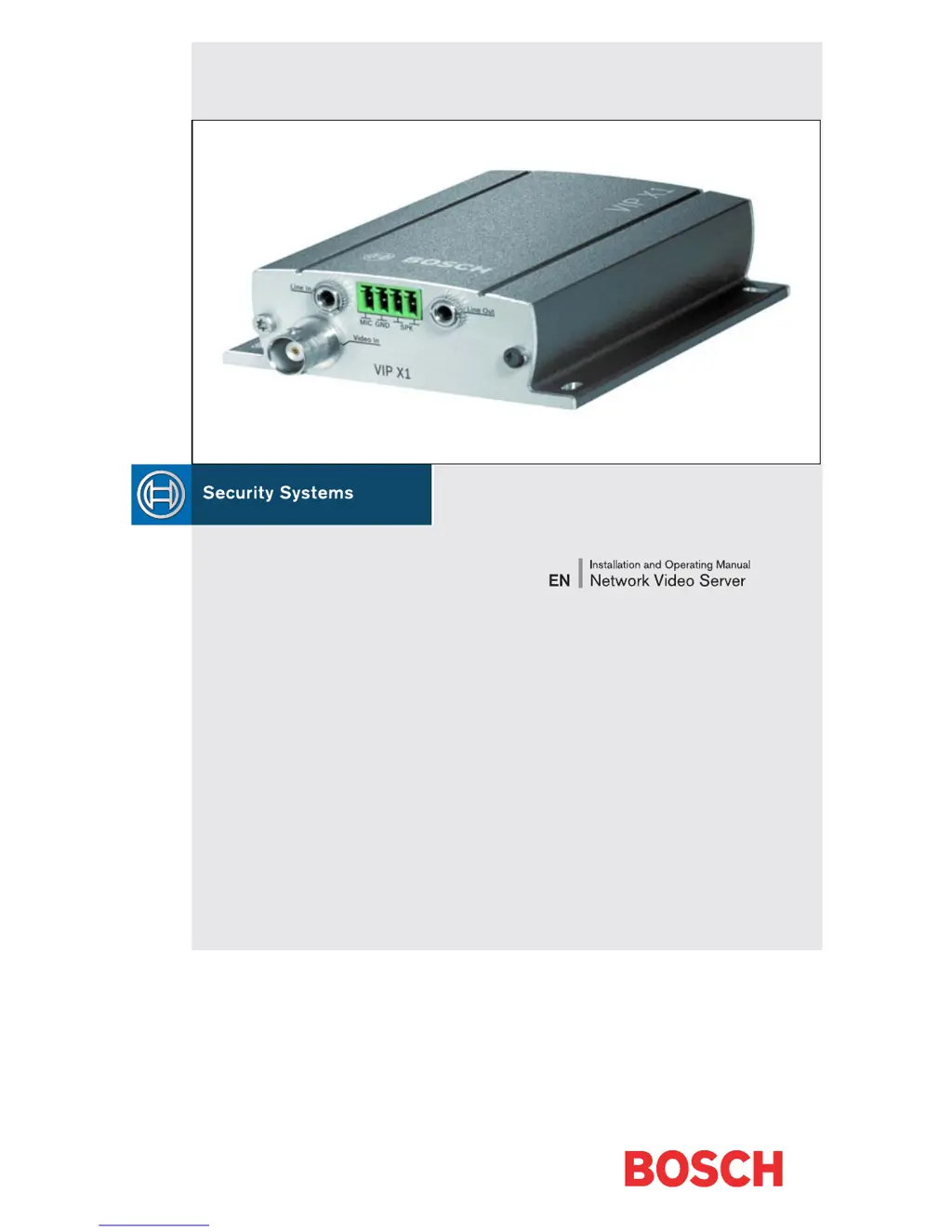
Bosch VIP X1
144 pages
Print Icon
To Next Page IconTo Next Page
Loading...
VIP X1

Table of Contents

Other manuals for Bosch VIP X1

Questions and Answers

  • D
    David MaciasAug 19, 2025
    How to troubleshoot a Bosch Network Hardware unit that is not operational after firmware upload?
    • C
      Cynthia BakerAug 19, 2025
      If your Bosch Network Hardware unit isn't working after a firmware upload, it could be due to a power failure during programming by the update file. Have the unit checked by Customer Service and replace if necessary. Also, it could be due to an incorrect update file. Enter the IP address followed by / main.htm in your web browser and repeat the upload.
  • E
    Emily RodriguezAug 21, 2025
    What if Bosch VIP X1 unit is not operational after firmware upload?
    • B
      Brent PerezAug 21, 2025
      If the Bosch Network Hardware unit is not operational after a firmware upload, it could be due to a power failure during programming by the update file. In this case, have the unit checked by Customer Service and replace it if necessary. Alternatively, the problem could be an incorrect update file. To resolve this, enter the IP address followed by /main.htm in your web browser and repeat the upload.
  • C
    ckellyAug 25, 2025
    What to do if my Bosch Network Hardware has no connection established and no image transmission?
    • C
      Cheryl RhodesAug 25, 2025
      If your Bosch Network Hardware has no connection and isn't transmitting images, several factors could be at play. Begin by verifying all configuration parameters and ensuring all cables, plugs, contacts, and connections are properly installed. Check the IP addresses using a terminal program and assess data transmission within the LAN using the ping command. Also, consider that the maximum number of connections might have been reached; in this case, wait for a free connection and try the transmitter again.
  • R
    Rebecca SmithAug 26, 2025
    Why is my Bosch VIP X1 not reporting an alarm?
    • J
      Javier FowlerAug 26, 2025
      If your Bosch Network Hardware isn't reporting alarms, it could be due to a couple of reasons. First, check that you've selected the appropriate alarm sources on the Alarm sources configuration page. Also, ensure that you've specified the desired alarm response on the Alarm connections configuration page; if needed, change the IP address.
  • C
    Chris MillerAug 27, 2025
    How to fix no image transmission to remote location on Bosch Network Hardware?
    • J
      Joseph Smith Jr.Aug 27, 2025
      If you're experiencing no image transmission to a remote location with your Bosch Network Hardware, there are a couple of things to investigate. Initially, check all cables, plugs, contacts, and connections for any faults. Also, connect a local monitor to the camera to check if the camera itself is defective.
  • K
    Kyle MccormickAug 30, 2025
    What to do if control of cameras or other devices is not possible with Bosch Network Hardware?
    • M
      Mr. Richard PaceAug 30, 2025
      If you're unable to control cameras or other devices using your Bosch Network Hardware, the issue might stem from the cable connection between the serial interface and the connected device. Check all cable connections and ensure all plugs are properly plugged in. Also, verify that the interface parameters are compatible with those of the other connected device, adjusting settings as necessary to ensure compatibility across all devices involved.
  • M
    mhernandezSep 1, 2025
    How to fix no connection between Bosch Network Hardware unit and terminal program?
    • E
      Elizabeth PerezSep 1, 2025
      If there's no connection between your Bosch Network Hardware unit and the terminal program, start by checking all cables, plugs, contacts, terminals, and connections. If the issue persists, verify that the computer's serial interface is connected, trying other serial interfaces if necessary. Also, ensure that the interface parameters match; if needed, try standard parameters like 19,200 baud, 8 data bits, no parity, and 1 stop bit, then disconnect and reconnect the unit to the mains.
  • L
    Lawrence RoweSep 2, 2025
    What to do if Bosch Network Hardware has no connection and no image transmission?
    • E
      Erica MooreSep 3, 2025
      If your Bosch Network Hardware has no connection and no image transmission, consider these potential causes and solutions: First, check all configuration parameters. Second, ensure that all cables, plugs, contacts, and connections are properly installed. Third, verify the IP addresses using a terminal program. Fourth, test the data transmission within the LAN using the ping command. Finally, the maximum number of connections might have been reached; wait until a connection becomes available and try the transmitter again.
  • C
    cooklindseySep 4, 2025
    Why is there no audio transmission from the target location on my Bosch VIP X1 Network Hardware?
    • M
      Michael BeckerSep 4, 2025
      If you're experiencing no audio transmission from the target location using your Bosch Network Hardware, there could be several reasons: * A hardware failure: Verify that all connected audio devices are functioning correctly. * Faulty cable connections: Check all cables, plugs, contacts, and connections. * Faulty configuration: Review the audio settings, including volume and coding mode. * Audio/voice communication is busy: Wait until a connection is available, then contact the sender again.
  • A
    astantonSep 6, 2025
    How to solve no connection between Bosch VIP X1 unit and terminal program?
    • J
      Joanne FloresSep 6, 2025
      If there is no connection between the Bosch Network Hardware unit and the terminal program, check the following: First, check all cables, plugs, contacts, terminals, and connections to ensure they are correctly connected. Second, verify that the computer's serial interface is connected; try other serial interfaces if necessary. Third, confirm that the interface parameters match; if needed, select a different interface and ensure the computer's interface parameters match those of the unit. You can try standard parameters such as 19,200 baud, 8 data bits, no parity, and 1 stop bit. After making these adjustments, disconnect the unit from the mains and reconnect it after a few seconds.

Summary

Safety Information

Electric Shock Hazard

Safety instructions to prevent electric shock, including proper power connection and handling of faulty units.

Installation and Operation Guidelines

Guidelines for safe installation and operation, emphasizing compliance with regulations and manual instructions.

Product Description

Operational Requirements and Functions

Details operational requirements and provides an overview of the VIP X1's capabilities as a network video server.

Front and Rear Panel Connections

Identifies and describes audio, video, and data connectors on the front and rear panels.

Installation

Installation Guidelines

Provides guidelines for installing the VIP X1, including environmental considerations and cable management.

Connecting Interfaces and Power

Details connecting cameras, audio, data interfaces, USB, and power for the VIP X1.

Network and Alarm Connections

Describes network connection, alarm inputs, and relay output setup for the VIP X1.

Setup via Configuration Manager

Guides users on installing and using the Configuration Manager program for network setup.

Configuration using a Web Browser

Operation

Maintenance and Upgrades

Unit Reset and Firmware Upload

Restoring the unit to factory settings and updating firmware remotely.

Appendix

Troubleshooting and Malfunctions

Guidance on resolving malfunctions, contacting service, and identifying common issues.

Specifications

Device Specifications

Technical details of the VIP X1, including voltage, power, interfaces, and I/O.

Bosch VIP X1 Specifications

General IconGeneral
Video CompressionH.264, M-JPEG
Audio CompressionG.711, AAC
ProtocolsHTTP, HTTPS, TCP, UDP, ICMP, ARP, IGMP, RTP, RTSP, DNS, DDNS, DHCP, NTP, UPnP, SMTP, SNMP, FTP, SFTP, 802.1X, QoS, IPv4, IPv6
ConnectorsEthernet (RJ-45)
Power Supply12 V DC, PoE (IEEE 802.3af)

Related product manuals