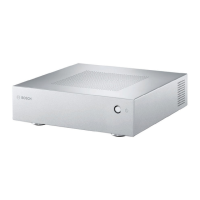
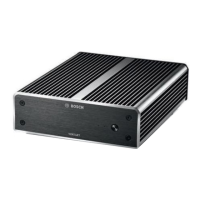
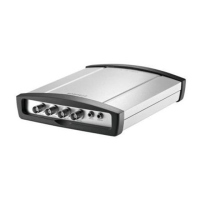
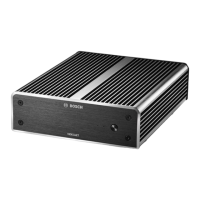
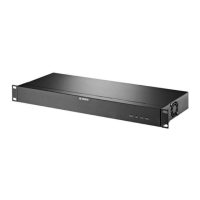
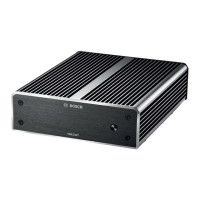
This document outlines the operation of the IP Matrix system with the KBD-UXF keyboard, applicable to VJD-8000, VJD-7513, and VJD-7523 models. It serves as an operation manual, detailing how to use the keyboard for surveillance tasks within the IP Matrix application.
Function Description
The IP Matrix application, once configured via the Bosch Configuration Manager program, functions as a standalone CCTV surveillance system. All operational commands are executed through the attached KBD-UXF keyboard. This system allows for comprehensive control over cameras, monitors, and playback functionalities.
The core function of the system is to provide a user-friendly interface for managing video surveillance. This includes selecting and displaying camera feeds on various monitors, controlling PTZ (Pan-Tilt-Zoom) cameras, managing layouts, and reviewing recorded footage. The keyboard acts as the central control unit, translating user inputs into commands for the IP Matrix system.
Usage Features
The KBD-UXF keyboard offers a wide array of features designed for intuitive and efficient surveillance operations:
Keyboard Layout and Controls:
The keyboard is designed with distinct groups of keys:
- Numbered function keys and audio: These keys provide access to specific functions and audio control.
- Rotatable knob: Used for controlling the zoom function of a device or the built-in digital zoom factor.
- Joystick: Essential for controlling PTZ camera movements (pan and tilt) and for navigating digitally zoomed viewing panes.
- Client control keys: These serve as shortcuts to frequently used client functions.
- Playback controls: Dedicated keys for managing the playback speed of recorded tracks.
- Number keys: Used for selecting favorite views, sequences, or individual devices.
- Shuttle ring: In Live mode, it selects monitors in a multi-monitor view. In playback mode, it adjusts the playback speed factor.
- Jog dial: Used for scrolling through monitors.
Camera and Monitor Selection:
- Selecting a camera: Users can input a camera's number using the number keys and press OK to display its view on the current monitor.
- Selecting a monitor: In Live mode, the shuttle ring can be used to select a monitor in a multi-monitor view, indicated by a colored frame. Alternatively, the dedicated monitor key can be pressed, followed by the monitor number and OK.
PTZ Camera Control:
- Pan and Tilt: The joystick provides precise control over the pan and tilt axes of PTZ cameras.
- Zoom: The joystick control knob allows for zooming in or out. If a camera lacks optical zoom, a digital zoom is simulated.
- Focus and Iris Control: Dedicated keys enable/disable focus and iris control, which can then be adjusted by turning the joystick control knob.
Layout Management:
- Displaying monitor/decoder IP addresses: A dedicated key overlays monitor numbers and decoder IP addresses on the monitors.
- Displaying camera numbers/IP addresses: Another key overlays camera numbers and IP addresses.
- Switching layouts: Keys are available to switch to previous or next layouts, increasing or decreasing the number of monitors on the current display. These keys offer a round-trip function, cycling back to the first layout once the last is reached.
- Full-screen views: Keys allow toggling full-screen mode for the selected monitor, with or without picture-in-picture.
Playback Features:
- Live mode/Playback mode switch: A key allows switching between live and playback modes. Blinking indicates the function is enabled. This feature requires firmware 9.60 or later and playback permission.
- Playback speed control: In playback mode, the shuttle ring adjusts fast forward or fast backward speeds (1/4, 1/2, 1, 2, 4, 8, and 16). In playback pause mode, the jog dial enables single-step forward or backward.
- Playback direction: Keys for playing recordings fast backward (stepwise), backward at normal speed, and starting playback at normal speed are available.
- Pause/Freeze: A dedicated key freezes video on all monitors in live mode or pauses playback on the selected monitor in playback mode. Selecting a new layout, camera, or monitor unfreezes the video.
Advanced Features:
- Favorites: Up to 9 favorites (layouts and camera connections) can be saved and recalled. To save, press the save key, enter a number, and click OK. To recall, press the favorite key, enter the number, and click OK.
- Camera sequences: Users can load camera sequences by pressing the sequence key, entering a valid sequence number (1 to 32), and clicking OK.
- Prepositions: Camera views can be saved as prepositions. To save, move the camera to the desired position and quickly press the preposition key three times until it blinks. Then, enter the preposition number and click OK. To select a preposition, press the key, enter the number, and click OK.
- Audio control: A key toggles audio on/off for the top-left monitor. Blinking indicates the function is enabled.
- Keyboard orientation: A key allows switching the keyboard to left-hand use, rotating the key assignment by 180 degrees. This requires physically rotating the printed keyboard inlay.
Security and Convenience:
- Locking/unlocking the keyboard: A logout key is provided to lock the keyboard, preventing unauthorized use. To unlock, press the logout key, enter the IP Matrix passcode, and click OK.
- Number entry confirmation/cancellation: OK confirms number entries, while ESC cancels them.
Maintenance Features
While the manual primarily focuses on operational aspects, it implicitly suggests certain maintenance considerations through its troubleshooting section and requirements:
Configuration Management:
- The IP Matrix application requires configuration using the Configuration Manager 7.60 program or later. This initial setup is crucial for the system's functionality and can be considered a form of preventative maintenance, ensuring all components are correctly integrated.
- The manual emphasizes that settings in the Configuration Manager program only affect the IP Matrix application if applied to the master decoder in a multi-decoder setup. This highlights the importance of correct configuration hierarchy for system stability.
Troubleshooting Guidance:
The troubleshooting section provides solutions to common issues, which can be seen as a guide for basic maintenance and problem resolution:
- Power and data connections: If no keys on the KBD-UXF keyboard are lit, checking power and data connections is the first step, indicating a fundamental hardware check.
- Interface mode: If all 5 function keys are lit but no other keys work, it suggests the keyboard is in the wrong interface mode, requiring a mode change as per the keyboard manual. This points to software/firmware compatibility or setting issues.
- Camera access: Inability to access cameras often relates to incorrect general passwords, implying that password management and consistency across cameras are important for system integrity.
- Monitor highlighting: If the selected monitor is not highlighted, checking the distance between cameos and increasing it if necessary is advised. This relates to display configuration and optimization.
- Decoder connections: Issues with connections after restarting a decoder are addressed by enabling "reconnect on restart," indicating a setting that ensures system resilience.
- Video connections population: If not all monitors can be populated with video connections, the solution involves checking the number of decoders and the maximum possible connections per decoder device, or adjusting the layout if it exceeds the maximum monitors per display. This points to system capacity planning and layout optimization as maintenance considerations.
Documentation and Updates:
- The manual frequently refers to hardware documentation and the online product catalog for more information, software downloads, and documentation. This implies that keeping documentation updated and referring to it for hardware and software updates (e.g., firmware 9.60 or later for playback mode) is an ongoing maintenance practice.
In essence, while direct "maintenance" procedures like cleaning or hardware repair are not detailed, the manual provides the framework for maintaining system functionality through correct setup, configuration, troubleshooting, and adherence to specified software/firmware versions.


 To Next Page
 General