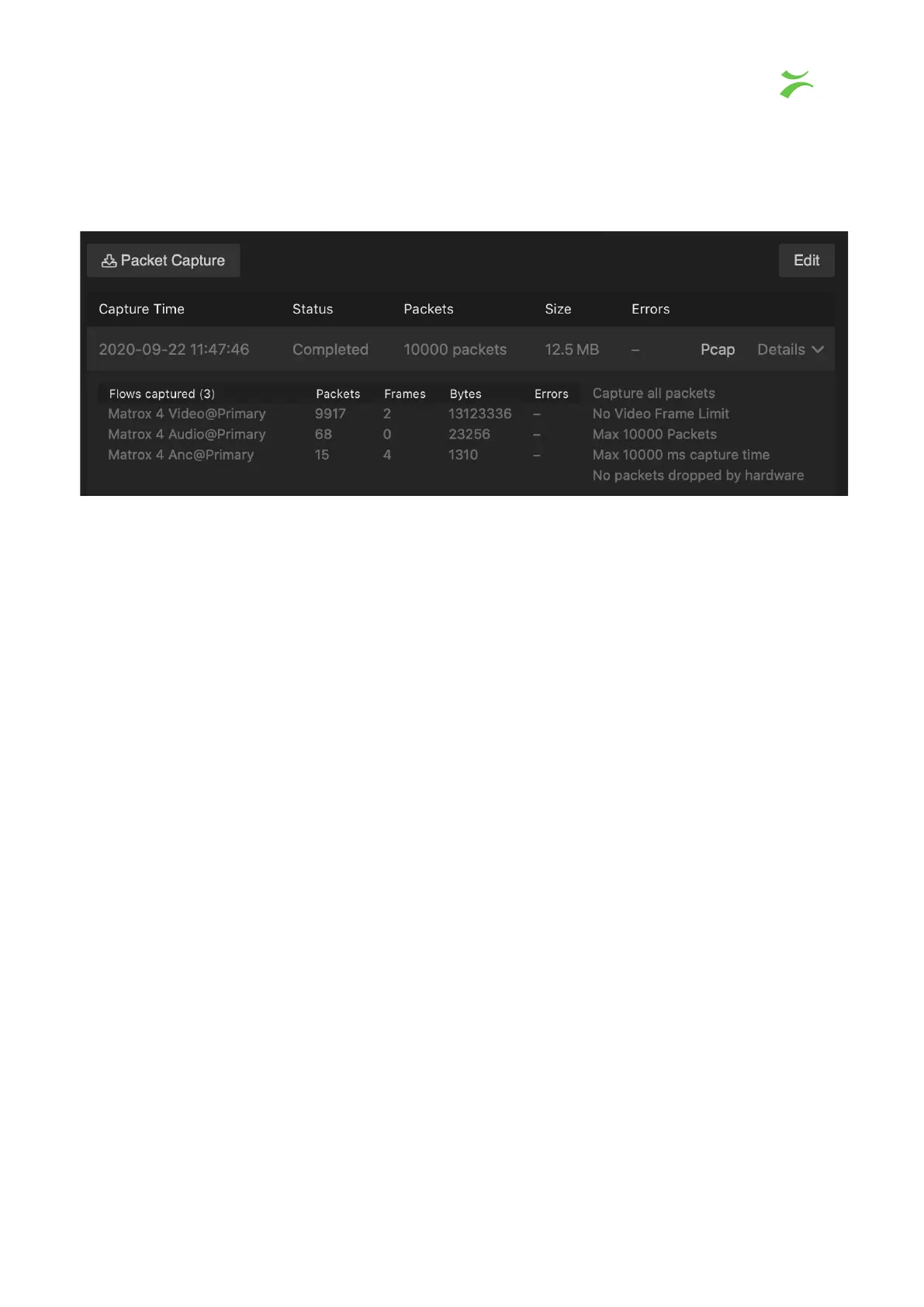
Pcap, and open the file in wireshark or similar tool. To delete a capture, click on Edit
and
then Delete
on the preferred capture.
Timing
The Timing view is sectioned into three categories which all contains trend graphs. Each
colored line in the graph represents a flow. By default all flows are turned on. The flows can
be made visible or hidden by clicking on the name of the flow, at the bottom of this view. In
the top right corner of the view there is an option to change the timeline for the graph, to
either 5 minutes or 30 seconds.
To understand the Timing view it's helpful to understand the timing model. For more
information we suggest reading the “Timing section”
provided in the appendix.
Path delay and RTP Align Offset
The first two graphs, both use the packet's RTP timestamp as a reference. The Path Delay
Graph shows the time difference between the RTP timestamp and the packet's arrival time.
While the RTP Align Offset graph shows the time difference between the RTP timestamp
and the Alignment point.
VB440 Studio Probe User’s Manual v6.0 © Bridge Technologies Co AS 25


 To Next Page