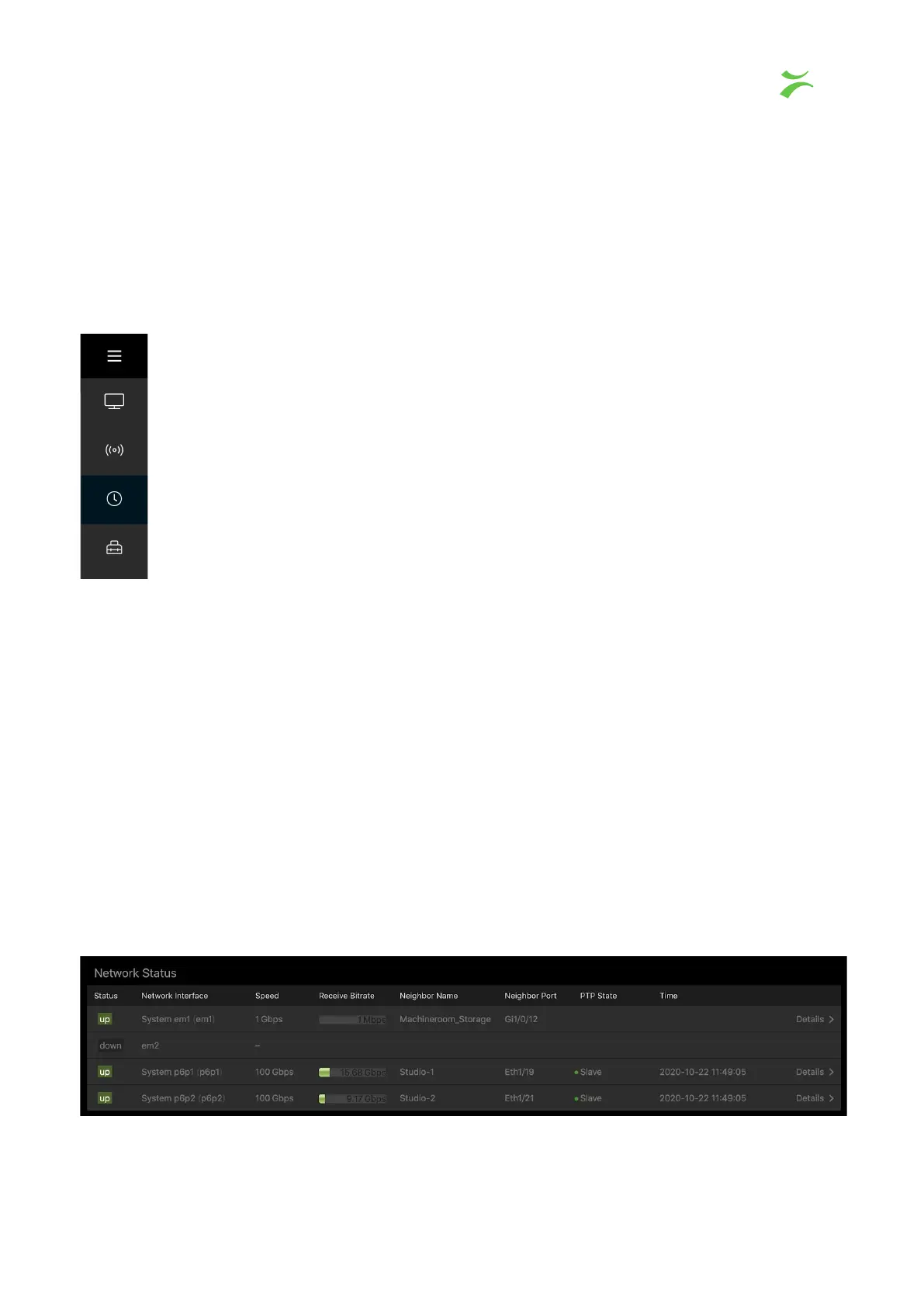
Navigation Menu
The navigation menu is located in the top left corner and can be made visible or
hidden by clicking the navigation menu button. The navigation menu is marked
with three horizontal lines, and is accessible from any page.
The navigation menu consists of four different icons that will help you navigate to
the preferred view. The icon shaped like a tv screen leads to the Services View
.
Next there is a signal symbol that takes you to the Flow View
. The clock indicates
the Status View
. Note that Status view also is the landing page when you first
open the probe in a browser. The last symbol illustrates a tool box which opens
the Expert view.
Status View
Displays a generalized overview of the probe, divided into four sections:
● Network Status
● PTP Clocks
● Video Engine Statistics
● Video Streaming Statistics
Note that the page uses responsive design. If the viewport is small, some of the sections
seen in the screenshots below will not be visible.
Network Status
4 The VB440 Graphical User Interface
VB440 Studio Probe User’s Manual v6.0 © Bridge Technologies Co AS 9


 To Next Page