18
: Photos can be manually rotated by pressing the button (on the remote)
in full screen mode Each press of this button will rotate the photo by 90º clockwise
: Landscape or portrait display of a photo will be automatically switched
according to the unit orientation If the horizontally placed photo frame is rotated
right by 90˚, the displayed photo will automatically rotate counter-clockwise by 90˚
If the vertically placed photo frame is rotated left by 90˚, the displayed photo will
automatically rotate clockwise by 90˚ You must advance to the next or previous
picture for the orientation to change
: Press to zoom in on a photo Each time the button is pressed, the photo
will be enlarged in the sequence of X2, X3, X4, and X5 Use the
/ / /
buttons to navigate around the magnified area
At X5 zoom press the button again
to return it to its original size
(see below and on the following page)
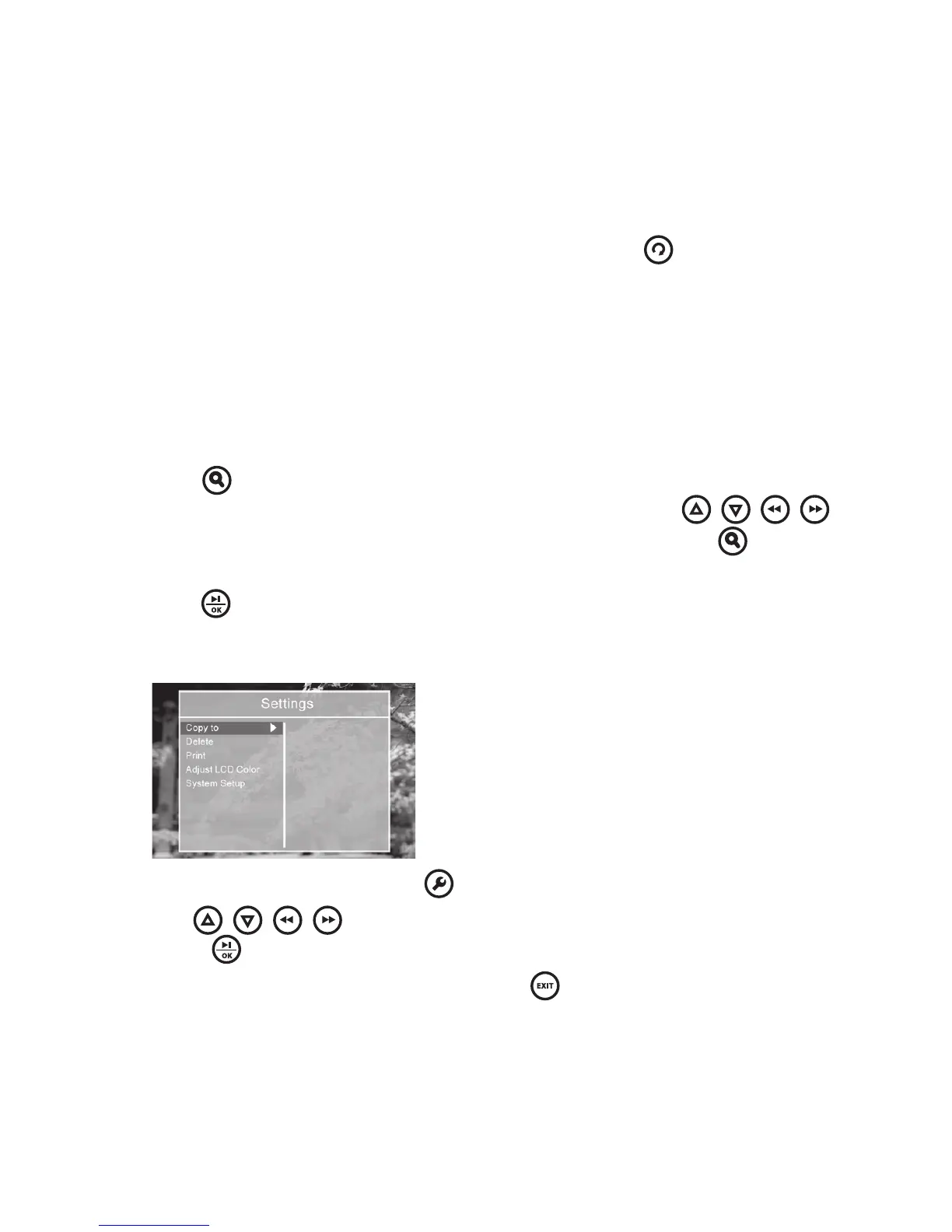
During the Browse mode, press to bring up the Settings menu
Use the
/ / / buttons to browse through available options,
and press to select your choice when highlighted
Note: To return to the Browse mode, press
1
2
3


 To Next Page