EasyManua.ls Logo

Brother ADS-2100e - User Manual

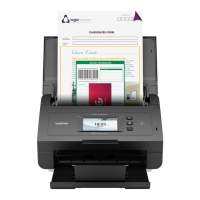
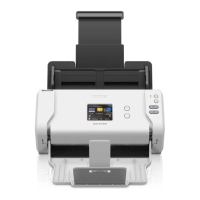
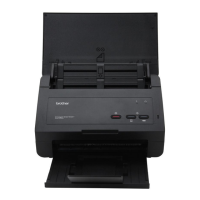
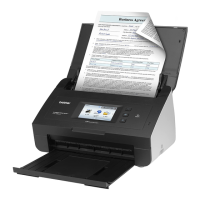
Brother ADS-2100e
237 pages
Print Icon
To Next Page IconTo Next Page
Loading...
ADS-2100e
ADS-2600We
Version A
UK
User’s Guide ADS-2100e/ADS-260 0We

Table of Contents

Other manuals for Brother ADS-2100e

Questions and Answers

  • C
    Christopher HodgesSep 12, 2025
    Why doesn't OCR work on my Brother All in One Printer?
    • S
      Sarah WilliamsSep 12, 2025
      OCR may not work on your Brother All in One Printer if: * The scanner resolution is too low. * (Macintosh users) Presto! PageManager was not installed on your computer. Increase the scanner resolution. If you are a Macintosh user, ensure that Presto! PageManager is installed.
  • M
    masonallisonAug 25, 2025
    Why is my Brother All in One Printer document jammed?
    • J
      Jennifer Garcia MDAug 25, 2025
      A document jam in your Brother All in One Printer can be caused by: * Paper dust on the Pick-up Roller or Separation Pad. * Foreign objects in the document feeder. * An unacceptable document for the machine. To resolve this, clean the Separation Pad and Pick-up Roller. Remove any foreign objects or ripped paper from the document feeder. Make sure your document is acceptable for the machine.
  • A
    Amy VegaAug 25, 2025
    What to do if the wireless access point/router cannot be detected by my Brother All in One Printer?
    • D
      David DennisAug 26, 2025
      If your Brother All in One Printer cannot detect the wireless access point/router, try the following: - Ensure the wireless access point/router is powered on. - Move the printer to an area free of obstructions, or closer to the wireless access point/router. - Temporarily place the printer within about one metre of the wireless access point while configuring wireless settings. - If your wireless access point/router uses MAC address filtering, ensure the MAC address of the Brother printer is allowed. Also, if you manually entered the SSID and security information, double-check that the SSID, authentication method, encryption method, and Network Key are correct and re-enter them if needed.
  • D
    Dawn KingSep 23, 2025
    How to turn on wireless setting on Brother All in One Printer?
    • M
      Mrs. Laura MackSep 23, 2025
      To activate the wireless setting on your Brother All in One Printer: 1. Press (Settings) > Network > WLAN > Setup Wizard on your printer. 2. When 'Enable WLAN?' is displayed, press Yes. This will start the wireless setup wizard.
  • N
    Nicholas WhiteSep 13, 2025
    Why can't I scan a long document on my Brother All in One Printer?
    • J
      Jeremy PierceSep 13, 2025
      If you cannot scan a long document on your Brother All in One Printer, it may be because 'Long Paper' is not selected for the document size. Select 'Long Paper' for the document size. If you cannot select 'Long Paper', set both Auto Deskew and 2-sided Scanning to off. Also, when scanning from the machine’s Control Panel, set Skip Blank Page to off and Scan Type to an option other than Auto. Then, you can select 'Long Paper'.
  • R
    Rachael BoydSep 18, 2025
    Why can't I set Auto Deskew to On when scanning to USB on my Brother All in One Printer?
    • L
      Lisa BuckSep 18, 2025
      If you cannot set Auto Deskew to On when trying to scan to USB on your Brother All in One Printer, the document size is set to an option other than Auto. Set the document size to Auto.
  • L
    lisagentrySep 6, 2025
    Why is my Brother All in One Printer showing 'Replace Parts'?
    • E
      Eileen ThompsonSep 6, 2025
      The 'Replace Parts' message on your Brother All in One Printer indicates that both the Separation Pad and the Pick-up Roller have been used over 50,000 times. Replace both the Separation Pad and the Pick-up Roller with new ones to prevent scanning errors.
  • S
    Steven JenningsSep 7, 2025
    What does 'File Name Cannot Be Used' mean on my Brother All in One Printer?
    • J
      Jeff Powell MDSep 7, 2025
      The 'File Name Cannot Be Used' message on your Brother All in One Printer means that the maximum sequential number for the file name has been reached. Press any key (ADS-2100e or ADS-2600We) and then either delete unused files from the USB flash drive or change the file name.
  • W
    William MoranSep 23, 2025
    Why does a multifeed occur on my Brother All in One Printer?
    • Q
      qburtonSep 23, 2025
      A multifeed on your Brother All in One Printer occurs because the document is not loaded correctly. Load your document correctly, and then try again.
  • A
    Allen MillerAug 30, 2025
    How to fix vertical lines in scanned images from my Brother All in One Printer?
    • C
      Christina HarrisonAug 30, 2025
      Vertical lines in scanned images from your Brother All in One Printer are usually caused by paper dust on the glass strips. Clean the glass strips inside the machine to resolve this issue.

Summary

User’s Guides and Where to Find Them

Setup and Safety Guides

Quick Setup Guide/Product Safety Guide.

Core User Guides

User's Guide, Network User's Guide, Web Connect Guide.

Getting Started

Scan to PC

Scan document to graphics app or OCR.

Scan to E-mail

Scan to default e-mail app.

Scan to File

Scan to a folder on hard disk.

Scan Using TWAIN;WIA;ISIS Drivers (Windows)

Use drivers with applications.

Scan Using TWAIN;ICA Driver (Macintosh)

Use TWAIN/ICA drivers with apps.

WS Scan (ADS-2600 We only)

Scan via Web Services protocol.

Scan from the Control Panel of the Machine

Control Panel Scan Options

Scan to USB, FTP, Network, E-mail, Web.

From Mobile Devices

Scan Documents (Brother iPrint&Scan)

Scan from Android, iOS, Windows Phone.

General Information

Control Panel Overview (ADS-2100 e)

Explains the ADS-2100e control panel.

Control Panel Overview (ADS-2600 We)

Explains the ADS-2600We touchscreen.

Touchscreen LCD

Details of the touchscreen interface.

Basic Operations

How to operate the LCD and menus.

Document Specifications

Acceptable Documents

Details of documents suitable for scanning.

Unacceptable Documents

Lists documents that cannot be scanned.

Scan Preparation

Load Documents

Instructions for loading various document types.

Scan Using Your Computer

Scan Using ControlCenter4 in Home Mode (Windows)

Use ControlCenter4 in Home Mode.

Scan Using ControlCenter4 in Advanced Mode (Windows)

Use ControlCenter4 in Advanced Mode.

Change Scan Settings (ControlCenter4) (Windows)

Modify scan settings for ControlCenter4.

Scan Using ControlCenter2 (Macintosh)

Use ControlCenter2 for Mac scanning.

Scan to an Office File (ADS-2600 We only)

Convert scans to Office files.

Scan Business Cards

Scan business cards using ControlCenter2.

Change Scan Settings (ControlCenter2) (Macintosh)

Modify scan settings for ControlCenter2.

Scan Using the Control Panel

Save Scanned Documents on Your Computer (ADS-2100 e)

Save scans to computer via ControlCenter.

Change Scan to PC Settings (Windows)

Configure Scan to PC settings for Windows.

Change Scan to PC Settings (Macintosh)

Configure Scan to PC settings for Mac.

Managing the Machine from Your Computer

Monitor the Status of the Machine from Your Computer (Windows)

Monitor machine status using Status Monitor.

Set Up the Brother Machine from Your Computer

Configure machine settings remotely.

Routine Maintenance

Replace the Separation Pad

Steps to replace the separation pad.

Replace the Pick-up Roller

Steps to replace the pick-up roller.

Troubleshooting

Error and Maintenance Messages

Common error and maintenance messages.

Document Jam

Steps to clear a document jam.

Scanning Difficulties

Common scanning problems and solutions.

Specifications

Computer Requirements

System requirements for PC connection.

Brother ADS-2100e Specifications

General IconGeneral
Film scanning-
Color scanningYes
Grayscale levels256
Input color depth30 bit
Maximum scan size210 x 297 mm
Output color depth24 bit
ADF scan speed (b/w, A4)24 ppm
Enhanced scan resolution1200 x 1200 DPI
Optical scanning resolution600 x 600 DPI
Duplex ADF scan speed (b/w, A4)24 ipm
Black/white scanning color modesGrayscale, Monochrome
Scanner typeADF scanner
Product colorBlack
Scan toE-mail, File, Image, OCR, USB
Sensor typeCMOS dual CIS
Scan driversICA, ISIS, TWAIN, WIA
Internal memory256 MB
Scan file formatsJPG, PDF, TIFF
Built-in processorStar Sapphire
Maximum duty cycle1500 pages per month
Processor frequency400 MHz
Scanning noise level62.5 dB
Daily duty cycle (max)- pages
Standard input capacity50 sheets
ISO A-series sizes (A0...A9)A4, A5, A6, A8
ISO B-series sizes (B0...B9)B5, B6, B8
Scanning media types supportedBusiness Card, Plain paper, Plastic Card, Recycled paper, Thick paper, Thin paper
Maximum ISO A-series paper sizeA4
Auto Document Feeder (ADF) media weight52 - 110 g/m²
USB version2.0
Standard interfacesUSB 1.1, USB 2.0
Input voltage220-240 V
Power supply typeAC
AC input frequency50 - 60 Hz
Power consumption (off)0.3 W
Power consumption (standby)4 W
Power consumption (typical)18 W
Power consumption (PowerSave)1.5 W
Mac operating systems supportedMac OS X 10.10 Yosemite, Mac OS X 10.7 Lion, Mac OS X 10.8 Mountain Lion, Mac OS X 10.9 Mavericks
Windows operating systems supportedWindows 7 Enterprise, Windows 7 Enterprise x64, Windows 7 Home Basic, Windows 7 Home Basic x64, Windows 7 Home Premium, Windows 7 Home Premium x64, Windows 7 Professional, Windows 7 Professional x64, Windows 7 Starter, Windows 7 Starter x64, Windows 7 Ultimate, Windows 7 Ultimate x64, Windows 8, Windows 8 Enterprise, Windows 8 Enterprise x64, Windows 8 Pro, Windows 8 Pro x64, Windows 8 x64, Windows 8.1, Windows 8.1 Enterprise, Windows 8.1 Enterprise x64, Windows 8.1 Pro, Windows 8.1 Pro x64, Windows 8.1 x64, Windows Vista Business, Windows Vista Business x64, Windows Vista Enterprise, Windows Vista Enterprise x64, Windows Vista Home Basic, Windows Vista Home Basic x64, Windows Vista Home Premium, Windows Vista Home Premium x64, Windows Vista Ultimate, Windows Vista Ultimate x64, Windows XP Home, Windows XP Home x64, Windows XP Professional, Windows XP Professional x64
Operating temperature (T-T)5 - 35 °C
Operating relative humidity (H-H)20 - 80 %
Sustainability certificatesENERGY STAR
Package depth291 mm
Package width383 mm
Package height285 mm
Package weight5400 g
Cables includedUSB
Bundled softwareNuance PDF Converter Professional 8\\r Nuance PaperPort 12 SE\\r PageManager 9\\r NewSoft Presto! BizCard 6\\r Brother Control Center 4
Custom media width51 - 215.9 mm
Custom media length70 - 863 mm
Weight and Dimensions IconWeight and Dimensions
Depth220 mm
Width299 mm
Height179 mm
Weight3300 g

Related product manuals