EasyManua.ls Logo

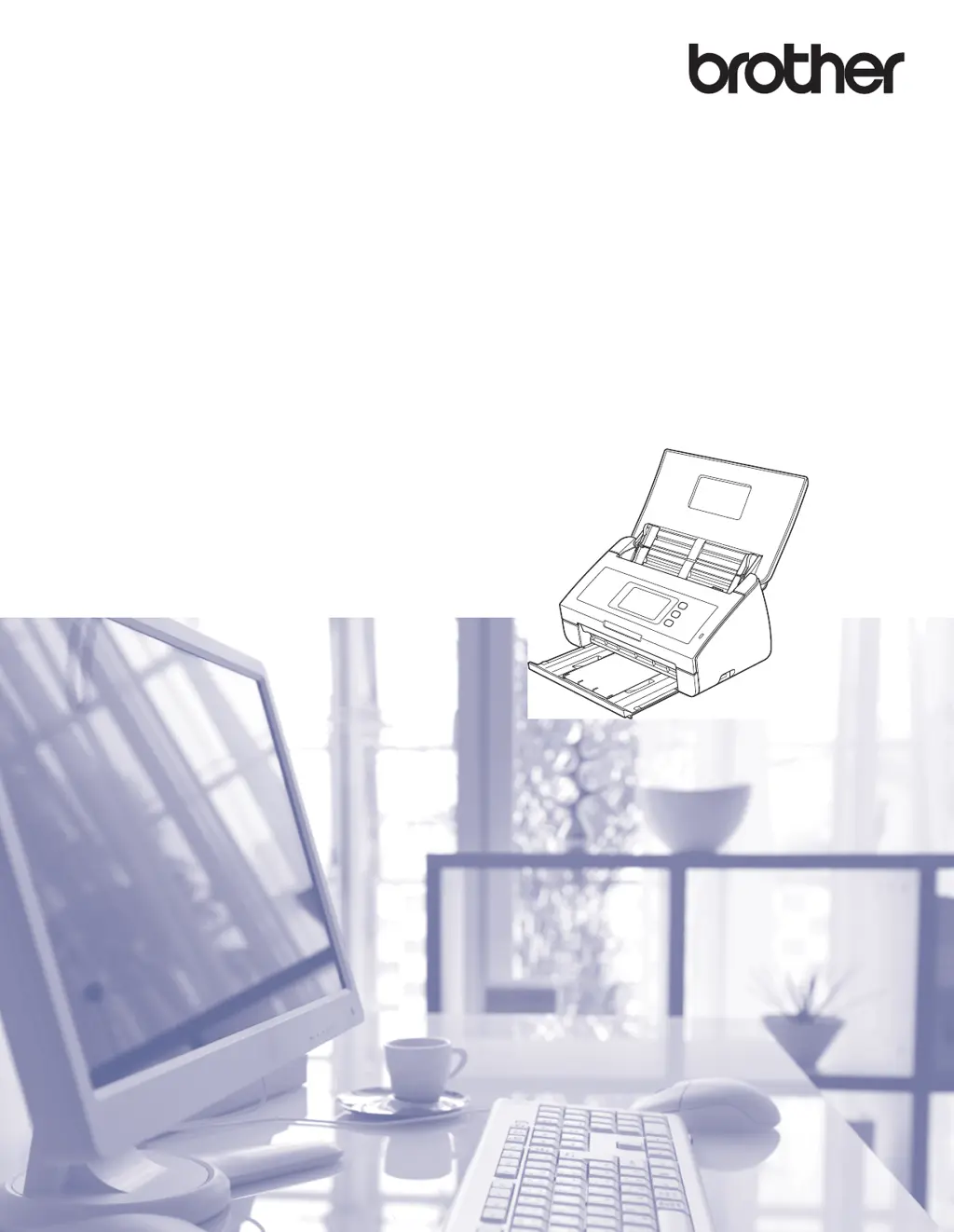
Brother ADS-2000e - User Manual

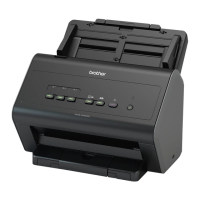
Brother ADS-2000e
237 pages
Print Icon
To Next Page IconTo Next Page
Loading...
ADS-2000e
ADS-2500We
Version A
USA
User’s Guide ADS-2000e/ADS-250 0We

Table of Contents

Other manuals for Brother ADS-2000e

Questions and Answers

  • J
    jonathan61Aug 18, 2025
    What to do if my Brother Scanner says 'Document Jam/too Long'?
    • A
      Amy AlexanderAug 18, 2025
      If your Brother Scanner experiences a document jam or indicates the document is too long, it might be due to several reasons. First, ensure the Document Guides are adjusted correctly to fit the document's width. When scanning documents with mixed page sizes and Scan Size is set to Auto, insert narrow pages straight and as close to the center as possible or use Continuous Scanning. Second, confirm that your scanner settings are appropriate for the document type. Finally, clean the Pick-up Roller and Separation Pad to remove any accumulated paper dust.
  • D
    David SchmidtAug 20, 2025
    Why is my document jammed in my Brother ADS-2000e?
    • S
      Sarah MccallAug 20, 2025
      If your Brother scanner is experiencing document jams, there are a few potential causes. First, paper dust might have accumulated on the Pick-up Roller or Separation Pad. Second, there could be foreign objects in the ADF (Automatic Document Feeder). Finally, the document itself might not be suitable for the machine. To resolve this, clean the Separation Pad and Pick-up Roller, remove any foreign objects or ripped paper from the ADF, and ensure that the document meets the machine's specifications.
  • K
    kristenwrightAug 22, 2025
    How to fix 'Out of Memory' on Brother Scanner?
    • M
      Michelle DixonAug 23, 2025
      If your Brother scanner displays an 'Out of Memory' error, it means the scanner's memory is full. To clear this error, you can either press any button (ADS-2000e or ADS-2500We) or turn the scanner off and then on again by unplugging it from the AC power outlet. To prevent this error in the future, try reducing the number of documents you are scanning at once or setting a smaller resolution or file size for your scans.
  • S
    Steven Burnett MDAug 25, 2025
    Why is the scan quality poor on my Brother ADS-2000e Scanner?
    • E
      Eugene HoltAug 26, 2025
      If the scan quality from your Brother scanner is poor, it could be due to a few reasons. Paper dust might have accumulated on the Pick-up Roller or Separation Pad, or on the glass strips inside the machine. Alternatively, the resolution setting might be too low. To improve the scan quality, clean the Separation Pad and Pick-up Roller, clean the glass strips inside the machine, and increase the scanner resolution.
  • B
    brandy33Aug 27, 2025
    What to do if my Brother ADS-2000e says 'Insufficient USB Storage'?
    • J
      Jennifer JohnsonAug 27, 2025
      If your Brother scanner displays an 'Insufficient USB Storage' message, it means the inserted USB flash drive is full. Press any button (ADS-2000e or ADS-2500We), then either delete unused files or folders from the USB flash drive or use a different USB flash drive that has available space.
  • D
    Derek BurgessAug 30, 2025
    How to scan a long document on Brother ADS-2000e?
    • D
      Dave SanchezAug 30, 2025
      If you cannot scan a long document with your Brother scanner, ensure that 'Long Paper' is selected for the document size. If you cannot select 'Long Paper', turn off both 'Auto Deskew' and '2-sided Scanning'. When scanning from the machine’s Control Panel, also set 'Skip Blank Page' to off and set 'Scan Type' to an option other than 'Auto'. After adjusting these settings, you should be able to select 'Long Paper' for the document size.
  • R
    Richard KnightSep 1, 2025
    What to do if my Brother ADS-2000e Scanner is unable to scan and shows an error code?
    • K
      Kathryn BassSep 1, 2025
      If your Brother Scanner displays an error code 'XX' and is unable to scan, this indicates a machine error. Turn the scanner off, then turn it back on, and try scanning again. If the error persists after restarting, note the error message and contact your Brother dealer or Brother Customer Service for further assistance.
  • B
    Brooke VargasSep 4, 2025
    Why does my Brother Scanner say 'USB Write-protected'?
    • J
      Julie WarnerSep 4, 2025
      If your Brother scanner displays a 'USB Write-protected' message, it means the inserted USB flash drive is write-protected. Remove the write-protected USB flash drive, press any button (ADS-2000e or ADS-2500We), and then either turn off the USB flash drive’s write-protection or use a USB flash drive that is not write-protected.
  • T
    Tyler ChavezSep 7, 2025
    What does 'Too Many Files on USB' mean on my Brother Scanner?
    • J
      Jennifer HarrellSep 7, 2025
      If your Brother scanner indicates 'Too Many Files on USB', it means the USB flash drive contains too many files for the machine to save to it. Remove the USB flash drive, press any button (ADS-2000e or ADS-2500We), and delete unused files or folders from the root folder of the USB flash drive. Then, try again.
  • M
    Matthew WhiteSep 9, 2025
    Why does my Brother ADS-2000e Scanner say 'Replace Pad'?
    • N
      nstephensSep 9, 2025
      If your Brother scanner indicates 'Replace Pad', it means the Separation Pad has been used over 50,000 times. Replace the Separation Pad with a new one to avoid potential scanning errors.

Summary

Brother Support and Service

FAQs and Customer Service

Access the Brother Solutions Center for FAQs, troubleshooting, and support information.

General Information

Control Panel Overview

Details on the buttons and displays of the machine's control panel.

Basic LCD Operations

Instructions on how to navigate and operate the LCD touchscreen.

Scan Preparation

Set Up Your Scanner

Steps to prepare the scanner for document loading.

Load Documents

Instructions for loading standard-size documents into the ADF.

Prepare Your Network

Scan Using Your Computer

ControlCenter4 Operations

Using ControlCenter4 for scanning in Home and Advanced modes.

Scan Using the Control Panel

Save Scanned Documents

Saving scanned documents to computer, USB drive, or mobile devices.

Managing Your Computer

Routine Maintenance

Troubleshooting

Error and Maintenance Messages

Understanding and resolving common error messages.

Document Jam Issues

Steps to clear document jams and prevent future occurrences.

Scanning Difficulties

Resolving issues like poor scan quality or skewed images.

Brother ADS-2000e Specifications

General IconGeneral
Film scanningNo
Color scanningYes
Grayscale levels256
Input color depth30 bit
Maximum scan size215.9 x 863.6 mm
Output color depth24 bit
ADF scan speed (b/w, A4)24 ppm
Enhanced scan resolution1200 x 1200 DPI
Optical scanning resolution600 x 600 DPI
Duplex ADF scan speed (b/w, A4)24 ipm
Scanner typeADF scanner
Product colorBlack
Scan toFile, Image, OCR, USB
Sensor typeDual CIS
Scan driversICA, ISIS, SANE, TWAIN, WIA
Scan file formatsPDF
Daily duty cycle (max)- pages
Auto document feeder (ADF) input capacity50 sheets
Media thickness (min)0.25 mm
Scanning media types supportedBusiness Card, Photo paper, Plain paper, Plastic Card
Maximum ISO A-series paper sizeA4
USB version2.0
Standard interfacesUSB 2.0
Input voltage120 V
Power supply typeAC
Power consumption (standby)4 W
Power consumption (typical)18 W
Power consumption (PowerSave)1.5 W
Mac operating systems supportedMac OS X 10.6 Snow Leopard, Mac OS X 10.7 Lion, Mac OS X 10.8 Mountain Lion, Mac OS X 10.9 Mavericks
Windows operating systems supportedWindows 7 Enterprise, Windows 7 Enterprise x64, Windows 7 Home Basic, Windows 7 Home Basic x64, Windows 7 Home Premium, Windows 7 Home Premium x64, Windows 7 Professional, Windows 7 Professional x64, Windows 7 Starter, Windows 7 Starter x64, Windows 7 Ultimate, Windows 7 Ultimate x64, Windows 8, Windows 8 Enterprise, Windows 8 Enterprise x64, Windows 8 Pro, Windows 8 Pro x64, Windows 8 x64, Windows 8.1, Windows 8.1 Enterprise, Windows 8.1 Enterprise x64, Windows 8.1 Pro, Windows 8.1 Pro x64, Windows 8.1 x64, Windows Vista Business, Windows Vista Business x64, Windows Vista Enterprise, Windows Vista Enterprise x64, Windows Vista Home Basic, Windows Vista Home Basic x64, Windows Vista Home Premium, Windows Vista Home Premium x64, Windows Vista Ultimate, Windows Vista Ultimate x64, Windows XP Home, Windows XP Home x64, Windows XP Professional, Windows XP Professional x64
Operating temperature (T-T)5 - 35 °C
Operating relative humidity (H-H)20 - 80 %
Sustainability certificatesENERGY STAR
Package depth292.1 mm
Package width383.5 mm
Package height284.4 mm
Package weight4898 g
Cables includedUSB
Bundled softwareNuance PDF Converter Professional 8\\r Nuance PaperPort 12SE\\r Presto! PageManager 9\\r Presto! BizCard 6\\r Control Center 4\\r Control Center 2
Weight and Dimensions IconWeight and Dimensions
Depth220.9 mm
Width299.7 mm
Height180.3 mm
Weight3311 g

Related product manuals