Scan Using Your Computer
80
5
Scan Plastic Cards 5
1 Load a plastic card (see Business Cards and Plastic Cards on page 32).
Load only one plastic card at a time.
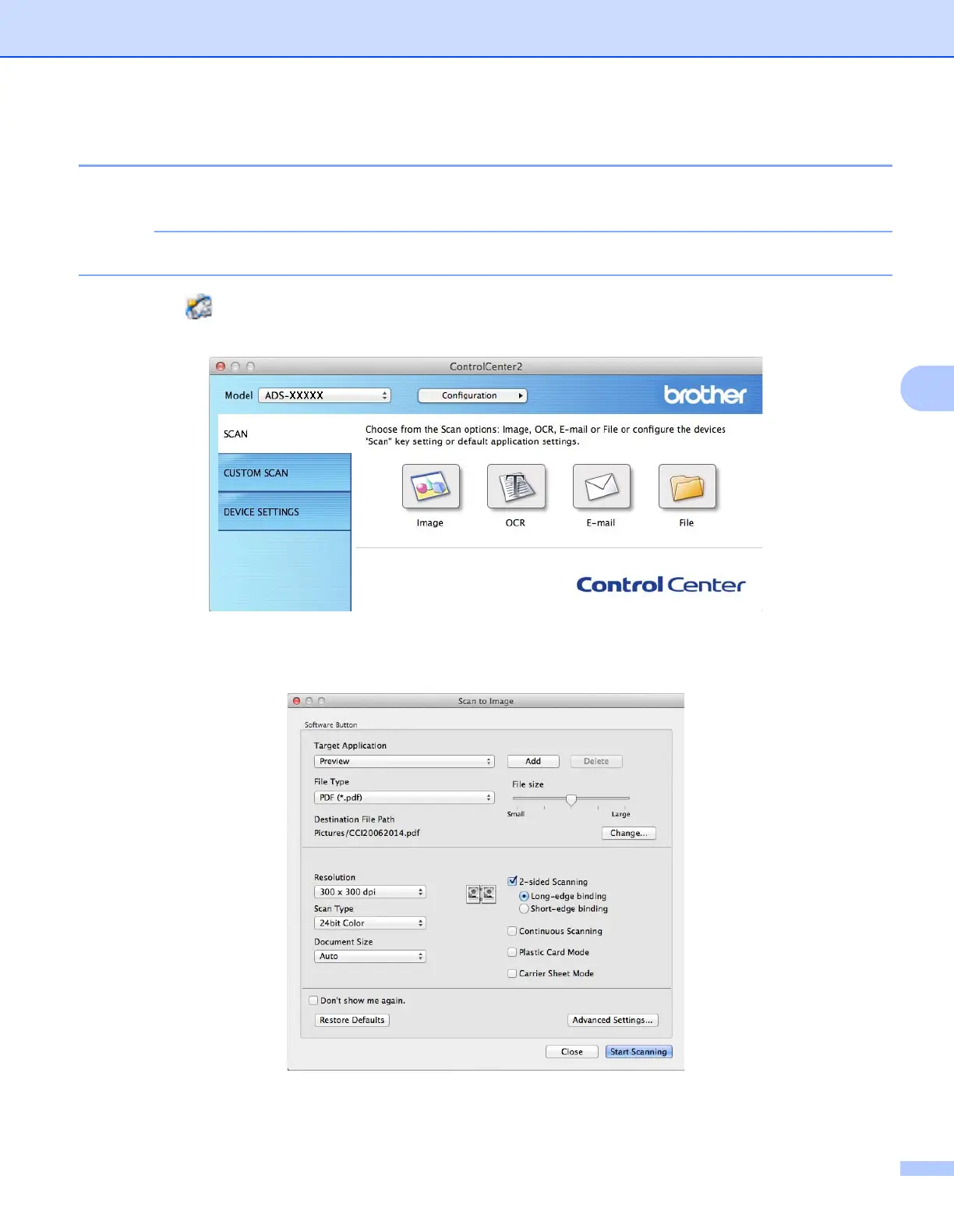
2 Click the (ControlCenter2) icon in the Dock.
The ControlCenter2 window appears.
3 Click the SCAN tab, and then click the button for the Scan-to action you want to change (Image, OCR,
E-mail, or File). The settings dialog box appears (the example below uses Image).
4 Click the Plastic Card Mode check box.





 To Next Page