Scan Using Your Computer
59
5
Change a Scan Button’s Default Settings 5
1 Right-click the button that you want to configure and click Button settings. The settings dialog box
appears.
2 Choose the settings for File Type, Resolution, Scan Type, Document Size, Brightness, Contrast,
Continuous Scanning and 2-sided Scanning as needed.
3 Click OK. The new settings will be used as the default settings.
Scan Using the Carrier Sheet 5
1 Load your document into the Carrier Sheet and load the Carrier Sheet into your machine (see Receipts,
Clippings, Photos, and Other Documents on page 35).
Load only one Carrier Sheet at a time.
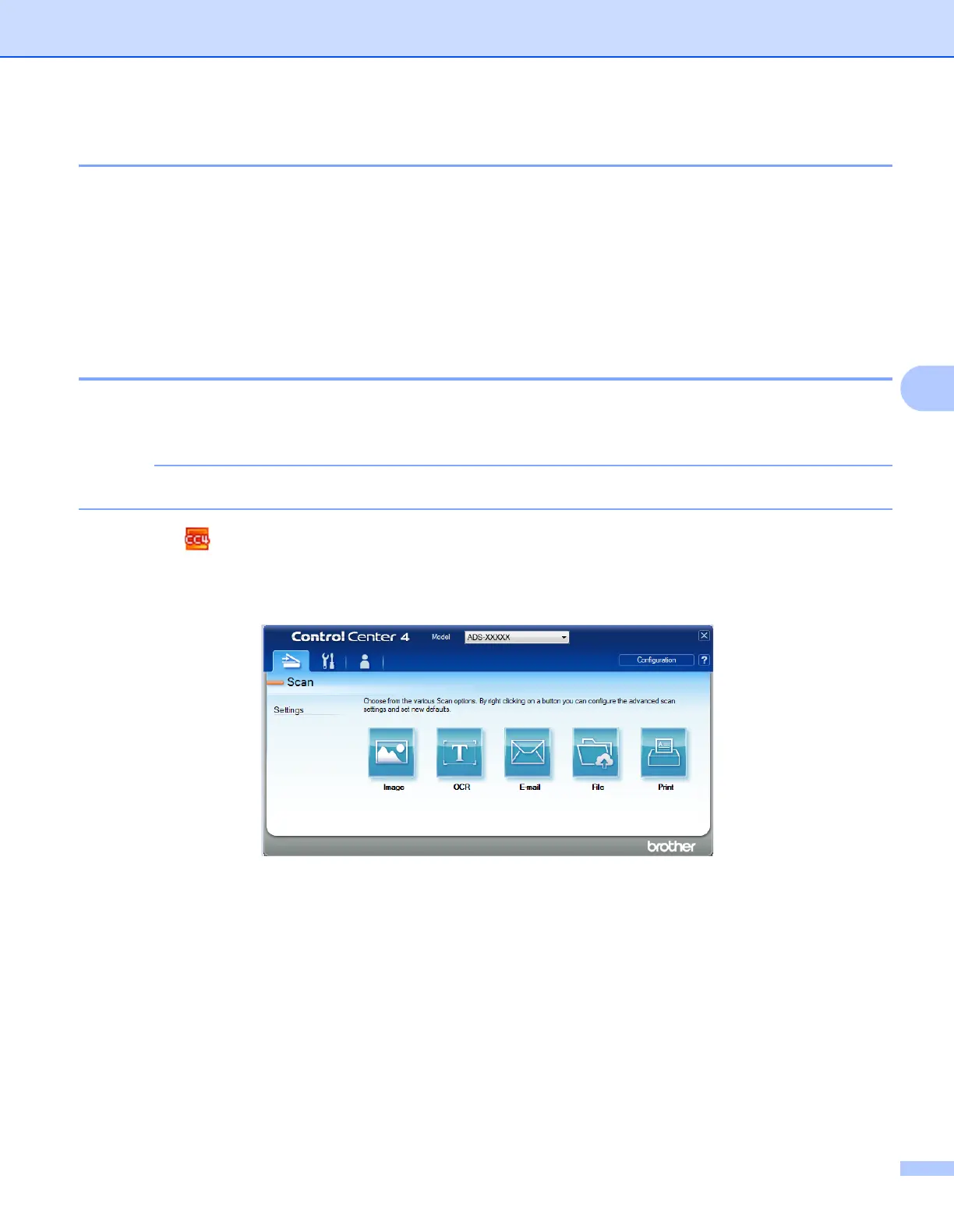
2 Click the (ControlCenter4) icon in the task tray and then select Open from the menu.
The ControlCenter4 window appears.
3 Select the Scan tab.





 To Next Page