Scan Using Your Computer
60
5
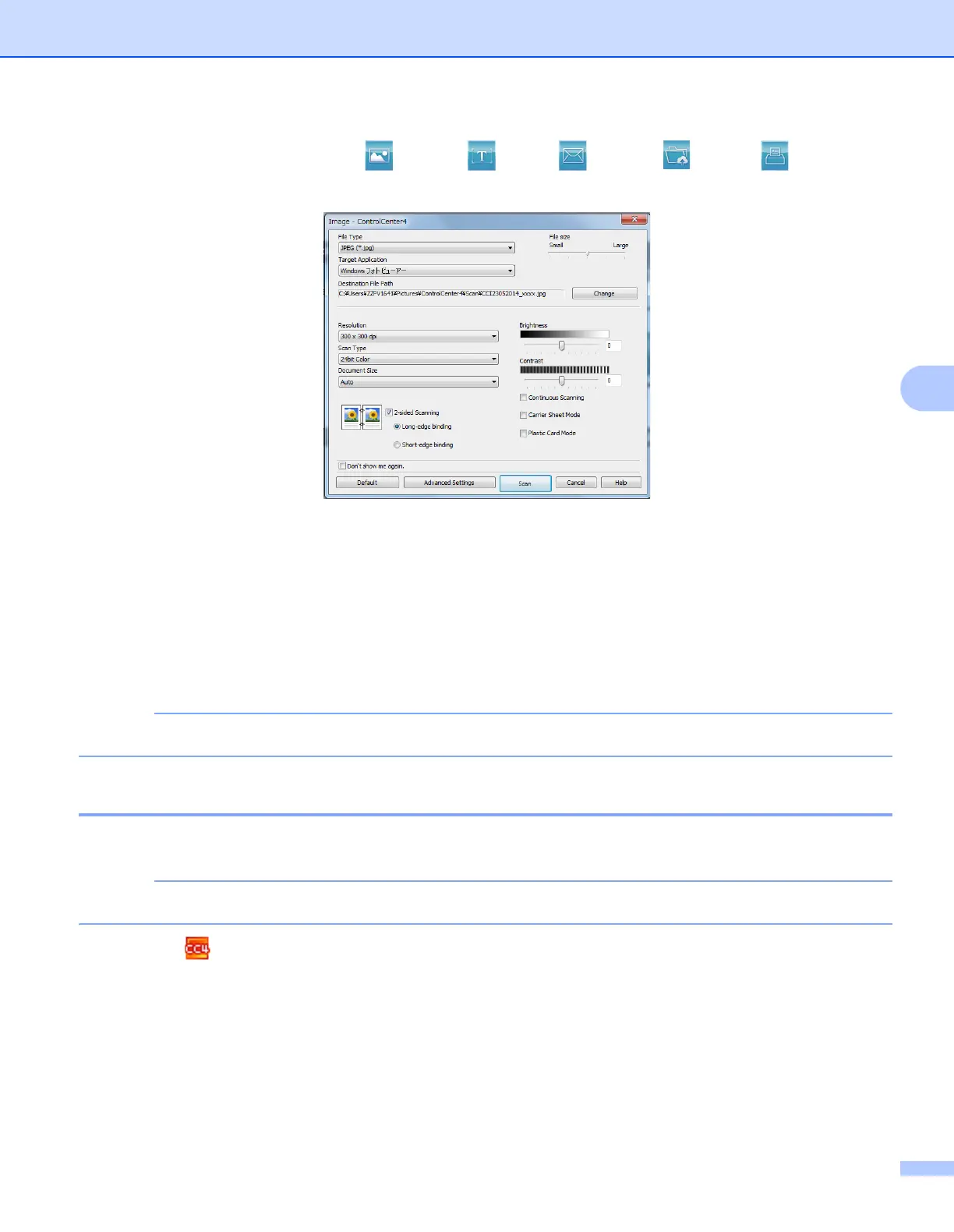
4 Click the button you want to use ( (Image), (OCR), (E-mail), (File) or (Print)). The
setting dialog box will appear (the example below uses Image).
5 Check the Carrier Sheet Mode check box.
6 Select a document size other than Auto from the Document Size drop-down list.
7 Change other settings if needed (see Change Scan Settings (ControlCenter4) (Windows
®
) on page 67).
8 Click the Scan button.
The machine starts scanning.
Check the Don’t show me again. check box to not show the setting dialog box again.
Scan Plastic Cards 5
1 Load a plastic card (see Business Cards and Plastic Cards on page 32).
Load only one plastic card at a time.
2 Click the (ControlCenter4) icon in the task tray and then select Open from the menu.
The ControlCenter4 window appears.





 To Next Page