Scan Using Your Computer
76
5
Scan to E-mail 5
The Scan to E-mail feature lets you scan a document to your default email application so you can send the
scanned document as an attachment.
1 Click the SCAN tab.
2 Click (E-mail).
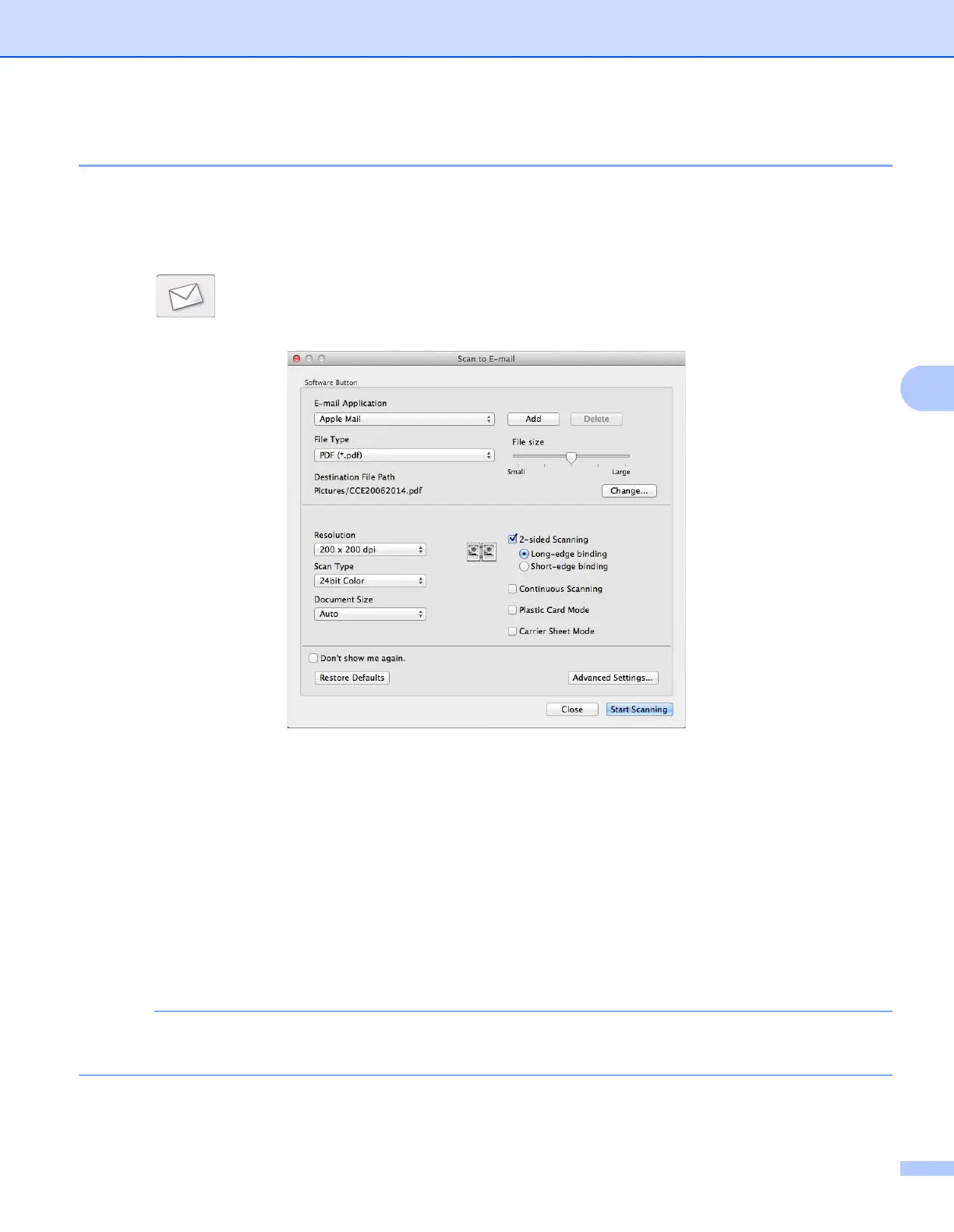
The Scan to E-mail dialog box appears.
3 Configure the scan settings, if needed.
To scan a 2-sided document, select the 2-sided Scanning check box and choose
Long-edge binding or Short-edge binding.
To change the email application that you want to use, choose the appropriate application from the
E-mail Application pop-up menu. You can add an application to the list by clicking Add
1
. If you want
to delete an application, click Delete.
1
When you first start ControlCenter2, a default list of compatible email applications appears in the pop-up menu. If you are having trouble
using a custom application with ControlCenter2, you should choose an application from the list.
4 Click Start Scanning.
Your default email application will start and the image will be attached to a new email.
The Scan to E-mail feature does not support Webmail services. Use the Scan to Image or Scan to File
feature to scan a document or picture, and then attach the file of the scanned data to message.





 To Next Page