Scan Using Your Computer
55
5
Scan to an Office File 5
Your machine can convert scanned data to a Microsoft
®
Word file or a Microsoft
®
PowerPoint
®
file. The OCR
language is same as the language selected when you installed the ControlCenter4. In order to use this
feature, your Brother machine must be connected to a network that has access to the Internet through
a wireless or Ethernet connection.
1 Load your document (see Standard-size Documents on page 30).
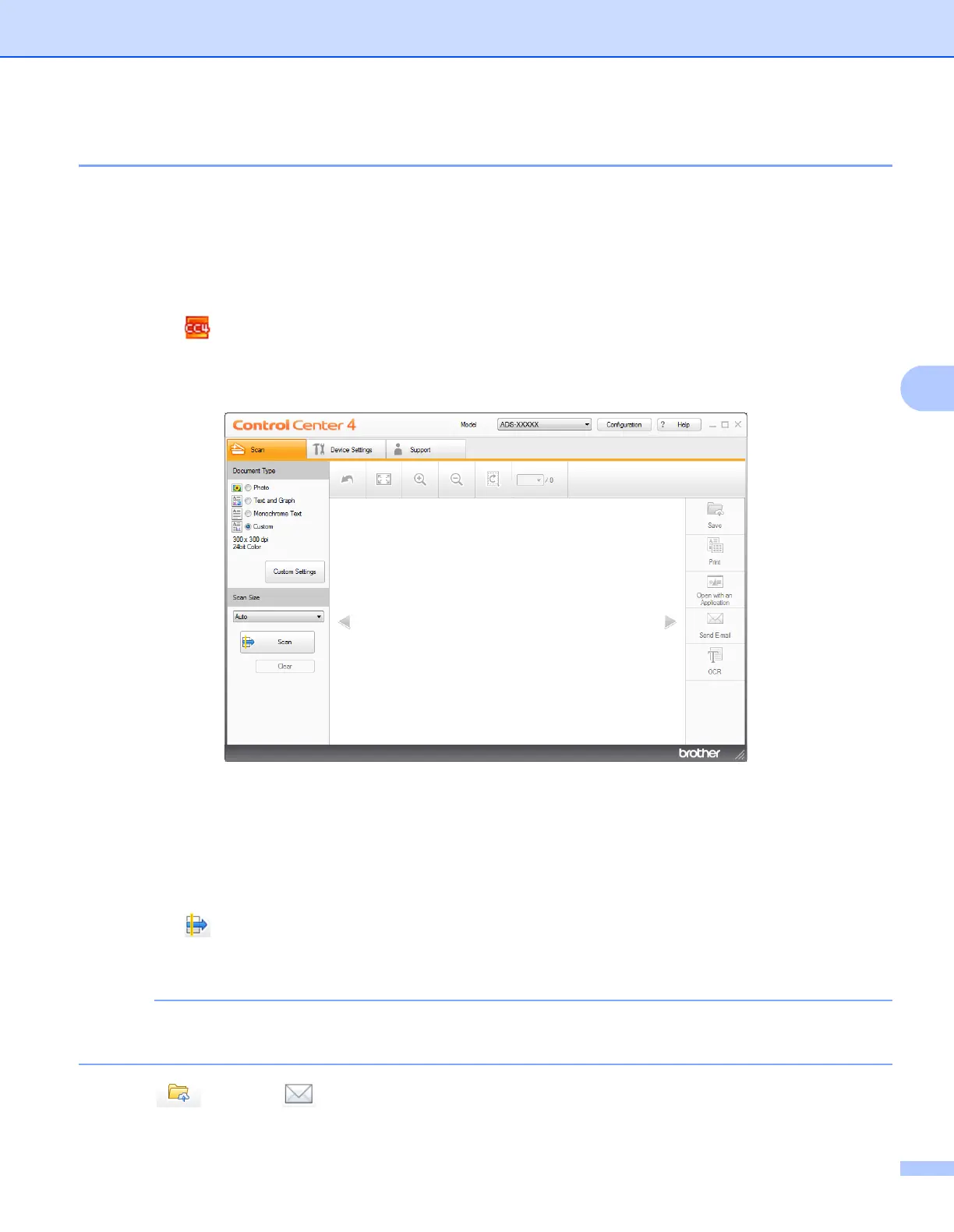
2 Click the (ControlCenter4) icon in the task tray and then select Open from the menu.
The ControlCenter4 window appears.
3 Click the Scan tab.
4 Select the document type.
5 Change the size of your document, if needed.
6 Configure other settings if needed (see Change Scan Settings (ControlCenter4) (Windows
®
)
on page 67).
7 Click the (Scan) button. The machine starts scanning, and then the Scanning Completed dialog
box appears and display the number of scanned pages. The scanned image appears in the image
viewer.
If the Scanning Completed dialog box does not appear and you want to display the number of scanned
pages, select the Display Scanning Results check box.
8 Click (Save) or (Send E-mail). The setting dialog box appears.





 To Next Page