EasyManua.ls Logo

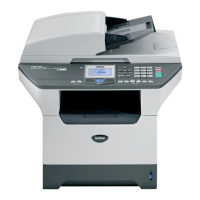
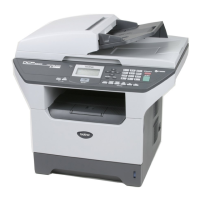
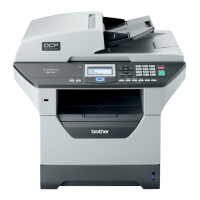
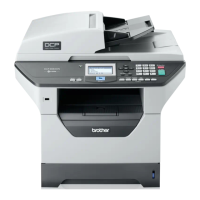
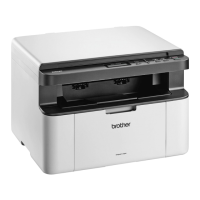
Brother DCP-8110D - User Manual

Brother DCP-8110D
136 pages
Print Icon
To Next Page IconTo Next Page
Loading...
Basic User’s Guide
DCP-8110D
DCP-8110DN
DCP-8155DN
Not all models are available in all countries.
Version 0
ARL/ASA/NZ/SAF/GLF

Table of Contents

Other manuals for Brother DCP-8110D

Questions and Answers

  • R
    Robert AllenSep 3, 2025
    What does 'Cooling Down Wait for a while' mean on my Brother All in One Printer?
    • W
      Wayne ReynoldsSep 4, 2025
      The message 'Cooling Down Wait for a while' on your Brother All in One Printer indicates that the temperature of the drum unit or toner cartridge is too hot, and the machine will pause its current print job and go into cooling down mode. Make sure that you can hear the fan in the machine spinning and that the exhaust outlet is not blocked by something. If the fan is not spinning, disconnect the machine from the power for several minutes, then reconnect it.
  • S
    Stephanie WebbSep 18, 2025
    What does 'Access Denied' mean on Brother DCP-8110D All in One Printer?
    • D
      Darrell PopeSep 18, 2025
      The 'Access Denied' message on your Brother All in One Printer indicates that the function you want to use is restricted by Secure Function Lock 2.0. Contact your administrator to check your Secure Function Lock Settings.
  • D
    Danielle SimpsonSep 16, 2025
    What does 'Drum Stop' mean on my Brother DCP-8110D?
    • S
      Stephanie HaynesSep 16, 2025
      The 'Drum Stop' message on your Brother All in One Printer indicates that it is time to replace the drum unit.
  • C
    Christopher DeanSep 14, 2025
    What does 'Size Error' mean on my Brother DCP-8110D?
    • S
      Steven DanielSep 14, 2025
      The 'Size Error' on your Brother All in One Printer means that the paper size defined in the printer driver is not suitable for the tray in use. Choose a paper size which is supported by the tray shown on the LCD.
  • B
    byrdkathySep 12, 2025
    What does 'Access Error' mean on my Brother DCP-8110D and how to resolve it?
    • M
      Mrs. Angela MillerSep 12, 2025
      The 'Access Error' on your Brother All in One Printer means that the device is removed from the USB direct interface while the data is processing. Press Stop/Exit. Reinsert the device and try to print with Direct Print.
  • J
    Jerry WillisSep 12, 2025
    How do I fix a 'Fuser Error' on my Brother DCP-8110D?
    • J
      John BarnettSep 12, 2025
      A 'Fuser Error' on your Brother All in One Printer means the temperature of the fuser unit does not rise to a specified temperature within the specified time. Turn the power switch off, wait a few seconds, and then turn it on again. Leave the machine idle for 15 minutes with the power on.
  • R
    Robert ReyesSep 9, 2025
    What does 'Unusable Device Remove the Device. Turn the power off and back on again' mean on my Brother DCP-8110D All in One Printer?
    • S
      sarah72Sep 9, 2025
      The 'Unusable Device' message on your Brother All in One Printer indicates that a defective USB device or a high power consumption USB device has been connected to the USB direct interface. Unplug the device from the USB direct interface and turn the machine off and then on again.
  • H
    hillnatalieSep 7, 2025
    What does 'Protected Device' mean on my Brother DCP-8110D All in One Printer?
    • M
      Mr. Darrell Pittman DVMSep 7, 2025
      The 'Protected Device' message on your Brother All in One Printer means that the protect switch of the USB Flash memory drive is on. Turn off the protect switch of the USB Flash memory drive.
  • M
    Melissa MasseySep 5, 2025
    How to resolve 'Duplex Disabled' error on Brother All in One Printer?
    • C
      Carolyn SweeneySep 6, 2025
      The 'Duplex Disabled' error on your Brother All in One Printer indicates that the back cover of the machine is not closed completely. Close the back cover of the machine.
  • J
    Jimmy HarringtonAug 20, 2025
    What to do if my Brother All in One Printer displays 'No Toner'?
    • E
      Elizabeth HillAug 20, 2025
      If your Brother All in One Printer displays 'No Toner', it means the toner cartridge or the drum unit and toner cartridge assembly is not installed correctly. Remove the drum unit and toner cartridge assembly, take out the toner cartridge from the drum unit, and then re-install the toner cartridge back into the drum unit again. Then, re-install the drum unit and toner cartridge assembly back in the machine. If the problem persists, replace the toner cartridge.

Summary

Brother User Guides

Product Safety Guide

Provides safety instructions, trademarks, and legal limitations for the machine.

Quick Setup Guide

Instructions for setting up the machine and installing drivers and software.

Core User Guides

Basic, Advanced, Software, and Network User's Guides for detailed operations.

Other Specialized Guides

Guides for Google Cloud Print and Mobile Print/Scan functionality.

General Information

Symbols and Conventions

Explains symbols, warnings, and conventions used throughout the documentation.

Accessing Advanced Guides and Support

Instructions on accessing advanced user guides and Brother support resources.

Control Panel Overview

Detailed explanation of the machine's control panel buttons and display.

Data LED and Volume Settings

Information on Data LED indications and adjusting beeper volume settings.

Paper and Document Handling

Paper Types, Sizes, and Loading

Details on acceptable paper, sizes, and how to load paper into trays.

Special Paper, Envelopes, and Labels

Guidelines for handling and using special print media like envelopes and labels.

Document Loading Methods

Instructions on how to load documents for copying or scanning.

Using ADF and Scanner Glass

Procedures for using the Automatic Document Feeder and Scanner Glass.

Machine Operations

Making Copies

Step-by-step guide on performing basic copy operations and settings.

Printing Operations

Procedures for printing from USB devices and computers.

Scanning Operations

Instructions for scanning documents using ControlCenter4 and SCAN key.

Maintenance and Troubleshooting

Routine Maintenance Procedures

Guidance on replacing consumables and cleaning machine parts.

Troubleshooting Common Issues

Diagnosing and resolving common problems like jams, errors, and quality issues.

Improving Print Quality

Steps to take when experiencing poor print quality.

Menu, Features, and Specifications

Menu Navigation and Features

How to access menus, navigate options, and enter text.

System Specifications

Technical specifications for the printer, scanner, and connectivity.

Support Information

Australia Support Contact

Contact details for technical and customer support in Australia.

New Zealand Support Contact

Contact details for technical and customer support in New Zealand.

Brother DCP-8110D Specifications

General IconGeneral
Printer TypeLaser
FunctionsPrint, Copy, Scan
Print Resolution1200 x 1200 dpi
Duplex PrintingYes
Max Copying Resolution600 x 600 dpi
Optical Scan Resolution1200 x 1200 dpi
Scan Resolution (Enhanced)19200 x 19200 dpi
Automatic Document Feeder (ADF)Yes
ADF Capacity50 sheets
Paper Capacity250 sheets
Operating SystemsWindows, Mac, Linux
Scanner TypeFlatbed, ADF
ConnectivityUSB 2.0

Related product manuals