EasyManua.ls Logo

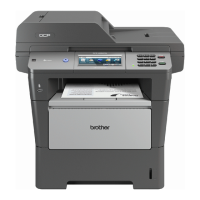
Brother DCP-8250DN - User Manual

Brother DCP-8250DN
155 pages
Print Icon
To Next Page IconTo Next Page
Loading...
Basic User’s Guide
DCP-8250DN
Version 0
UK/IRE

Table of Contents

Other manuals for Brother DCP-8250DN

Questions and Answers

  • P
    Patrick GalvanSep 23, 2025
    How to troubleshoot 'DIMM Error' on Brother DCP-8250DN All in One Printer?
    • M
      mcdonaldaudreySep 23, 2025
      If your Brother All in One Printer displays 'DIMM Error', the DIMM is not installed correctly, the DIMM is broken, or the DIMM does not meet the required specifications. Turn off the machine and remove the DIMM. Confirm the DIMM meets the required specifications. Re-install the DIMM correctly. Wait a few seconds, and then turn it on again. If this error message appears again, replace the DIMM with a new one. Confirm the DIMM meets the required specifications.
  • H
    Howard SanchezAug 23, 2025
    What to do if my Brother DCP-8250DN All in One Printer says 'No Paper'?
    • V
      Vickie GarciaAug 23, 2025
      If your Brother All in One Printer displays 'No Paper', it means the specified tray is empty, all trays are empty, or the paper isn't loaded correctly. Refill the paper in the tray shown on the LCD. Ensure the paper guides are set to the correct size. Alternatively, remove the paper and load it again, making sure the guides are correctly sized.
  • H
    Harold HerreraAug 25, 2025
    How to fix 'Cover is Open' error on my Brother All in One Printer?
    • C
      Carlos LangAug 26, 2025
      If your Brother All in One Printer displays 'Cover is Open', it means that the front cover is not completely closed. To solve this problem, close the front cover of the machine.
  • K
    Kelly WilsonAug 27, 2025
    What to do if my Brother DCP-8250DN All in One Printer says 'Cartridge Error Put the Toner Cartridge back in'?
    • B
      bonniestoneAug 27, 2025
      If your Brother All in One Printer displays 'Cartridge Error Put the Toner Cartridge back in', it means that the toner cartridge is not installed correctly. To fix this, pull out the drum unit and toner cartridge assembly, take out the toner cartridge, and put it back into the drum unit again. Put the drum unit and toner cartridge assembly back in the machine.
  • V
    Victoria Gomez MDAug 27, 2025
    What to do if my Brother DCP-8250DN says 'Cooling Down Wait for a while'?
    • K
      katherine52Aug 27, 2025
      If your Brother All in One Printer displays 'Cooling Down Wait for a while', it means the temperature of the drum unit or toner cartridge is too hot. Make sure that you can hear the fan in the machine spinning and that the exhaust outlet is not blocked by something. If the fan is spinning, remove any obstacles that surround the exhaust outlet, and then leave the machine turned on but do not use it for several minutes. If the fan is not spinning, disconnect the machine from the power for several minutes, then reconnect it.
  • S
    Stacy WilsonSep 17, 2025
    What to do if Brother DCP-8250DN displays 'Drum Stop'?
    • S
      Stephen EllisSep 18, 2025
      If your Brother All in One Printer displays 'Drum Stop', it is time to replace the drum unit. Replace the drum unit.
  • M
    mistymcguireSep 14, 2025
    What does 'Toner Low' mean on my Brother DCP-8250DN?
    • J
      Jessica JacksonSep 14, 2025
      If your Brother All in One Printer displays 'Toner Low', order a new toner cartridge now so a replacement toner cartridge will be available when the LCD shows Replace Toner.
  • J
    Jennifer WrightSep 15, 2025
    How to fix 'Duplex Disabled' error on Brother DCP-8250DN All in One Printer?
    • B
      Breanna WebsterSep 15, 2025
      If your Brother All in One Printer displays 'Duplex Disabled', it means the back cover of the machine is not closed completely. Close the back cover of the machine.
  • L
    lawrencemichelleSep 6, 2025
    What to do if Brother DCP-8250DN All in One Printer says 'The ADF cover is open while loading a document'?
    • J
      Jennifer WilliamsSep 6, 2025
      If your Brother All in One Printer displays 'The ADF cover is open while loading a document', close the ADF cover of the machine, then press Stop/Exit.
  • J
    johnsonyvonneSep 3, 2025
    Why does my Brother DCP-8250DN produce copies with a vertical black line?
    • B
      Barbara HardySep 3, 2025
      If a vertical black line appears in copies from your Brother All in One Printer, it's typically caused by dirt or correction fluid on the scanner glass, or the corona wire is dirty. Clean the glass strip and scanner glass and also the white bar and white plastic above them.

Summary

General Information and Setup

Understanding Documentation and Support

Guide to using the manual, symbols, conventions, and accessing Brother support.

Control Panel and Basic Operations

Explanation of control panel components, LCD touchscreen, and basic operations.

Volume Settings

Instructions for adjusting beeper volume.

Loading Paper and Print Media

Paper Handling Basics

Information on feeding paper from various trays and print media.

Loading Paper in Trays

Detailed steps for loading paper into standard, optional, and multi-purpose trays.

Paper Specifications and Settings

Details on unscannable areas, paper settings, and tray usage.

Acceptable Paper Types

Guidelines on suitable paper types, labels, and envelopes for the machine.

Core Printing Functions

Making Copies

Step-by-step guide to making copies and adjusting copy settings.

Direct Printing from USB;Camera

How to print directly from USB flash drives or digital cameras.

Printing from Computer

Instructions for printing documents from a computer.

Scanning Functions

Scanning to a Computer

Guide to scanning documents to a computer using ControlCenter4.

Scan Button Settings

How to customize and use the Scan button settings.

Routine Maintenance

Replacing Consumables

Instructions for replacing toner cartridges and drum units.

Cleaning the Machine

Procedures for cleaning the exterior, scanner glass, and internal parts.

Cleaning Specific Components

Steps for cleaning the corona wire, drum unit, and paper pick-up rollers.

Troubleshooting Issues

Identifying and Resolving Problems

Initial checks, error messages, and common problem resolution.

Clearing Paper Jams

Detailed steps for clearing document and paper jams.

Addressing Specific Difficulties

Troubleshooting tips for printing, paper handling, and software issues.

Menu Navigation and Features

On-Screen Programming and Menu Table

Guide to using the LCD for programming and navigating menu options.

Configuring Copy Settings

Details on adjusting copy quality, enlargement, duplex, and layout settings.

Configuring Scan Settings

Options for scan resolution, file type, and duplex scanning.

Technical Specifications

General and Environmental Specs

Details on model, power, dimensions, noise, temperature, and humidity.

Document and Media Specs

Information on document sizes, paper types, and capacities.

Functionality Specs

Details on copy, scanner, printer, interfaces, and direct print features.

System Requirements and Consumables

PC requirements, consumable items, and network specifications.

Brother DCP-8250DN Specifications

General IconGeneral
Secure printingYes
Print technologyLaser
Maximum resolution1200 x 1200 DPI
Duplex printing modeAuto
Time to first page (black, normal)8.5 s
Print speed (black, normal quality, A4/US Letter)40 ppm
Duplex print speed (black, normal quality, A4/US Letter)9 ppm
PictBridgeNo
Scan speed2.68 sec/page
Dimensions (WxDxH)491 x 415 x 477 mm
All-in-one functionsCopy, Print, Scan
Networking standardsIEEE 802.11b, IEEE 802.11g
Color all-in-one functionsScan
Printing colorsBlack
Maximum duty cycle- pages per month
Recommended duty cycle1000 - 5000 pages per month
Number of print cartridges1
Page description languagesBR-Script 3, Epson FX, IBM ProPrinter, PCL 6
Copier resize25 - 400 %
Maximum copy resolution1200 x 600 DPI
Maximum number of copies99 copies
N-in-1 copy function (N=)2, 4, 9, 16, 25
Time to first copy (black, normal)10.5 s
Copy speed (black, normal quality, A4)40 cpm
Scan toE-mail, E-mail Server, File, FTP, Image, OCR, USB
Scan driversISIS, TWAIN, WIA
Scanner typeFlatbed & ADF scanner
Grayscale levels256
Input color depth48 bit
Maximum scan areaLegal (216 x 356) mm
Output color depth24 bit
Image formats supportedBMP, JPG
Maximum scan resolution19200 x 19200 DPI
Document formats supportedPDF
Paper input typePaper tray
Total input capacity500 sheets
Total output capacity150 sheets
Maximum input capacity1050 sheets
Maximum number of input trays2
Auto document feeder (ADF) input capacity50 sheets
Custom media width76.2 - 215.9 mm
Maximum print size216 x 356 mm
Custom media length127 - 355.6 mm
Paper tray media typesBond paper, Plain paper, Pre-Printed, Recycled paper, Thin paper
Paper tray media weight60 - 105 g/m²
Non-ISO print media sizesLegal
ISO A-series sizes (A0...A9)A4, A5, A6
ISO B-series sizes (B0...B9)B5, B6
Multi-purpose tray media typesBusiness cards, Envelopes, Heavyweight paper, Labels, Plain paper, Recycled paper
Maximum ISO A-series paper sizeA4
Multi-Purpose Tray media weight60 - 163 g/m²
Auto Document Feeder (ADF) media weight64 - 90 g/m²
DisplayTFT
Control typeTouch
Display diagonal4.9 \
Market positioningBusiness
Standard interfacesEthernet, USB 2.0
Security algorithms128-bit WEP, 64-bit WEP, 802.1x RADIUS, EAP, EAP-TLS, EAP-TTLS, MD5, PEAP, SSL/TLS, TKIP, WPA-AES, WPA-PSK, WPA2-PSK
Processor familyStar Sapphire
Maximum internal memory384 MB
Sound power level (standby)37 dB
Sound pressure level (printing)59 dB
Sound pressure level (quiet mode)54 dB
AC input voltage220 - 240 V
AC input frequency50 - 60 Hz
Power consumption (off)0.45 W
Power consumption (standby)9.8 W
Power consumption (PowerSave)350 W
Power consumption (average operating)694 W
Package weight21.900 g
Sustainability certificatesENERGY STAR

Related product manuals