| Duplex printing | No |
|---|
| Print technology | Inkjet |
|---|
| Maximum resolution | 6000 x 1200 DPI |
|---|
| Print speed (ISO/IEC 24734) mono | 11 ipm |
|---|
| Print speed (ISO/IEC 24734) color | 6 ipm |
|---|
| Print speed (black, normal quality, A4/US Letter) | 27 ppm |
|---|
| Copier resize | 25 - 400 % |
|---|
| Maximum copy resolution | 1200 x 1200 DPI |
|---|
| Maximum number of copies | 99 copies |
|---|
| Scan to | E-mail, File, Image |
|---|
| Maximum scan area | A4 (210 x 297) mm |
|---|
| Image formats supported | BMP, JPG, PNG, TIF |
|---|
| Maximum scan resolution | 19200 x 19200 DPI |
|---|
| Document formats supported | PDF |
|---|
| Optical scanning resolution | 1200 x 2400 DPI |
|---|
| Printing colors | Black, Cyan, Magenta, Yellow |
|---|
| Maximum duty cycle | - pages per month |
|---|
| Number of print cartridges | 4 |
|---|
| Total input capacity | 100 sheets |
|---|
| Total output capacity | 50 sheets |
|---|
| Envelopes sizes | 10, C5, DL, Monarch |
|---|
| Photo paper sizes | 10x15 cm |
|---|
| Maximum print size | 210 x 297 mm |
|---|
| Paper tray media types | Glossy paper, Plain paper, Transparencies |
|---|
| Non-ISO print media sizes | 2L, Executive (184 x 267mm), Index card, L, Letter (media size) |
|---|
| ISO A-series sizes (A0...A9) | A4, A5, A6 |
|---|
| Borderless printing media sizes | 10x15, 2L, A4, A6, Index card, L, Letter |
|---|
| Maximum ISO A-series paper size | A4 |
|---|
| Display | LCD |
|---|
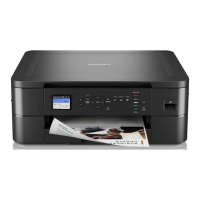
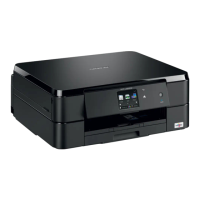
| Product color | Black |
|---|
| Built-in display | Yes |
|---|
| Market positioning | Home & office |
|---|
| Display number of lines | 1 lines |
|---|
| Direct printing | - |
|---|
| Standard interfaces | USB 1.1, USB 2.0, Wireless LAN |
|---|
| USB 2.0 ports quantity | 1 |
|---|
| Wi-Fi standards | 802.11b, 802.11g, Wi-Fi 4 (802.11n) |
|---|
| Mobile printing technologies | Apple AirPrint, Brother iPrint & Scan, Google Cloud Print |
|---|
| Processor family | RISC |
|---|
| Sound pressure level (printing) | 50 dB |
|---|
| Power consumption (off) | 0.2 W |
|---|
| Power consumption (standby) | 2.5 W |
|---|
| Power consumption (PowerSave) | 0.7 W |
|---|
| Power consumption (average operating) | 16 W |
|---|
| Package depth | 229 mm |
|---|
| Package width | 478 mm |
|---|
| Package height | 456 mm |
|---|
| Package weight | 8400 g |
|---|
| Mac operating systems supported | Mac OS X 10.6 Snow Leopard, Mac OS X 10.7 Lion, Mac OS X 10.8 Mountain Lion |
|---|
| Server operating systems supported | Windows Server 2003, Windows Server 2003 x64, Windows Server 2008, Windows Server 2008 R2, Windows Server 2008 x64 |
|---|
| Windows operating systems supported | Windows 7 Home Basic, Windows 7 Home Basic x64, Windows 7 Home Premium, Windows 7 Home Premium x64, Windows 7 Professional, Windows 7 Professional x64, Windows 7 Starter, Windows 7 Starter x64, Windows 7 Ultimate, Windows 7 Ultimate x64, Windows 8, Windows 8 Enterprise, Windows 8 Enterprise x64, Windows 8 Pro, Windows 8 Pro x64, Windows 8 x64, Windows Vista Business, Windows Vista Business x64, Windows Vista Enterprise, Windows Vista Enterprise x64, Windows Vista Home Basic, Windows Vista Home Basic x64, Windows Vista Home Premium, Windows Vista Home Premium x64, Windows Vista Ultimate, Windows Vista Ultimate x64, Windows XP Home, Windows XP Professional, Windows XP Professional x64 |
|---|
| Sustainability certificates | Blue Angel, ENERGY STAR |
|---|
| Scan speed | 3.37 sec/page |
|---|


 To Next Page


 General
 Weight and Dimensions