11
☞ If the printer driver is already installed,
click the No button. A dialog box
appears explaining that installation is
finished. Select “Yes, I want to restart
my computer now.”, click the Finish
button to restart the computer, and
then remove the CD-ROM from the
CD-ROM drive.
INSTALLING THE P-TOUCH QUICK EDITOR SOFTWARE
The P-touch Quick Editor software provides quick access to the more simple label-designing
features for easy text input and instant printing of labels. Install the P-touch Quick Editor soft-
ware onto a PC as described below.
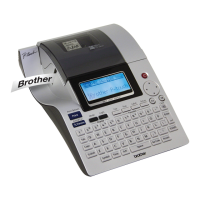
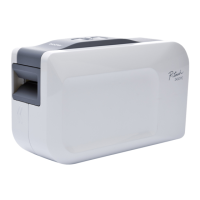
☞ Do not connect the P-touch 2600/2610 to the computer before installing the software,
otherwise it may not be installed correctly. Be sure to connect the P-touch 2600/2610
only when you are instructed to do so.
1 Insert the enclosed CD-ROM into the com-
puter’s CD-ROM drive. A dialog box auto-
matically appears, allowing you to select
what to install.
☞
If the dialog box does not automatically
appear, double-click “My Computer” on
the desktop, and then double-click the
CD-ROM drive containing the CD-ROM.
(For Windows
®
XP, click “My Computer” in
the Start menu, and then double-click the
CD-ROM drive containing the CD-ROM.)
Next, double-click “Setup.exe” to dis-
play the dialog box.
2 Click the middle button (P-touch Quick Edi-
tor). The InstallShield
®
Wizard for installing
the P-touch Quick Editor software starts up,
and then the Welcome dialog box appears.


 To Next Page
 Loading...