Printing the Label
54
IntroductionCreating Labels (For Windows)Creating Labels (For Macintosh)Appendix
Printing the Label
This section describes the printing process for a created label.
1 Click on in the print bar.
A dialog for print settings is displayed.
2 Select "1" for Copies in the print properties box and then click .
The label is printed.
3 Cut off the printed label using the CUT
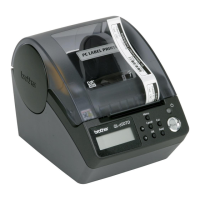
button or the CUT lever (Brother QL-500).
Printing Options
A wide variety of options may be selected in the print dialog box.
A dialog for each setting is displayed after [Copies and Printing Page] is clicked and the item to be changed is
selected.
Copies & Pages
Copies: Selects the number of copies to be printed.
If there is a printing error, an error sign
appears on the printer icon in the dock.
Click the printer icon and click the utility
button in the printer status monitor to
display the error information.



 To Next Page
 Loading...