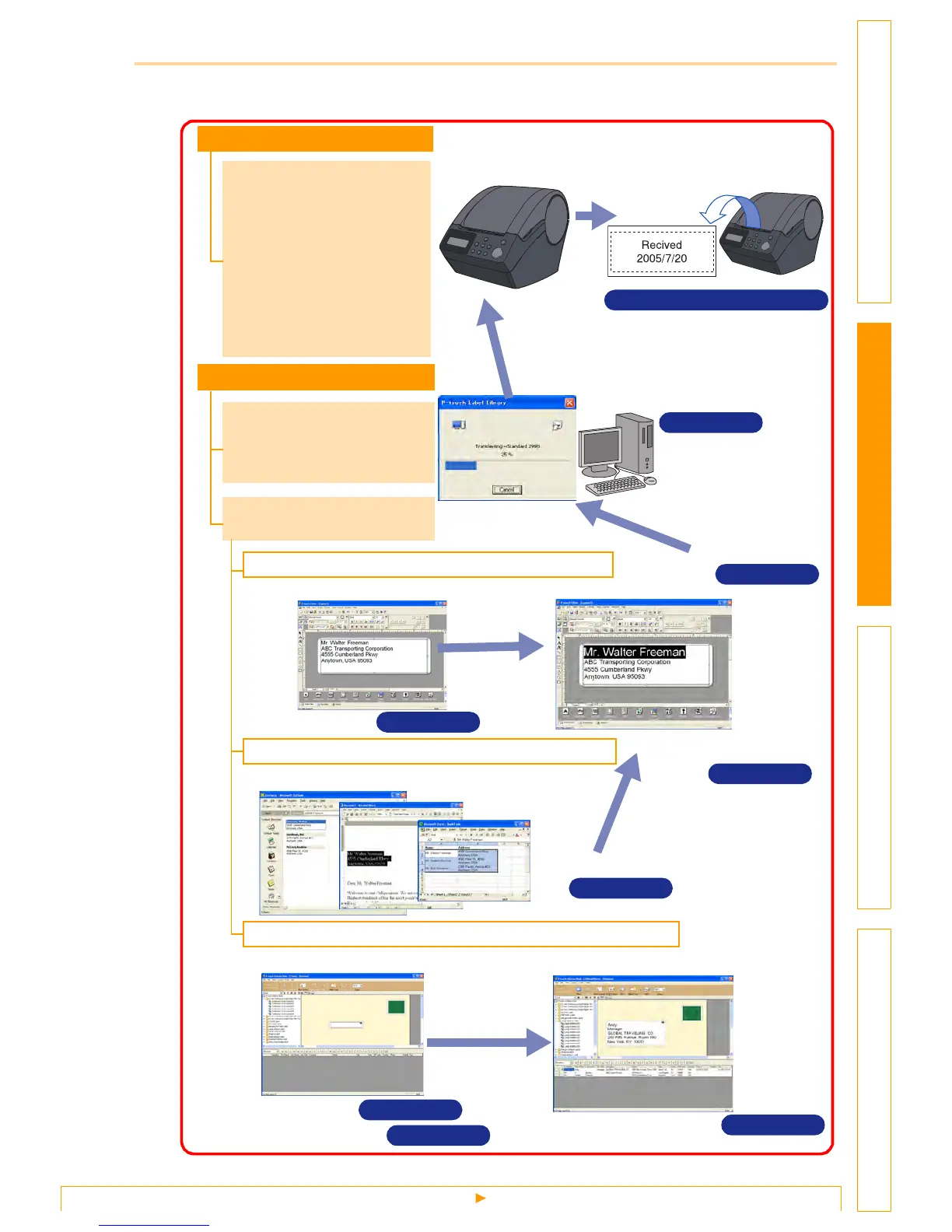
From Label Creation to Printing
6
IntroductionCreating Labels (For Windows)Creating Labels (For Macintosh)Appendix
3 Create and print the label.
Select your preferred method: printing labels directly from the printer, or print from a PC.
ÎPage 7
Select a template
After creating a template
with your PC, create and
print the label using the
printer.
Printing directly
Printing using the PC
Create and print the label
using a PC.
Create and print a label
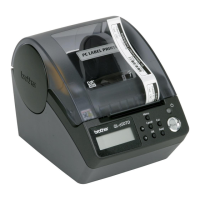
using just the printer.
(Brother QL-650TD only)
The QL-1050 can also
transfer templates, but it
cannot select templates
with machine side
operation. So use the
ESC/P command, which
can transfer templates.
Create and print a label using P-touch Editor.
Use an application from another manufacturer.
Create and print a label using P-touch Address Book.
Print
P-touch Address Book
Transfer
ÎPage 39
P-touch Transfer Manager
P-touch Editor
Edit the label
Create a template
ÎPage 39
Enter the text
P-touch Editor
ÎPage 9
Import the text
Microsoft
®
Word/Excel/Outlook
®
Add-In functions
ÎPage 26
Import the text
ÎPage 36
Enter the text
ÎPage 35
ÎPage 37
Edit the label
P-touch Address Book
ÎSetup & Operation Guide



 To Next Page
 Loading...