EasyManua.ls Logo

Brother QL-1050N - User Manual

Brother QL-1050N
41 pages
Print Icon
To Next Page IconTo Next Page
Loading...
1
IntroductionCreating LabelsAppendix
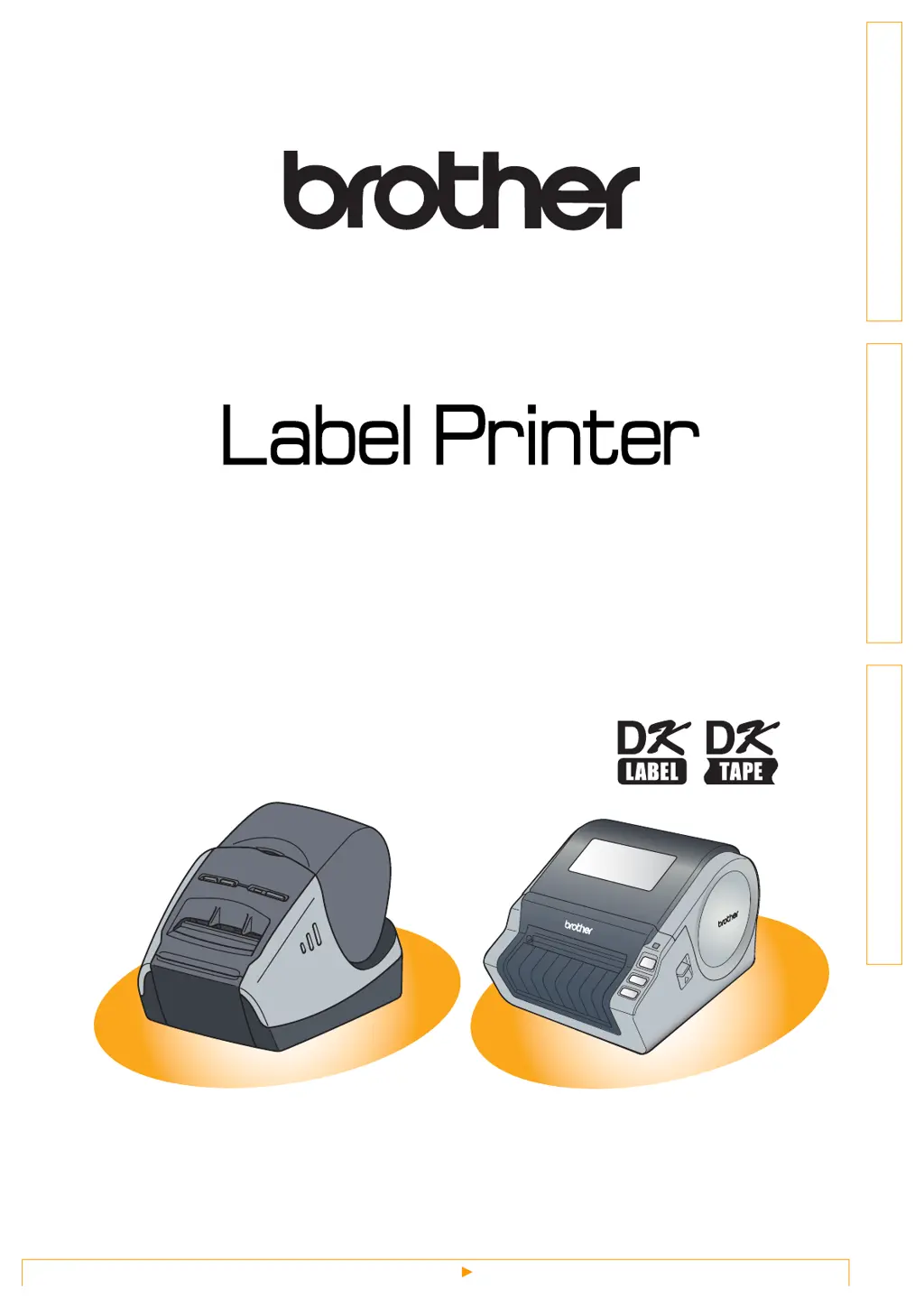
QL-570 / QL-580N / QL-1050 / QL-1060N
User's Guide
The contents of this guide and the specifications of this product are subject to change without notice.
Brother reserves the right to make changes without notice in the specifications and materials contained herein
and shall not be responsible for any damages (including consequential) caused by reliance on the materials
presented, including but not limited to typographical and other errors relating to the publications.
The screen images in this guide can be differed depending on your OS or printer.

Questions and Answers

  • T
    Timothy WardAug 18, 2025
    Why is my Brother Label Maker not printing?
    • A
      Amy ScottAug 18, 2025
      If your Brother Label Maker QL printer isn't printing or you're getting an error, check these things: Make sure the cable is securely connected, the DK Roll is correctly installed and has enough roll remaining, and the DK Roll compartment cover is closed. If problems persist, try turning the Brother QL printer off and then on again. If the issue continues, further assistance may be needed.
  • N
    nelsonjenniferAug 21, 2025
    Why is the power button not lit on my Brother QL-1050N?
    • M
      Mary GriffinAug 21, 2025
      If the power button on your Brother Label Maker isn't lit, check that the power cord is properly inserted. If it is, try plugging it into a different electrical outlet.
  • G
    George WheelerAug 23, 2025
    How to reset Brother Label Maker?
    • M
      Margaret MartinezAug 23, 2025
      To reset your Brother Label Maker and delete data transferred from a PC, turn the machine OFF by pressing and holding the ON/OFF button. Then, hold down the ON/OFF button for two seconds. While still holding the ON/OFF button, press the CUT button six times. This will reset the machine to factory settings and delete all transferred data.
  • D
    debrajohnsonAug 26, 2025
    What to do if a data transmission error appears on the personal computer with Brother QL-1050N?
    • C
      cwelchAug 26, 2025
      If a data transmission error appears on your computer when using the Brother Label Maker, verify that the correct port is selected in the Printer Properties dialog box under "Print to the following port." Also, if the QL printer is in cooling mode (indicated by an orange flashing LED), wait for it to finish before attempting to print. Finally, if other users are printing large amounts of data over the network, wait until those jobs are completed before trying again.
  • M
    Melissa FerrellAug 28, 2025
    How to fix streaks or poor quality characters on Brother QL-1050N?
    • E
      Edward BaldwinAug 28, 2025
      If your Brother Label Maker is producing labels with streaks, poor quality characters, or isn't feeding correctly, the print head or roller might be dirty. The print head usually stays clean with normal use, but lint or dirt from the roller could get stuck on it. If this happens, clean the roller.
  • K
    Katherine HornAug 30, 2025
    How to improve print quality on Brother QL-1050N?
    • D
      David RamirezAug 30, 2025
      If the print quality from your Brother Label Maker is poor, check if there's dirt or lint on the roller preventing it from rolling freely. If so, clean the roller using a cleaning sheet.
  • R
    ryan73Sep 2, 2025
    Why the printed barcode from Brother Label Maker cannot be read?
    • C
      Carolyn MartinSep 2, 2025
      If the printed bar code from your Brother Label Maker cannot be read, make sure the label is vertically aligned with the print head. Also, some scanners may not be compatible, so try using a different scanner. For best results, set the Print Quality options to "Give priority to print quality."
  • S
    Sydney BryantSep 4, 2025
    What to do if the label is not ejected properly after printing with Brother QL-1050N Label Maker?
    • R
      Rachel CooperSep 4, 2025
      If your Brother Label Maker isn't ejecting labels properly, first check that the ejection path isn't blocked. Next, remove and reinstall the DK Roll to ensure it's correctly set. Finally, make sure the DK Roll cover is properly closed.
  • A
    Albert SanchezSep 7, 2025
    Why does my Brother Label Maker pause and continue printing via USB?
    • L
      Lindsey JohnsonSep 7, 2025
      If your Brother Label Maker pauses and restarts repeatedly when printing via USB, check if it's set for sequential printing. If it is, change the print mode to buffered printing by going to [Control Panel] - [Printer and FAX], clicking [Printing Preferences...] in the [General] tab, and choosing "After one page of data is received". Alternatively, disconnect the LAN cable until USB printing is completed.
  • A
    allison29Sep 10, 2025
    What to do if Cutter error appears on Brother QL-1050N Label Maker?
    • Z
      zsmithSep 10, 2025
      If a cutter error occurs on your Brother Label Maker, keep the DK roll compartment cover closed and press the ON/OFF button. The cutter will return to its normal position, and the machine will turn OFF automatically. After it's OFF, inspect the cutter unit and remove any paper jam.

Summary

Creating Labels

From Label Creation to Printing

Steps from creating labels to printing them.

How to Use P-touch Editor for Windows

Detailed guide on using P-touch Editor for Windows.

Creating Labels with Other Applications

Using Microsoft Word, Excel, and Outlook to create labels.

How to Use the P-touch Address Book

Guide to creating labels using the P-touch Address Book.

How to Use P-touch Transfer Manager & P-touch Library

Managing templates and data with Transfer Manager and Library.

Transferring Templates via USB

Steps to transfer templates from PC to printer via USB.

Transferring Templates via Network

How to transfer templates to the printer over a network.

How to Use P-touch Editor for Mac

Guide to using P-touch Editor for Mac.

Brother QL-1050N Specifications

General IconGeneral
BrandBrother
ModelQL-1050N
CategoryLabel Maker
LanguageEnglish

Related product manuals