EasyManua.ls Logo

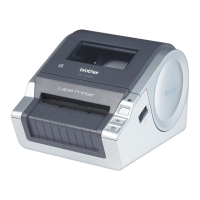
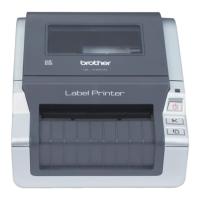
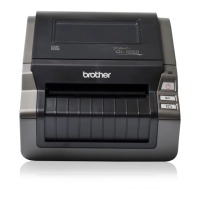
Brother QL-1050 - User Manual

Brother QL-1050
48 pages
Print Icon
To Next Page IconTo Next Page
Loading...
QL-1050/1060N
User's Guide
Guía del usuario
Be sure to read this guide before using the machine. We recommend that you
keep this guide nearby for future reference.
Asegúrese de leer este manual antes de usar la impresora. Le recomendamos
conservar este manual a mano para referencia en el futuro.

Other manuals for Brother QL-1050

Questions and Answers

  • S
    Shelby StrongAug 16, 2025
    How to fix Brother QL Label Maker if it does not print?
    • G
      George WallaceAug 17, 2025
      If the Brother QL label printer does not print, check the following: * Ensure the cable is securely connected. * Verify the DK Label or DK Tape roll is installed correctly; reinstall if necessary. * Confirm there is enough label/tape roll remaining. * Make sure the DK Roll compartment cover is closed. * If a print or transmission error occurred, turn the Brother Label Printer off and on again. If the problem persists, contact Brother Customer Service at 1-877- BROTHER.
  • S
    stantonlindsayAug 19, 2025
    What to do if the label is not ejected properly from my Brother QL-1050?
    • T
      thomasmillerSep 12, 2025
      If the label is not ejected properly after printing from your Brother Label Maker, make sure that the ejection path of the label is not blocked. Also, check that the DK Label or DK Tape roll is set properly by removing and reinstalling it, and ensure that the DK Label or DK Tape roll compartment cover is closed properly.
  • L
    Linda RamirezAug 22, 2025
    How to reset Brother QL-1050 Label Maker QL-1060N and delete transferred data?
    • S
      Sara BoydAug 22, 2025
      To reset the Brother Label Maker (QL-1060N only) and delete the data transferred from PC, press and hold the ON/OFF button to switch the machine OFF. Then, hold down the ON/OFF button for two seconds. While still holding the ON/OFF button, press the CUT button six times. The machine will reset, deleting all transferred data and reverting to factory settings.
  • K
    Kayla LewisAug 25, 2025
    What to do if my Brother QL-1050 Label Maker QL shows a cutter error?
    • J
      jennifer97Aug 25, 2025
      If the Brother Label Printer QL experiences a cutter error, keep the DK roll compartment cover closed and press the ON/OFF button. The cutter will return to its normal position, and the machine will automatically turn OFF. After the machine turns OFF, inspect the cutter unit and remove any jammed paper.
  • J
    Julie WalkerAug 27, 2025
    Why does my Brother QL-1050 show a data transmission error?
    • K
      Kimberly DavisAug 28, 2025
      A data transmission error on your computer screen when using the Brother Label Printer could be due to several reasons: * Verify that the correct port is selected in the “Print to the following port” list within the Printer Properties dialog box. * Check if the Brother Label Printer is in cooling mode (the LED lamp is flashing orange). Wait for the LED lamp to stop flashing before attempting to print again. * Determine if another user is printing via the network. If multiple users are printing large amounts of data simultaneously, the printer may be unable to accept your print job until the other jobs are completed. Try re-executing the print job once the other jobs have finished.
  • M
    Marie WardAug 30, 2025
    Why is the status LED lamp not lit on my Brother QL-1050?
    • V
      virginiamaysAug 30, 2025
      If the status LED lamp on your Brother Label Maker is not lit, ensure the power cord is correctly plugged in. If it is, try plugging it into another electrical outlet. If the power button still does not light up, contact Brother Customer Service at 1-877-BROTHER.
  • A
    Alyssa FoleySep 1, 2025
    Why is the print quality poor on my Brother Label Maker?
    • J
      Jennifer LewisSep 2, 2025
      If the print quality is poor on your Brother Label Maker, the roller might have dirt or lint preventing it from rolling freely. Clean the roller using the cleaning sheet (available separately).
  • J
    jason35Sep 5, 2025
    Why is the Add-in feature icon not displayed on Microsoft® Word for my Brother QL-1050 Label Maker?
    • M
      Mary TownsendSep 5, 2025
      If the Add-in feature icon is not displayed on Microsoft® Word for your Brother Label Maker, check if Microsoft® Word is started from Microsoft® Outlook®, or if Microsoft® Word is chosen as the editor usually used for Microsoft® Outlook®. Due to program limitations, the Add-in feature of Microsoft® Word cannot be used with these settings. Quit Microsoft® Outlook® and restart Microsoft® Word.
  • D
    dennis88Sep 7, 2025
    What to do if the printed barcode cannot be read from my Brother QL-1050?
    • R
      reyeskaitlynSep 7, 2025
      If the printed barcode from your Brother Label Maker cannot be read, try using a different scanner, as it may depend on the type of scanner. It is recommended to print the barcode with Print Quality options set to “Give priority to quality”. Also, set the label vertically to the print head.
  • R
    Robert FisherSep 10, 2025
    How to cancel current printing job on Brother QL-1050 QL-1060N?
    • Z
      Zoe LesterSep 12, 2025
      To cancel the current printing job on the Brother Label Maker (QL-1060N only), ensure that the printer is ON, and then press the ON/OFF button.

Summary

Product Information and Support

Brother Limited Warranty Details

Details the two-year limited warranty, what's covered, exclusions, and how to get service.

General Information and Safety Guidelines

Safety Precautions Overview

Provides critical safety instructions for operating and handling the printer to prevent injury or damage.

Getting Started and Setup

Installing the DK Roll Media

Step-by-step instructions for correctly loading the DK Roll media into the printer.

Connecting the Power Supply

Details the procedure for safely connecting the printer to a power source and electrical outlet.

Reference, Maintenance, and Troubleshooting

Printer Maintenance and Cleaning

Outlines essential maintenance tasks including print head, roller, and label outlet cleaning.

Troubleshooting Common Issues

Provides solutions for common printing problems, error messages, and connection issues.

Brother QL-1050 Specifications

General IconGeneral
Print technologyDirect thermal
USB portYes
Standard interfacesUSB 2.0, Serial
USB 2.0 ports quantity1
Tape typeDK
Internal memory2 MB
Number of styles6
Built-in barcodesEAN128, EAN13, EAN8, PDF417, QR Code, UPC-A, UPC-E
Tape size62 mm
Dimensions (WxDxH)170 x 220 x 147.5 mm
Bundled softwareP-touch editor
Maximum label width102 mm
Maximum label length3 m
Minimum RAM128 MB
Minimum storage drive space70 MB
Compatible operating systemsWindows 2000/XP/Vista Mac OS 10.1-10.4.7
Weight and Dimensions IconWeight and Dimensions
Weight1700 g

Related product manuals