EasyManua.ls Logo

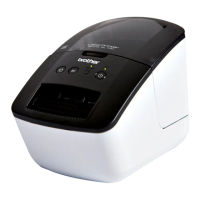
Brother QL-700 - User Manual

Brother QL-700
61 pages
Print Icon
To Next Page IconTo Next Page
Loading...
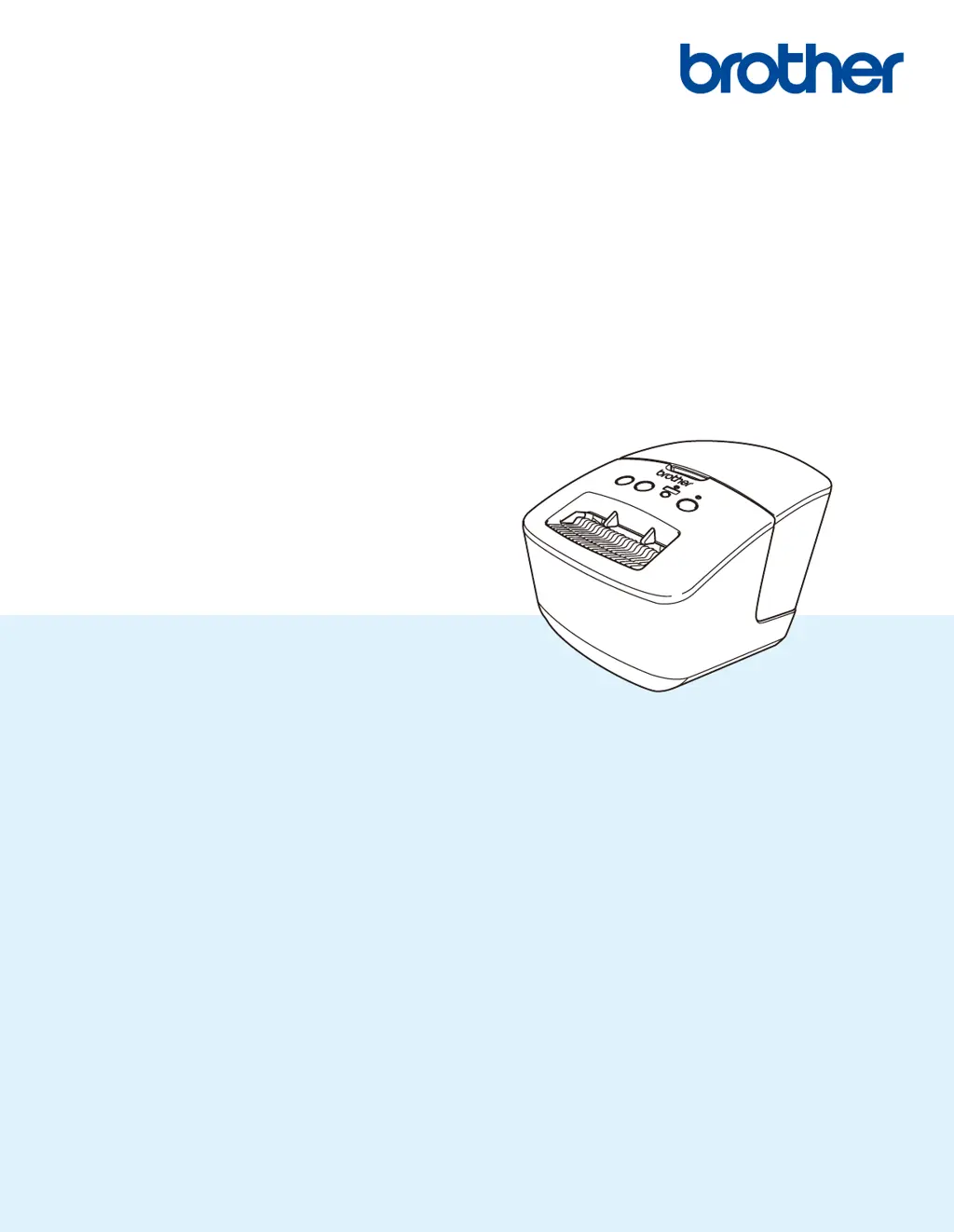
User’s Guide
QL-700
Read the Product Safety Guide first, then read the Quick Setup Guide for
the correct setup procedure. After reading this guide, keep it in a safe
place for quick reference.
Version 03
ENG

Table of Contents

Other manuals for Brother QL-700

Questions and Answers

  • K
    Kimberly BrownAug 18, 2025
    Why does my Brother Printer print labels with streaks?
    • M
      mcknighttravisAug 18, 2025
      To address streaks, poor quality characters, or incorrect label feeding on your Brother Printer, the print head or roller might be dirty. Clean the roller, as lint or dirt from it may be stuck on the print head.
  • L
    Lynn MuellerAug 20, 2025
    What to do if Brother Printer does not print?
    • K
      Kathryn BrooksAug 20, 2025
      To resolve a Brother Printer that is not printing or is showing a printing error: * Ensure the cable is securely connected. * Verify that the DK Roll is correctly installed; reinstall if necessary. * Check that there is sufficient roll remaining. * Confirm the DK Roll Compartment Cover is closed. * If a print or transmission error occurred, turn the printer off and then on again. * If connected via a USB hub, try connecting directly to the computer or another USB port.
  • Z
    Zachary GriffinAug 23, 2025
    What to do if a data transmission error appears on the computer for Brother Printer?
    • B
      Bonnie DuffyAug 23, 2025
      If a data transmission error appears on the computer when using your Brother Printer, it might be because the printer is in cooling mode. Wait until the Status LED stops flashing in orange, and then try printing again.
  • E
    Erin BarnesAug 26, 2025
    Why printed barcodes cannot be read on Brother Printer?
    • M
      Mark MillerAug 26, 2025
      To resolve the issue of printed barcodes not being readable on your Brother Printer: * Print labels so that barcodes are aligned with the print head. * Try using another scanner. * Print barcodes with Print Quality options set to Give priority to print quality.
  • C
    Christopher MeyerAug 27, 2025
    What to do if unable to reset an error on Brother Printer?
    • B
      Beth GillAug 27, 2025
      To resolve an error on your Brother Printer: 1. Open the DK Roll Compartment Cover, and then close it. 2. If the error is not reset, press the Cutter Button or Feed Button. 3. If the error is not reset, turn the printer off, and then turn it on again.
  • J
    Joseph FernandezAug 30, 2025
    How to cancel printing job on Brother Printer?
    • B
      Brandon LeeAug 30, 2025
      To cancel the current printing job on the Brother Printer, ensure that the printer is on and press the Power Button.
  • R
    Rebecca SmithSep 1, 2025
    What to do if the label is not ejected correctly after printing with Brother Printer?
    • D
      Diane StoneSep 1, 2025
      To address the issue of the label not ejecting correctly after printing with your Brother Printer: * Ensure that the Label Output Slot is not blocked. * Verify that the DK Roll is set correctly by removing and reinstalling it. * Ensure that the DK Roll Compartment Cover is closed correctly.
  • M
    Morgan ParkerSep 3, 2025
    What to do if the Status LED is not lit on Brother Printer?
    • A
      Alexandra PhillipsSep 3, 2025
      To troubleshoot the Status LED not being lit on your Brother Printer, check that the AC Power Cord is inserted correctly. If it is, try plugging it into another electrical socket.
  • J
    Jerry DawsonSep 5, 2025
    Why is the P-touch Add-In icon not displayed in Microsoft Word for Brother Printer?
    • W
      Walter ChavezSep 6, 2025
      To resolve the issue of the P-touch Add-In icon not being displayed in Microsoft Word for Brother Printer, quit Microsoft Outlook and restart Microsoft Word. The Microsoft Word Add-In does not work when Microsoft Word is started from Microsoft Outlook due to program limitations.
  • L
    Linda AllenSep 8, 2025
    What to do if layout style was not updated on Brother Printer after replacing the Roll?
    • J
      James OwensSep 8, 2025
      To address the layout style not being updated after replacing the Roll while the Add-In feature was activated on your Brother Printer, close P-touch Editor to exit the Add-In, and then reactivate the Add-In.

Summary

General Precautions

DK Roll Precautions

Details important safety and usage precautions specifically for Brother DK Rolls and labels, covering storage and application.

Section I Basic Operations

Printer Setup

Guides users through the initial setup of the label printer, including parts identification, power connection, and loading the DK roll.

Printing with P-touch Editor

Explains how to connect the printer to a computer and use P-touch Editor for label design and printing, including software installation.

Section II Application

Using P-touch Editor

Provides detailed instructions on using the P-touch Editor software for creating and printing custom labels, covering Windows and Mac.

Using P-touch Editor Lite

Explains how to use the simplified P-touch Editor Lite for quick label creation without installing full drivers, focusing on its interface and functions.

Using P-touch Address Book

Details how to efficiently create labels from contact information using the P-touch Address Book, covering contact management and label creation.

Using P-touch Library

Instructions for managing and printing P-touch Editor templates using the P-touch Library application, including searching and opening templates.

Updating P-touch Software

Guides users on upgrading the P-touch software and printer firmware to the latest versions using the update utility.

Section III Appendix

Resetting the Printer

Provides steps to reset the printer's device settings back to factory defaults using the printer buttons for troubleshooting.

Printer Maintenance

Offers guidance on cleaning the printer's exterior, label outlet, and print head for optimal performance and longevity.

Troubleshooting Guide

Helps users diagnose and resolve common problems, including LED indications, printing errors, jams, and version information.

Product Specifications

Lists the technical specifications of the label printer, including display, print method, dimensions, weight, and operating environment.

Printing from Windows Software

Explains how to print labels from various Windows applications by installing the appropriate printer driver and configuring settings.

Brother QL-700 Specifications

General IconGeneral
Color-
Print technologyDirect thermal
Vertical printingYes
Maximum resolution300 x 300 DPI
Maximum print height59 mm
Maximum printing width62 mm
Ethernet LANNo
Product colorBlack, White
Quantity outer carton3 pc(s)
Tape typeDK
Tape cuttingAutomatic
Built-in barcodesCODABAR (NW-7), EAN128, EAN13, EAN8, Interleaved 2/5, PDF417, POSTNET, UPC-A, UPC-E
Maximum label length1 m
Package depth184.15 mm
Package width260.35 mm
Package height234.9 mm
Package weight1995 g
Quantity per pack1 pc(s)
Master (outer) case width274 mm
Master (outer) case length555 mm
Harmonized System (HS) code84433210
AC input voltage120 V
AC input frequency60 Hz
AC adapter output current1.7 A
Bundled softwareSoftware, USB Cable, Power Cord, Quick Setup Guide, Documentation, Starter rolls: DK-1201 Die-cut Standard Address Labels (100 labels), plus DK-2205 2.4\
Weight and Dimensions IconWeight and Dimensions
Depth221 mm
Width128 mm
Height153 mm
Weight1100 g

Related product manuals