EasyManua.ls Logo

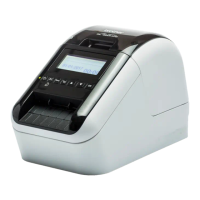
Brother QL-820NWB - User Manual

Brother QL-820NWB
213 pages
Print Icon
To Next Page IconTo Next Page
Loading...
User’s Guide
QL-810W
QL-820NWB
Read the Product Safety Guide first, then read the Quick Setup Guide for the correct
setup procedure. After reading this guide, keep it in a safe place for quick reference.
Version B
US ENG

Table of Contents

Other manuals for Brother QL-820NWB

Questions and Answers

  • B
    Beth AvilaSep 3, 2025
    Why is the label not ejected correctly after printing on my Brother QL-820NWB?
    • T
      teresa22Sep 3, 2025
      If the label is not ejecting correctly after printing, check the following: * Ensure that the Label Output Slot is not blocked. * Verify that the DK Roll is set correctly by removing and reinstalling it. * Make sure that the DK Roll Compartment Cover is closed correctly.
  • J
    James GoodwinSep 18, 2025
    How to restart P-touch Editor Lite on Brother Label Printer?
    • T
      Tammy HaynesSep 18, 2025
      You can restart P-touch Editor Lite in a few ways: 1. Turn off the Label Printer and then turn it back on. 2. Disconnect and then reconnect the USB Cable while the Label Printer is on. 3. Launch P-touch Editor Lite from My Computer.
  • T
    troywrightSep 16, 2025
    What to do if data transmission error appears on my computer when using Brother Label Printer?
    • M
      Michael FrySep 16, 2025
      If you encounter a data transmission error with your Brother Label Printer, verify that the correct port is selected in the Printer Properties dialog box under the “Print to the following port” list. Also, check if the Label Printer is in cooling mode, indicated by the Status LED flashing orange. If it is, wait until the Status LED stops flashing before attempting to print again.
  • J
    joshua42Sep 14, 2025
    What to do if a data transmission error appears on my computer for Brother QL-820NWB Label Maker?
    • B
      Brian SmithSep 14, 2025
      If you're seeing a data transmission error on your computer when using the Brother Label Maker, it might be due to the wrong port being selected. Check that the correct port is chosen from the [Print to the following port] list in the [Printer Properties] dialog box. Alternatively, the printer might be in cooling mode (the Status LED is flashing in orange). If so, wait until the Status LED stops flashing and then try printing again.
  • A
    anthony87Sep 12, 2025
    How to restart P-touch Editor Lite on Brother QL-820NWB Label Maker?
    • M
      Mrs. Brittany DouglasSep 13, 2025
      To restart P-touch Editor Lite after exiting while the Brother Label Printer is still on, you can turn the Label Printer off and then back on, disconnect and then reconnect the USB Cable, or launch P-touch Editor Lite from My Computer.
  • A
    Andre DiazSep 12, 2025
    Why does a data transmission error appear for Brother QL-820NWB Label Maker?
    • Q
      qwhiteheadSep 12, 2025
      If you're experiencing a data transmission error on your computer with the Brother Label Printer, verify that the correct port is selected in the Printer Properties dialog box under the "Print to the following port" list. Also, if the Label Printer is in cooling mode (Status LED flashing orange), wait until the Status LED stops flashing before attempting to print again.
  • I
    Ian CraigSep 9, 2025
    What to do if Brother QL-820NWB label is not ejected correctly after printing?
    • N
      Nichole McbrideSep 9, 2025
      If the label is not ejecting correctly, check that the Label Output Slot is not blocked. Also, ensure the DK Roll is set correctly by removing and reinstalling it. Finally, confirm that the DK Roll Compartment Cover is closed correctly.
  • R
    Ryan HarrisSep 7, 2025
    What to do if cutter error occurs on Brother QL-820NWB Label Maker?
    • B
      Brian DavisSep 7, 2025
      If a cutter error occurs, keep the DK Roll Compartment Cover closed and press the Power button. The cutter will move back to its normal position, and the Label Printer will turn off automatically. After the Label Printer is off, check the Label Output Slot and remove any jammed labels.
  • Y
    ysandersSep 5, 2025
    How to fix Brother QL-820NWB if the Status LED is not lit?
    • S
      stephanie54Sep 5, 2025
      If the Status LED on your Brother Label Maker is not lit, check that the AC Power Cord is inserted correctly. If it is inserted correctly, try plugging it into another electrical socket.
  • L
    Lisa JohnsonAug 20, 2025
    What to do if Brother QL-820NWB has problems with the printer?
    • S
      Steven HillAug 21, 2025
      If you are experiencing issues with your Brother Label Maker printer, try the following: Ensure the printer is connected to a power source either via an electrical socket or with a battery installed. Remove any protective packaging from the printer. Make sure the correct printer driver is installed and selected. Verify the printer is properly connected to your computer or mobile device. Ensure the DK Roll Compartment Cover is completely closed and that a DK Roll is correctly inserted.

Summary

Basic Operations

Setting Up the Label Printer

Covers parts description, loading DK rolls, power management, and initial settings.

Printing Using a Computer (P-touch Editor)

Guide to installing software, connecting the printer, and printing from a computer.

Printing Using the Mobile Device

Instructions for installing mobile apps, connecting, and printing from mobile devices.

Changing the Label Printer Settings

Details on using the Printer Setting Tool for configuration and customization.

Printing Labels Using P-touch Template

Utilizing templates for specialized printing tasks via barcode scanner or LCD.

Other Functions

Explores advanced features like 2-color printing, mass storage, and remote updates.

Application Software

How to Use P-touch Editor

Guide to creating and printing labels with P-touch Editor software.

How to Use P-touch Editor Lite

Simplified label creation and printing for Windows users.

How to Use P-touch Transfer Manager and Library

Managing and transferring templates and data to the label printer.

Transferring Templates with P-touch Transfer Express

Distributing templates and software using Transfer Express.

How to Update P-touch Software

Steps to update printer software and firmware versions.

Network Setup and Management

Introduction to Network Features

Overview of network connectivity options and features.

Changing Label Printer Network Settings

Configuring IP address, subnet mask, and gateway via utilities.

Web Based Management

Managing printer settings and configuration via a web browser.

Appendix and Troubleshooting

Resetting the Label Printer

Procedures for factory resets and clearing saved data.

Maintenance Procedures

Cleaning guides for printer exterior, print head, roller, and label outlet.

Troubleshooting Common Issues

Solutions for printing, connectivity, and error problems.

Product Specifications

Technical details and features of the label printer models.

Network Terms and Information

Explanations of network protocols, security features, and terms.

List of Barcodes for P-touch Template Function

Reference for barcodes used in P-touch Template operations.

Using the Battery Unit

Instructions for charging, usage, and care of the battery unit.

Using the Brother Barcode Scanner

Information on connecting and using the optional barcode scanner.

Brother QL-820NWB Specifications

General IconGeneral
ColorYes
Text alignmentCenter, Justify, Left, Right
Printing colorsBlack, Red
Print technologyDirect thermal
Maximum resolution300 x 600 DPI
Maximum print height60.96 mm
Minimum print length1000 mm
Maximum printing width62 mm
Battery typeBuilt-in battery
Number of batteries supported1
Operating temperature (T-T)10 - 35 °C
Operating relative humidity (H-H)20 - 80 %
Wi-Fi standards802.11b, 802.11g, Wi-Fi 4 (802.11n)
Bluetooth version2.0+EDR
Bluetooth profilesBIP, HCRP, OPP, SPP
USB 2.0 ports quantityUSB 2.0 ports have a data transmission speed of 480 Mbps, and are backwards compatible with USB 1.1 ports. You can connect all kinds of peripheral devices to them.
Connectivity technologyWired & Wireless
Mobile printing technologiesApple AirPrint
Tape typeDK
Bitmap fontsGothic
Flash memory6 MB
Number of fonts5
Number of styles8
Built-in barcodesCODABAR (NW-7), Code 128 (A/B/C), Code 39, Code 93, Code-39 Library, Data Matrix, EAN128, EAN13, EAN8, GS1 DataBar, GS1 DataBar Expanded, GS1 DataBar Limited, GS1-128, ISBN-2, ISBN-5, ITF, ITF-25, MaxiCode, Micro QR Code, MicroPDF417, PDF417, POSTNET, QR Code, UPC-A, UPC-E
Security algorithmsEAP-FAST, EAP-MD5, EAP-TLS, EAP-TTLS, LEAP, PEAP, WEP, WPA-AES, WPA-PSK, WPA-TKIP, WPA2-AES, WPA2-PSK, WPA2-TKIP
Typestyles supportedBold, Italics
Page description languagesESC P, Raster_P
Cables includedAC, USB
Bundled softwareP-touch Editor 5, P-touch Editor Lite LAN, P-touch Address Book, BR Admin Light
Sustainability certificatesENERGY STAR
DisplayLCD
Control typeButtons
Product colorBlack, White
CompatibilityApple iPhone SE Apple iPhone 6s Plus Apple iPhone 6s Apple iPhone 6 Puls Apple iPhone 6 Apple iPhone 5s Apple iPhone 5c Apple iPhone 5 Apple iPhone 4s Apple iPad Pro (12.9-inch) Apple iPad Air2 Apple iPad Air Apple iPad mini 4 Apple iPad mini 3 Apple iPad mini 2 Apple iPad mini Apple iPad (4th generation) Apple iPad (3rd generation) Apple iPad2 Apple iPod touch (6th generation) Apple iPod touch (5th generation)
Number of frames126
Languages supportMulti
Networking features10/100 Base-TX
Number of languages18
Package depth184 mm
Package width298 mm
Package height232 mm
Package weight2620 g
Harmonized System (HS) code84433210
Weight and Dimensions IconWeight and Dimensions
Depth234 mm
Width125 mm
Height145 mm
Weight1160 g

Related product manuals