EasyManua.ls Logo

Brother QL-570N - User Manual

Brother QL-570N
43 pages
Print Icon
To Next Page IconTo Next Page
Loading...
Label Overview
STEP
1
Introduction
STEP
2
STEP
3
For Windows
®
For Macintosh
®
STEP
4
Getting startedReference Installing the software
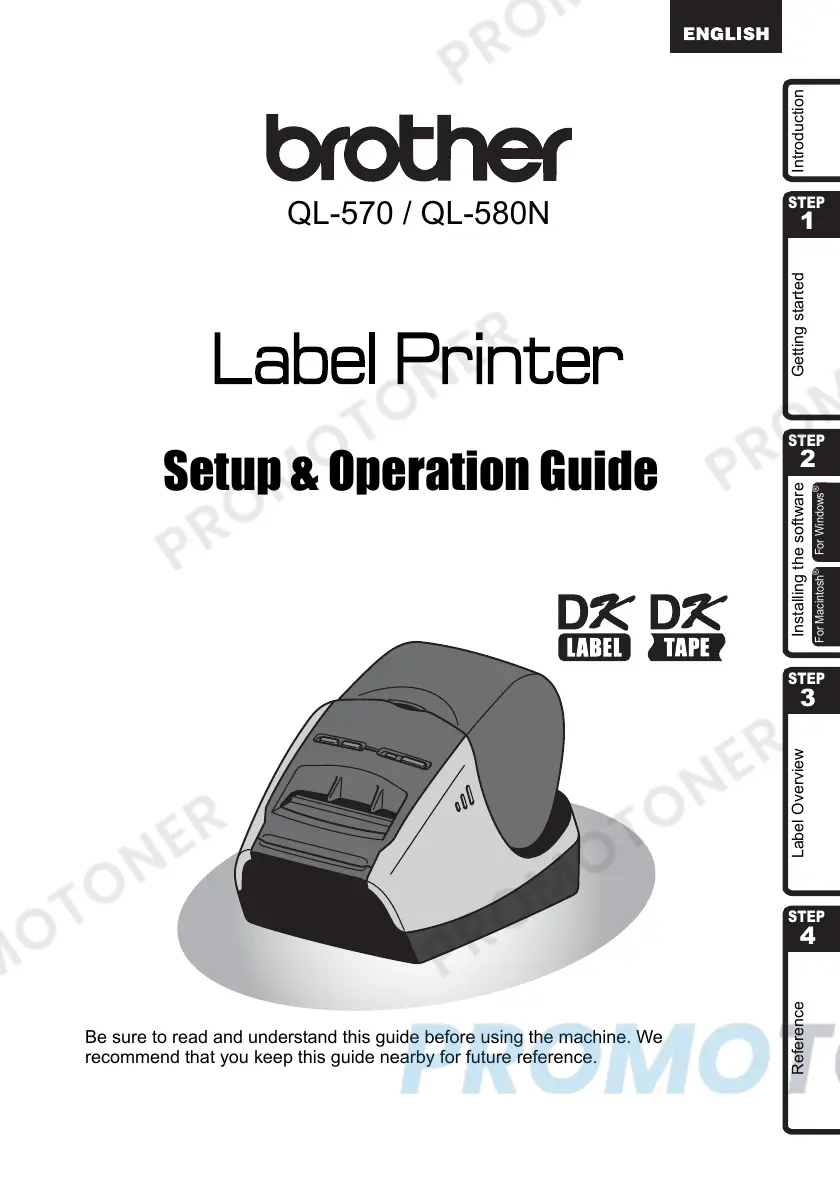
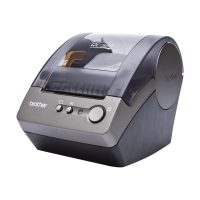
QL-570 / QL-580N
Setup & Operation Guide
Be sure to read and understand this guide before using the machine. We
recommend that you keep this guide nearby for future reference.

Questions and Answers

  • M
    Michael RodriguezSep 18, 2025
    What to do if someone is printing via network on my Brother QL-570N Label Maker?
    • T
      Tyler McgeeSep 18, 2025
      If someone is printing via the network on your Brother Label Maker, execute your print job again after the other jobs are completed.
  • D
    David StevensAug 25, 2025
    How to fix Brother Label Maker QL printer when it does not print?
    • C
      Corey NguyenAug 25, 2025
      If your Brother QL Label Maker isn't printing, ensure the cable is securely connected and the DK Roll is installed correctly with enough roll remaining. Also, verify that the DK Roll compartment cover is closed. If a print or transmission error occurred, turn the printer off and on again. If the issue persists, consider contacting your Brother dealer.
  • S
    Shari ColemanAug 25, 2025
    How to reset Brother QL-580N Label Maker and delete data?
    • R
      ryanlucasAug 26, 2025
      To reset your Brother QL-580N Label Maker, press and hold the ON/OFF button to switch the machine OFF. Then, hold down the ON/OFF button for two seconds. Continue holding down the ON/OFF button, and press the CUT button six times. The machine will reset, deleting all transferred data from your PC and restoring it to factory settings.
  • T
    Tiffany StephensAug 27, 2025
    Why is the power button not lit on my Brother QL-570N?
    • D
      davisdebbieAug 27, 2025
      If the power button on your Brother Label Maker is not lit, check that the power cord is inserted correctly. If it is, try plugging it into another electrical outlet.
  • P
    Peter OwensSep 22, 2025
    Why the printed barcode cannot be read on my Brother Label Maker?
    • D
      David GarnerSep 22, 2025
      If the printed barcode from your Brother Label Maker cannot be read, try using a different barcode scanner. It's recommended to print the barcode with 'Give priority to print quality' enabled. Also, ensure the label roll is inserted straight into the print head to prevent misfeeds.
  • E
    Eric SmithSep 23, 2025
    How to cancel the current printing job on my Brother QL-570N Label Maker?
    • M
      Michelle RobertsSep 23, 2025
      To cancel the current printing job on your Brother Label Maker, ensure that the printer is ON, and then press the ON/OFF button.
  • M
    Melanie JacksonSep 9, 2025
    What to do if Brother QL-570N ejects labels improperly?
    • M
      Mary RamirezSep 10, 2025
      If your Brother Label Maker is not ejecting labels properly, check that the ejection path is not blocked. Also, ensure the DK Roll is set correctly by removing and reinstalling it, and verify that the DK Roll cover is closed properly.
  • J
    Jennifer CastilloSep 12, 2025
    How to cancel printing job on Brother QL-580N Label Maker?
    • K
      Keith OrtizSep 12, 2025
      To cancel the current printing job on your Brother QL-580N Label Maker, ensure that the printer is ON, and then press the ON/OFF button.
  • B
    Brady AnthonySep 3, 2025
    Why does Brother Label Maker print labels with streaks?
    • J
      Jonathan MartinezSep 3, 2025
      Streaks or poor-quality characters on Brother Label Maker prints can occur if the print head or roller is dirty. Lint or dirt from the roller may stick to the print head. If this happens, clean the roller.
  • R
    rodney93Sep 1, 2025
    Why does my Brother Printer print labels with streaks?
    • J
      Joanna AguilarSep 1, 2025
      If the printed label from your Brother printer contains streaks or poor quality characters, or the label is not fed correctly, the print head or roller may be dirty. Clean the roller, as lint or dirt from it might be stuck on the printer head.

Brother QL-570N Specifications

General IconGeneral
BrandBrother
ModelQL-570N
CategoryLabel Maker
LanguageEnglish

Related product manuals