EasyManua.ls Logo

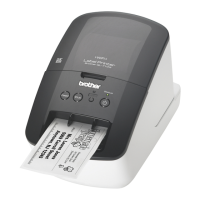
Brother QL-710W/720NW - User Manual

Brother QL-710W/720NW
23 pages
Print Icon
To Next Page IconTo Next Page
Loading...
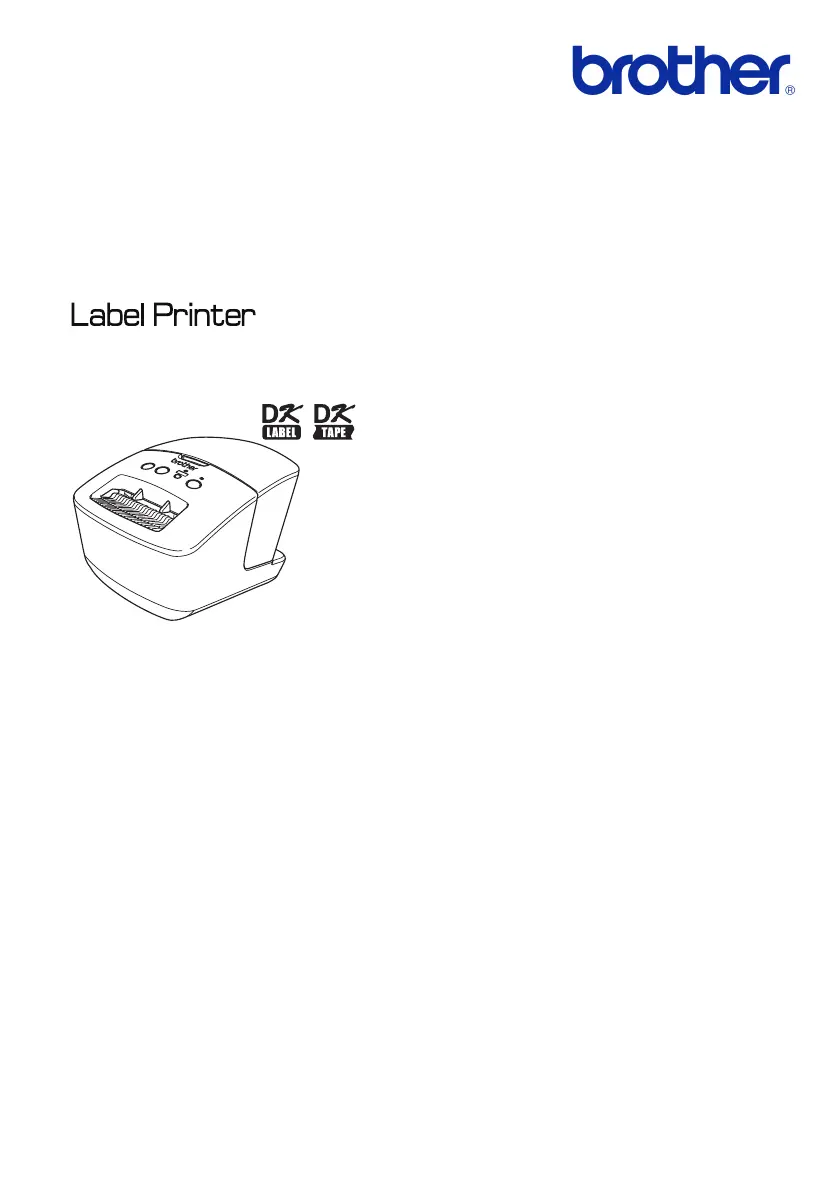
User’s Guide
Be sure to read and understand this guide before using the machine.
We recommend that you keep this guide nearby for future reference.
Not all models are available in all countries.
www.brother.com
ENG
ver.0
QL-710W/720NW

Questions and Answers

  • E
    Elizabeth HesterAug 19, 2025
    What to do if my Brother QL-710W/720NW Label Maker QL printer does not print?
    • L
      Lauren GilbertAug 19, 2025
      If your Brother QL printer isn't printing or you're getting a printing error, first, check if the cable is securely connected. Then, make sure the DK Roll is correctly installed; remove and reinstall it if needed. Verify there's enough roll remaining and that the DK Roll compartment cover is closed. If problems persist, try turning the printer off and on again. If you're using a USB hub, connect the printer directly to your PC or try a different USB port.
  • B
    Barry MurphyAug 21, 2025
    How to reset Brother QL-710W/720NW and delete transferred data?
    • J
      Jonathan VargasAug 21, 2025
      To reset the printer and delete data transferred from your PC/Mac on the Brother Label Maker, turn off the machine. Then, press and hold the Cut button while holding down the ON/OFF button. When the Wi-Fi lamp starts flashing and the Status lamp lights orange, press the Cut button six times while continuing to hold down the ON/OFF button.
  • D
    danielwilliamsAug 23, 2025
    Why can't I print from wired network using Brother QL-710W/720NW?
    • B
      briandavisAug 23, 2025
      If you cannot print from a wired network using your Brother Label Maker, first check that the wired network cable is properly connected. Also, if the wireless LED is lit or flashing, press the Wi-Fi button to turn it off.
  • L
    Lisa ValenzuelaAug 26, 2025
    Why can't I install the printer driver for wired network on Brother Label Maker?
    • P
      Paul OrtizAug 26, 2025
      If you're unable to install the printer driver for a wired network with your Brother Label Maker, verify that the wired network cable is connected properly. Also, check if the wireless LED is lit; if it is, press the Wi-Fi button to turn it off.
  • J
    Jessica CoffeyAug 28, 2025
    Why can't I print from wireless network using Brother Label Maker?
    • P
      Paul WongAug 28, 2025
      If you cannot print from a wireless network using your Brother Label Maker, check if the wireless LED is lit. If it's not lit, press the Wi-Fi button to turn it on.
  • S
    Susan MunozAug 30, 2025
    Why can't I install the printer driver for wireless network on Brother Label Maker?
    • L
      Linda JimenezAug 30, 2025
      If you're having trouble installing the printer driver for a wireless network on your Brother Label Maker, ensure that the wireless LED is lit. If it is not lit, press the Wi-Fi button to turn it on.
  • A
    Anna DavisSep 2, 2025
    Why is my Brother Label Maker label not ejected properly after printing?
    • C
      Christopher MullinsSep 2, 2025
      If labels are not ejecting properly from your Brother Label Maker after printing, ensure that the label ejection path is not blocked. Also, check that the DK Roll is properly set by removing and reinstalling it. Finally, ensure that the DK Roll cover is closed correctly.
  • J
    Jason ChristensenSep 4, 2025
    What to do if a data transmission error appears on PC/Mac using Brother Label Maker?
    • D
      Denise BassSep 4, 2025
      If you're experiencing a data transmission error on your PC/Mac with the Brother QL printer, ensure that the correct port is selected in the Printer Properties dialog box (Windows only). Also, check if the printer is in cooling mode (Status lamp flashing orange); wait until it stops before printing again.
  • M
    Matthew OwensSep 6, 2025
    How to cancel current printing job on Brother Label Maker?
    • S
      Stacey WellsSep 6, 2025
      To cancel the current printing job on the Brother Label Maker, ensure that the printer is turned ON, and then press the ON/OFF button.
  • V
    Vernon RobinsonSep 8, 2025
    Why the printed bar code cannot be read from Brother QL-710W/720NW Label Maker?
    • K
      Kaitlin BoyerSep 8, 2025
      If the printed bar code from your Brother Label Maker cannot be read, position the label vertically to the print head. If that doesn't work, try using another scanner, as some scanners may not be compatible. For best results, set the Print Quality options to “Give priority to print quality”.

Summary

Using The Interface Cable

Uninstalling Software and Printer Driver

Uninstalling Software and User Guide (Windows)

Steps to uninstall software and user's guide on Windows operating systems.

Uninstalling Printer Driver (Windows)

Procedure for removing the printer driver on various Windows versions.

Uninstalling P-touch Editor (Macintosh)

Instructions for uninstalling P-touch Editor software on Macintosh.

Uninstalling Printer Driver (Macintosh)

Steps to remove the printer driver on Macintosh operating systems.

Example Labels

General Procedures

Connecting to PC or Mac

General steps for connecting the printer to a PC or Mac for label creation.

Standalone Operation (Windows Only)

Procedure for using the printer independently on Windows machines.

Status Lamp Indicators

Mass Storage Feature (QL-720 NW)

iPrint&Label Mobile App

QL Utility

QL Utility for Windows

Guide on how to start and use the QL Utility for printer settings on Windows.

QL Utility for Macintosh

Instructions for launching and using the QL Utility on Macintosh computers.

QL Utility Configuration Settings

Configure printer information output, command mode, and baud rate.

Maintenance

Print Head Maintenance

Information on how the DK Roll automatically cleans the print head.

Label Outlet Maintenance

Procedure for cleaning the label outlet if it jams due to glue.

Troubleshooting

Troubleshooting: Common Issues

Overview of common issues encountered with the printer and their solutions.

Brother QL-710W/720NW Specifications

General IconGeneral
Automatic CutterYes
Print Resolution300 dpi
Maximum Print Width62 mm
Maximum Label Width62 mm
Label Width62 mm
ConnectivityUSB, Wi-Fi (QL-720NW only)
Supported Label TypesDie-cut and continuous
Compatible Operating SystemsWindows, Mac
Power SupplyAC adapter
Max Label Length1000 mm

Related product manuals