EasyManua.ls Logo

Brother ScanNCut DX Series - User Manual

Brother ScanNCut DX Series
8 pages
Print Icon
To Next Page IconTo Next Page
Loading...
1
With the Print to Cut function of CanvasWorkspace, registration marks can be added in order to use the scanning function of a
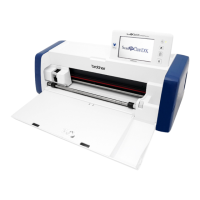
Brother ScanNCut DX series cutting machine to detect the cutting position. By using material printed with images and registration
marks together with cutting data created in CanvasWorkspace, you can efficiently cut the same image with the machine or cut out a
specific part of the image.
This function is an alternative to using the Direct Cut function in the machine to create the cut data only once and directly cut each
material.
This function is available only with the Brother ScanNCut DX cutting machine.
Step 1: Activate the Print to Cut function in CanvasWorkspace.
Step 2: Add registration marks.
Step 3: Import an image into CanvasWorkspace and create cutting data.
Step 4: Save the created data as a PDF file for printing, and print it with a printer.
Step 5: Transfer the FCM file (cutting data) to the cutting machine.
Step 6: Cut the printed material with the cutting machine.
● In order to use the Print to Cut function, make the following preparations in advance.
- It is necessary to update the software of the cutting machine to the latest version. For detailed instructions on updating the
machine, refer to the Operation Manual supplied with it.
- The dedicated application CanvasWorkspace (Windows/Mac) (ver. 2.4.0 or later) must be installed on your computer. The
latest version of the application can be downloaded from the Brother support website (http://s.brother/cuoad/). If it is
already installed, update it to the latest version.
* This feature is not supported by CanvasWorkspace for Web.
- Activate the function on CanvasWorkspace with the included activation card.
● For detailed instructions on using the cutting machine, refer to the Operation Manual supplied with it.
● The contents of this document are subject to change without notice.
● The screens shown in this manual may differ from the actual ones.
Print to Cut
About Print to Cut
Precautions
EN
Version 0

Questions and Answers

  • A
    Anthony JenkinsJul 28, 2025
    What to do if the cutting position is misaligned on Brother Cutter?
    • A
      Austin ReedJul 28, 2025
      If the cutting position is misaligned on your Brother Cutter, there are a few things you can check: * First, make sure there is no obstruction around the slot of the machine, and maintain space around it so that the mat can be fed out. * Second, ensure the machine is installed on a level, even surface. * Third, print again if the registration marks were not printed correctly (smeared, missing, or not black). * Finally, check the print settings on the printer, and then print again if the registration marks were not printed in the correct positions.
  • B
    Brooke Allison DDSAug 7, 2025
    How to fix misaligned cutting position on Brother Cutter?
    • T
      tammy80Aug 8, 2025
      To fix a misaligned cutting position on your Brother Cutter, try the following: * Ensure there are no obstructions around the machine's slot to allow the mat to feed out properly. * Confirm the machine is placed on a level, even surface. * If the registration marks are smeared, missing, or not black, print them again. * Verify the print settings on your printer and reprint if the registration marks are not in the correct positions.
  • B
    Blake PerryAug 17, 2025
    Why is the cutting position misaligned on my Brother ScanNCut DX?
    • R
      russellwebbAug 17, 2025
      The cutting position may be misaligned on your Brother Cutter because of several reasons: * There might be an obstruction around the machine's slot. Ensure there's enough space around the slot so the mat can feed correctly. * The machine could be on an uneven surface. Place it on a level, even surface. * The registration marks may not have printed correctly (smeared, missing, or not black). Try printing again. * The registration marks were not printed in the correct positions. Check the print settings on the printer, and then print again.

Summary

About Print to Cut

Precautions

Activating the Function

Preparation

Requirements for CanvasWorkspace use, including account creation and software updates.

Creating Data in CanvasWorkspace

Preparation

Steps required for data transfer via wireless network connection.

Retrieving Alignment Data On the Machine and Cutting

Preparation

Essentials for retrieving data: mat, blade, software version, and printed material.

Troubleshooting

Brother ScanNCut DX Series Specifications

General IconGeneral
ModelScanNCut DX Series
Scanner TypeBuilt-in Scanner
TypeElectronic Cutting Machine
Cutting Width11.7 inches
Blade TypeAuto Blade
Blade AdjustmentAutomatic
DisplayLCD Touchscreen
Display Size5 inches
ConnectivityUSB
Included AccessoriesAuto Blade, Standard Mat
Compatible MaterialsPaper, Fabric, Felt, Vinyl, Leather

Related product manuals