Starting P-touch Editor
10
Customizing LabelsCreating Labels Introduction
This section explains the procedure for starting P-touch Editor. With P-touch Editor, you can create various
kinds of labels.
See the P-touch Editor Help for samples of various kinds of labels and details on creating, printing, and
saving the labels. The following is the example for Windows Vista
®
. Read the printer name in each image as
your purchased machine model name.
To download the latest driver and software, please visit the Brother Solutions Center at:
http://solutions.brother.com
Starting P-touch Editor
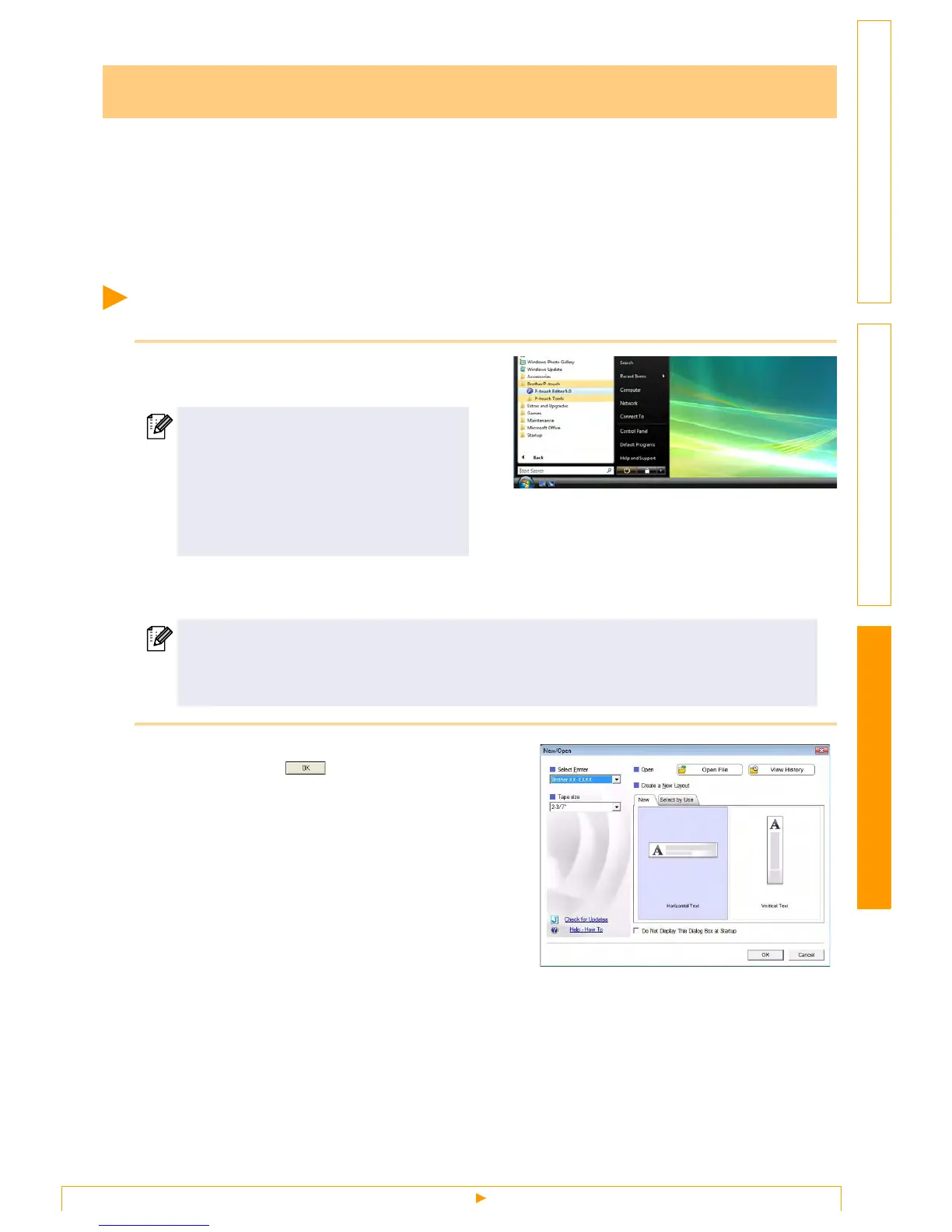
1 Click [Start]-[All Programs (Programs)]-
[Brother P-touch]-[P-touch Editor 5.0].
When P-touch Editor is launched, the [New/Open] dialog box appears, allowing you to choose whether
you want to create a new label layout or open an existing label.
2 Choose an option in the [New/Open] dialog
box and click .
• You can choose the label printer and media size.
• When you choose [Open File], the [Open] dialog
box appears. You can choose and open the file you
have created and stored previously.
• When you choose [View History], the [History]
dialog appears. You can choose from recently
created labels.
• When you choose [New], choose either vertical
writing style or horizontal writing style.
• When you choose [Select by Use], you can choose
by label applications.
• When you choose [Help-How To], the P-touch
Editor Help appears.
The Help files allow you to learn step by step how
to create a label layout.
• The [Check for Updates] button will link to the
default P-touch printer product solutions page.
How to use the P-touch Editor
You can also start P-touch Editor using the
following methods (only if you created the
shortcut during installation):
• Double-click the shortcut icon on the
desktop.
• Click the shortcut icon on the Quick
Launch bar.
To specify how the P-touch Editor works when it starts, click [Tools]-[Options] of the menu bar on
the P-touch Editor to display the [Options] dialog box. In the [General] tab, you can choose the
setting in the [Operations] list box in the [Startup Settings]. Normally, choose [Display New/Open
Dialog Box].


 To Next Page
 Loading...