7 Turn the backup TeraStation on.
8 Log in to Settings for the backup TeraStation, then rename the TeraStation’s hostname and configure the IP
address so that it has a new static IP address.
9 Power on the main TeraStation. To configure the UPS sync on the backup TeraStation, configure the settings
here. Otherwise, skip to the next step.
To synchronize with the UPS device connected to the main TeraStation, follow the procedure below on the
backup TeraStation.
a. Click Management.
b. Click the settings icon ( ) to the right of “Power Management”.
c. Click Edit.
d. Select “Sync with UPS connected to another Buffalo NAS device on the same network” and configure the
main TeraStation as a sync source.
e. Click OK.
10 The process is complete once you reconfigure failover by referring to the “Configuring Failover” section above.
Stopping Failover
If you want to stop failover while both the main and backup TeraStations are working properly, follow the procedure
below.
Stopping from the Main TeraStation
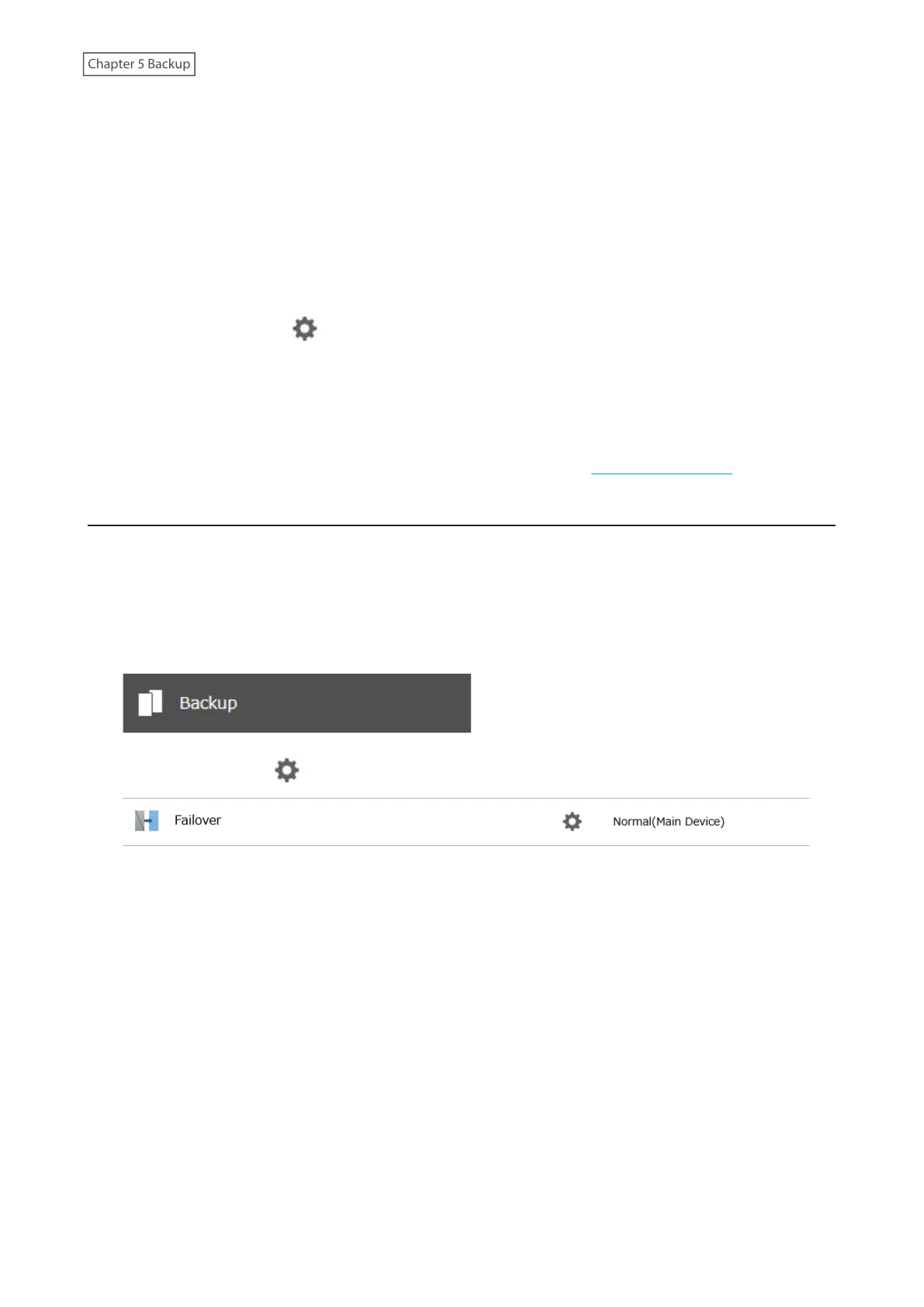
1 From Settings for the main TeraStation, click Backup.
2 Click the settings icon ( ) to the right of “Failover”.
124






 To Next Page