44
If you require any technical guidance or find that your product is not operating as intended, a simple solution can often be found in the Troubleshooting section of these instructions,
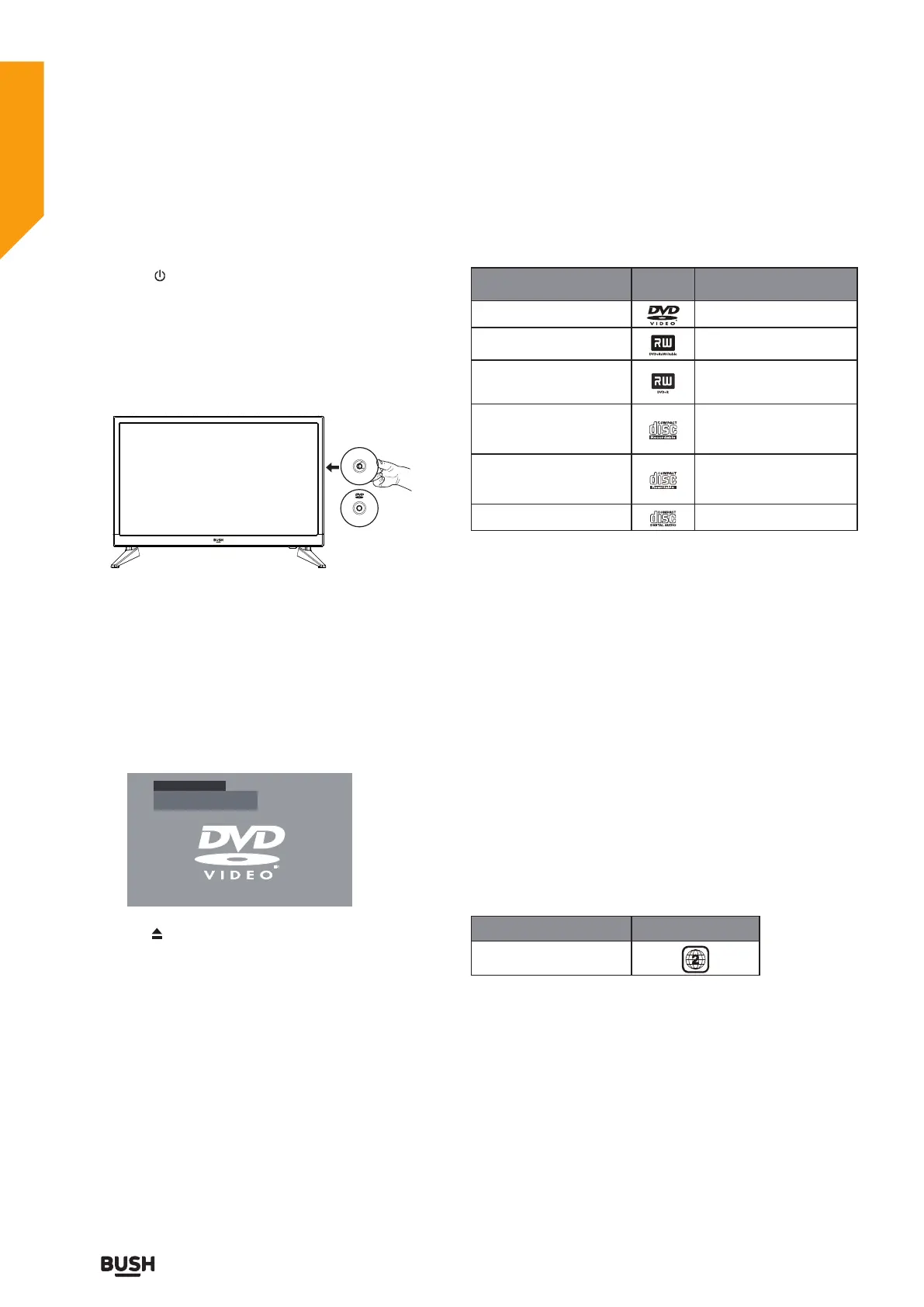
Using the Built-in DVD Player
1.Press the “ ” button on the TV or remote control.
Switch to DVD source using the “INPUT” button on the
remote control.
2. Insert a disc with the label side facing away from you.
(CD-R, CD-RW, DVD-R, DVD-RW, CD, DVD+R, or
DVD+RW) Allow 10 seconds for the player to load the
disc.
Label sid
e
3. After the disc is inserted, the TV will will show the
content of the disc automatically.
4. If the DVD player does not play the disc, press the
INPUT button on the remote control to display the
Source List. Use the
buttons to select DVD and then
press the OK button to confirm. Press the
II button on
the unit or the
II button on the remote control to start
playing.
5. Press the button if you want to remove the disc.
Disc Types
Disc
Logo
Record Content
DVD-VIDEO (Digital
Versatile Disc)
AUDIO+VIDEO
DVD±RW (Audio/Video
format or JPEG files )
AUDIO+VIDEO+JPEG
DVD±R (DVD Recordable
-Audio/Video
format or JPEG files )
AUDIO+VIDEO+JPEG
CD-R (CD-Recordable
-Audio/Video
format or JPEG files )
AUDIO+VIDEO+JPEG
CD-RW (CD-Rewritable-
Audio/Video
format or JPEG files )
AUDIO+VIDEO+JPEG
AUDIO-CD (Compact
Disc Digital Audio)
AUDIO
Supported Formats
JPEG
• The file extensions has to be .jpg and not .jpeg.
• Pictures encoding must comply with JPEG/ ISO
format.
• This DVD player can only display DCF standard still
pictures or JPEG pictures such as TIFF.
Region Code
Both the DVD player and the discs are coded by region.
These regional codes must match in order to play the
disc. If the codes do not match, the disc will not play.
The Region Number for this DVD player is described on
the rear panel of the TV.
Using the DVD Features
Let’s get started
Unable to play disc!
Check label faces front of TV.
Check disc for marks or damage.
Using the DVD Features
Disc Types DVD-VIDEO
Region code


 To Next Page