18
TRANSFERRING THE PHOTOS & VIDEOS TO YOUR PC
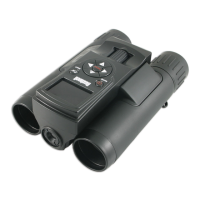
1. Make sure the ImageView is powered o. Connect the supplied cable to the USB port (I) above the SD card
slot on the ImageView, then connect the other end directly to a main USB port on your computer-do not use
front panel/keyboard USB ports or unpowered “hubs”.
2. The ImageView will be recognized as a standard “USB Mass Storage” device by your PC or Mac computer.
This means that the camera les can be easily viewed, edited, or copied to your hard drive, just as if they were
stored on an external hard drive or ash drive.
3. (This step is not required with some Windows operating systems, simply use the options in the pop-up window
to view, copy or edit your photos). Open My Computer or Windows Explorer. The camera will be seen as a new
“Removable Disk” with an unused drive letter assigned to it. Mac Users: the SD card will appear as a new disk
drive icon on your desktop. Double click this new “Disk” icon, open the “DCIM” folder inside, then the folder(s)
inside that (“100DSCIM” ,etc). Your photos/videos are the les inside-they have the prex “PICT__” followed
by a number, same as seen earlier on the camera’s display when you review photos. Still photos have a “.JPG”
le extension, video les end with “.AVI”. Double click a le to view it full screen, or select the “Filmstrip” or
“Thumbnail” options from the View menu of the open window.
4. Click “Edit>Select All” in the Windows menu (or click on one photo, contol+click to select multiple photos),
then “Edit>Copy to Folder” (in Windows menus). Select an existing folder on your hard drive, such as “My
Pictures”, or create a new folder (“Hawaii Vacation”, etc), then click “OK” to transfer copies of the photo les you
want. Mac Users: select the photos you want, then drag them into (user name)>Pictures, or any other folder.



 To Next Page