Page 30 Series 90 Setup Manual
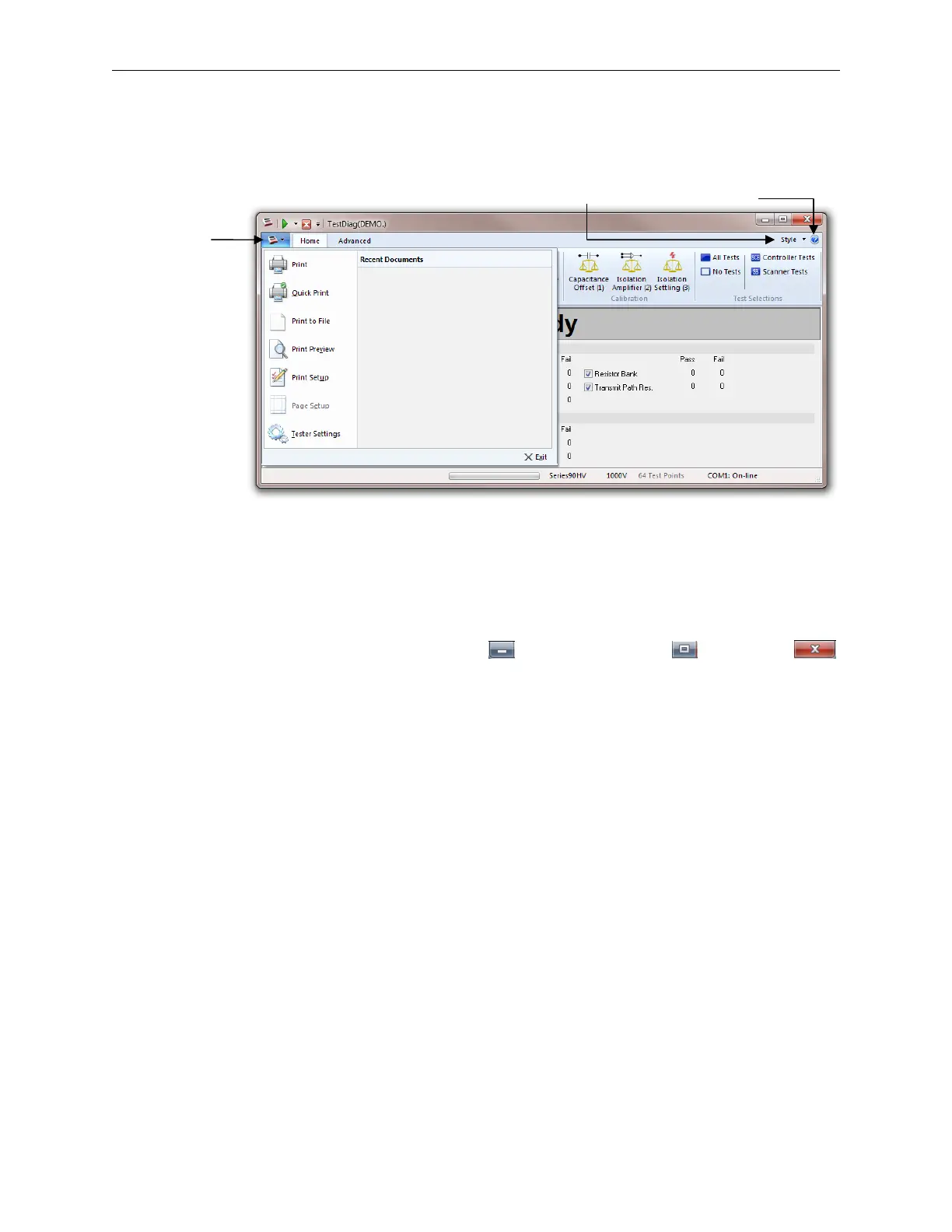
In addition to these items the window contains menu access for Style, About, and Application
Menus by clicking a appropriate button. Clicking the Application Menu opens the menu as
shown below.
Application
Menu
Style Menu About Menu
Title Bar
The Title bar contains the Application name (TestDiag) and the Control Menu.
Control Menu
The Control menu has three buttons: Minimize , Maximize/Restore , and Close .
The minimize button reduces the application or window to an icon on the Windows task bar.
The Maximize/Restore button restores the application or window to the previous size and
location. The Close button closes TestDiag.
Quick Access Tool Bar
The Quick Access Toolbar is a small, customizable toolbar that provides access to frequently
used commands independent of which ribbon tab is selected. By default, the Quick Access
Toolbar is located in the title bar of the application window, but it can be configured to display
below the ribbon through the drop down menu to the right of the commands.
Ribbon Menu
The Ribbon Menu contains tabs with buttons and check boxes for controlling the self-diagnostic
operation. The ribbon is a user interface element interface which combines the menu bar and
toolbar into a single floating pane. The purpose of the ribbon is to provide quick access to
commonly used tasks within the program. At the top of the ribbon includes several tabs that are
used to reveal different groups of commands. For example, the TestDiag ribbon includes Home,
and Advance tabs that each display a different set of commands when selected. Since the ribbon
contains both TestDiag menu options and toolbar commands, it cannot be removed from the
screen. However, it can be minimized to free up more screen real estate for the primary
document window. To minimize the ribbon, you can either click the upside down eject icon at



 To Next Page