Navigation 77
2. Recent
Recent locations are a
standard list. The Recent
Locations are chronologically
ordered.
3. Nearby
Nearby locations are a
standard list. The Nearby
Locations are based on how
many miles away.
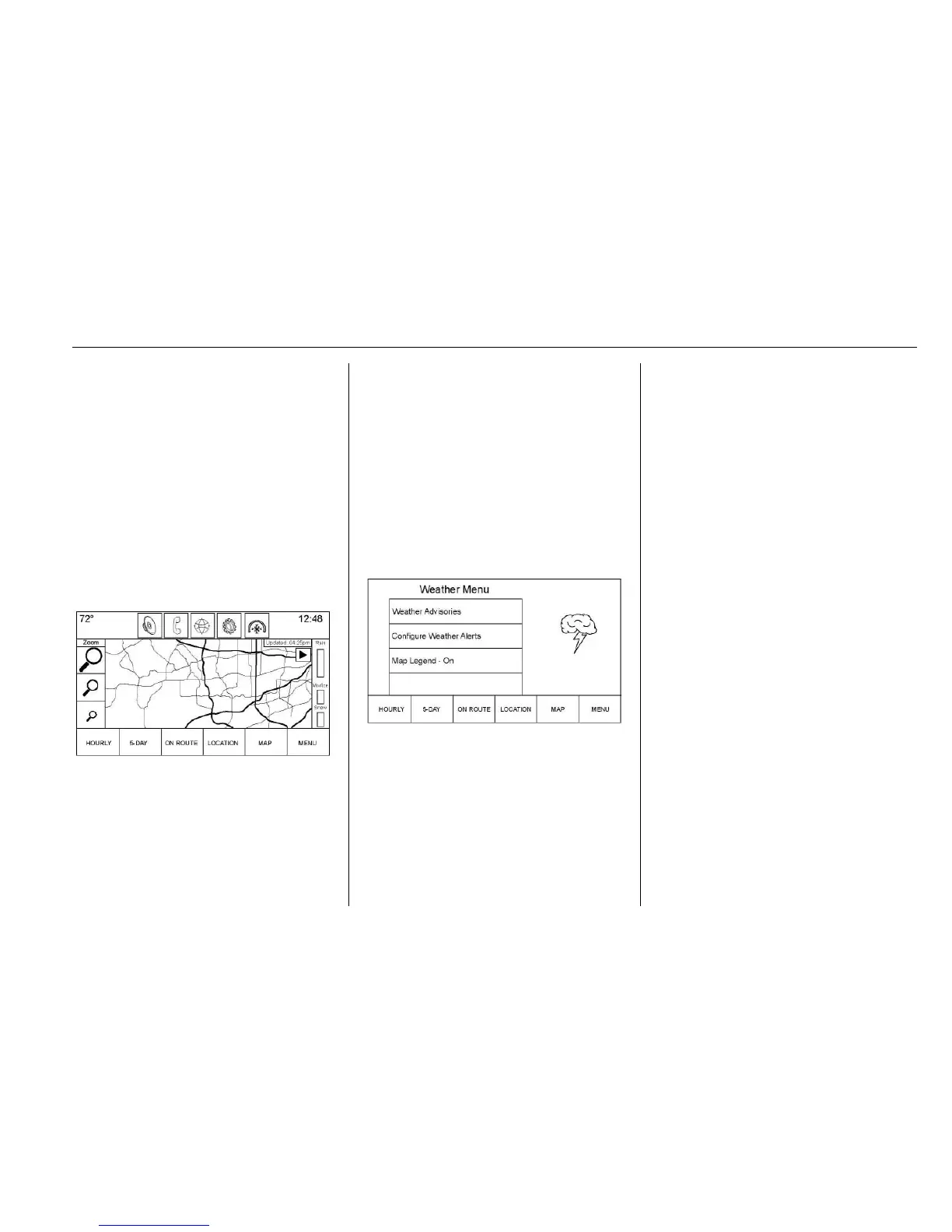
Map
The Map view shows three levels of
zoom on the left side of the map.
There is also a play screen button to
start the weather map moving. For
the moving map, the other
interaction elements will fade away
except or the time an a pause
button. Touch anywhere on the
display to return the view to pause.
There is a reset button in the lower
left corner of the map. Touch the
reset button to reset back to the
current vehicle position.
Weather Menu
Touch MENU on the Weather
Interaction Selector along the
bottom of the map screen to display
the Weather Menu.
The options are:
.
Weather Advisories: Any
weather advisories that are in
effect for the local area or while
on route are displayed in a list.
Touch on an advisory from the
list to display a screen that gives
additional details about the
advisory and shows the advisory
location on the map.
.
Configure Weather Alerts: Touch
to access the Weather Alerts
menu. Touch the Weather Alerts
line item to turn the alerts On or
Off. Touch to select any one of
the other line items such as High
Alert, Low Alert, Informational
Alert to filter the selected alerts
for display, while the others will
be suppressed.
.
Map Legend: Touch to display
the Map Legend.
Interaction Selector
The Interaction Selector at the
bottom of the screen can be used to
switch between different views
within the weather screen.
These buttons are:
.
ZOOM: Touch to zoom the map
in or out.





 To Next Page