8 Introduction
Use the three finger gesture to
Select Favorites.
Other examples for using the hand
gestures are explained later in this
section. See AM-FM Radio 0 17,
USB Port 0 27,
and Using the Navigation
System 0 53.
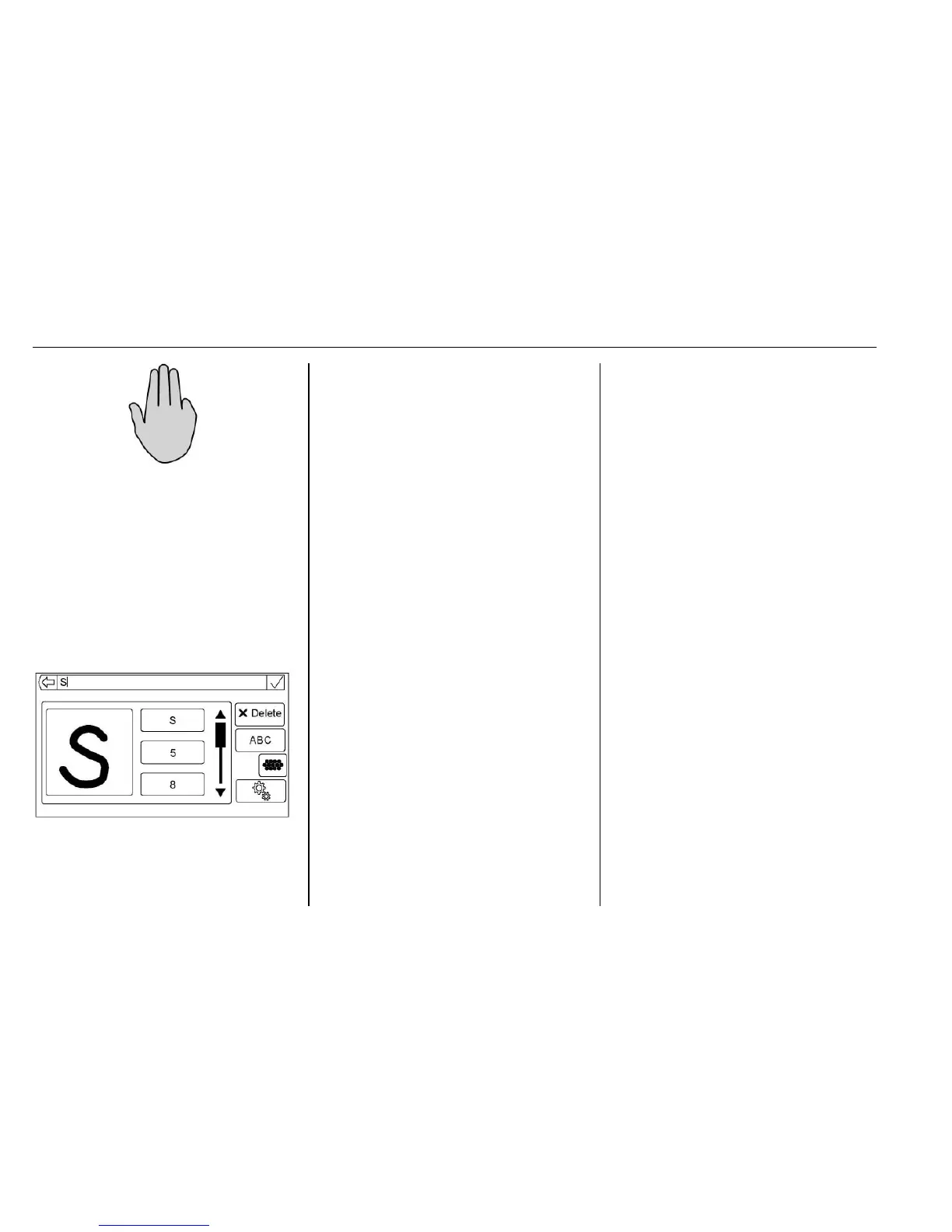
Character Recognition
Character Recognition or
Handwriting Recognition is offered
as an alternative to using a
keyboard. This method of character
input allows the drawing of
characters instead of picking them
out from the keyboard. It is
designed to allow quick and smooth
character entry.
After the system displays the first
drawn character with audio
feedback, the drawing of the next
character can begin. Check the list
next to the drawn character if the
system announces it incorrectly.
Use the scroll bar up or down to
select the correct one.
Handwriting Recognition has two
main modes:
.
Upper Case : Used for
Destination Entry.
.
Mixed Case : Used for all other
character entry modes.
Touch the globe button from the
alpha-numeric keyboard to open the
Handwriting Recognition screen.
Another way is to use the two finger
gesture by swiping to the left on a
keyboard screen or in a list view.
The Handwriting Recognition screen
is split into four major zones:
.
Drawing Pad
.
Character Entry Field
.
List of Possible Characters
.
Option Settings
.
Drawing Pad — Draw a
character in the display area.
This is where the drawing can
be seen on the touchpad.
When the first character is
complete, a representation of
that character can be seen, as
well as an audible response.
If the character is correct, the
next character can be started
immediately.
‐ Delete the last entered
character by drawing a line
across the character field.
‐ To create a space, draw a line
from left to right across the
character field.
.
Character Entry Field — This
section is an area across the top
of the screen. The Character
Entry section can look different
depending on which feature is
being used. When finished with
the input, press and hold using
two fingers to exit character






 To Next Page