EasyManua.ls Logo

Canon 10 - User Manual

Canon 10
163 pages
Print Icon
To Next Page IconTo Next Page
Loading...
/
/
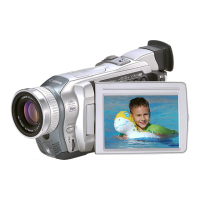
Digital Video Camcorder
Instruction Manual
Camescope vidéo numérique
Manuel d’instruction
Videocámara digital
Manual de Instrucciones
English
Françai
s
Español
NTSC
This instruction manual covers the OPTURA20 and OPTURA10. Please note that
illustrations and explanation in this manual are based on the OPTURA20.
Ce manuel d’instruction traite des modèles OPTURA20 et OPTURA10. Veuillez noter
que les illustrations et les explications contenues dans ce manuel sont basées sur le
OPTURA20.
Este manual de instrucciones cubre la OPTURA20, y la OPTURA10. Tenga en cuenta
que las ilustraciones y las explicaciones de este manual se basan en la OPTURA20.
CANON INC.
U.S.A. CANON U.S.A., INC. NEW JERSEY OFFICE
100 Jamesburg Road, Jamesburg, NJ 08831 USA
CANON U.S.A., INC. CHICAGO OFFICE
100 Park Blvd., Itasca, IL 60143 USA
CANON U.S.A., INC. LOS ANGELES OFFICE
15955 Alton Parkway, Irvine, CA 92618 USA
CANON U.S.A., INC. HONOLULU OFFICE
210 Ward Avenue, Suite 200, Honolulu, HI 96814 USA
If you have any questions, call the Canon U.S.A. Information
Center toll-free at 1-800-828-4040 (U.S.A. only).
CANADA CANON CANADA INC. NATIONAL HEADQUARTERS
6390 Dixie Road, Mississauga, Ontario L5T 1P7
CANON CANADA INC. CALGARY
2828, 16th Street, N.E. Calgary, Alberta T2E 7K7
CANON CANADA INC. MONTREAL
5990 Côte de Liesse, Quebec H4T 1V7
If you have any questions, call the Canon Canada Information
Center toll-free at 1-800-828-4040. (Canada only)
Si vous avez des questions, veuillez téléphoner sans frais au
Canada 1-800-828-4040. (Canada seulement)
MEXICO CANON MEXICANA, S. DE R.L. DE C.V.
Periferico Sur No. 4124 Col. Ex-Rancho de Anzaldo C.P. 01900
México, D.F., México
CENTRO Y
SURAMÉRICA CANON LATIN AMERICA, INC.
703 Waterford Way Suite 400 Miami, FL 33126 USA
ASIA CANON HONGKONG COMPANY LTD.
9/F, The Hong Kong Club Building, 3A Chater Road, Central, Hong Kong
Printed on 100% reused paper.
Document réalisé avec du papier recyclé à 100%.
El papel aqui utilizado es 100% reciclado.
PRINTED IN JAPAN
IMPRIME AU JAPON
IMPRESO EN JAPÓN
© CANON INC. 2003
DY8-9120-373-000
PUB.DIM-536
0000Ni0.0
PUB.DIM-536
PUB.DIM-536

Mini
Digital
Video
Cassette

Table of Contents

Questions and Answers

  • T
    Tracey SchaeferSep 6, 2025
    Why memory card cannot be played back on Canon 10?
    • R
      Robert BarronSep 6, 2025
      If your Canon Camcorder's memory card cannot be played back, ensure the camcorder is set to CARD PLAY (VCR) mode. Also, check if the memory card is inserted; if not, insert it.
  • L
    luisjohnsonAug 22, 2025
    How to fix Canon 10 Camcorder that will not turn on?
    • J
      Jeffrey MartinAug 22, 2025
      If your Canon Camcorder won't turn on, the battery pack may be exhausted. Try replacing or charging the battery pack. Also, check if the battery pack is correctly attached and attach it correctly if needed.
  • M
    Michael ShawSep 3, 2025
    Why cassette compartment stopped during loading/ unloading on Canon 10 Camcorder?
    • L
      Lauren Perez DVMSep 4, 2025
      If the Canon Camcorder's cassette compartment stops during loading or unloading, the battery pack might be exhausted. Replace or charge the battery pack. If the issue persists, the camcorder may be malfunctioning.
  • K
    Kevin SpenceSep 2, 2025
    What to do if buttons will not work on Canon 10?
    • A
      April HarveySep 2, 2025
      If your Canon Camcorder's buttons aren't working, first, ensure the camcorder is turned on. If it is on, check if a cassette is loaded; if not, load a cassette.
  • E
    Elizabeth LewisAug 31, 2025
    Why image will not appear on the TV screen from Canon 10?
    • J
      julie02Aug 31, 2025
      If your Canon Camcorder displays no image on the TV screen, ensure that [AV/PHONES] is set to [AV] in the menu, not [PHONESH]. Also, verify that [AV / DV OUT] is set to [OFF].
  • M
    Michael HopkinsAug 30, 2025
    Why memory card cannot be recorded on Canon 10 Camcorder?
    • D
      dsandersAug 30, 2025
      If the memory card cannot be recorded on your Canon Camcorder, it may be due to several reasons: the memory card might be full, so replace it or erase images; the memory card might not be formatted, so format it; the memory card might not be inserted, so insert it; the file number might have reached its maximum value, so set [FILE NUMBERS] to [RESET] and insert a new memory card; or the SD Memory Card might be protected, so change the position of the protect switch.
  • M
    mariowoodAug 29, 2025
    What to do if cassette compartment will not open on Canon 10 Camcorder?
    • M
      mike23Aug 29, 2025
      If your Canon Camcorder's cassette compartment won't open, the battery pack might be exhausted. Replace or charge the battery pack. Also, make sure the cassette compartment cover is fully open; if not, open it completely.
  • M
    Michael SpearsAug 27, 2025
    Why pressing the start/stop button will not start recording on Canon 10 Camcorder?
    • P
      Paul RuizAug 27, 2025
      If the start/stop button on your Canon Camcorder doesn't initiate recording, there could be several reasons. First, ensure that the camcorder is turned on. Second, check if a cassette is loaded. Third, the tape might have reached its end, indicated by a flashing symbol on the screen, so rewind the tape or replace the cassette. Fourth, the cassette might be protected, indicated by another flashing symbol, so replace the tape or change the position of the protect switch. Finally, confirm that the camcorder is set to CAMERA mode.
  • D
    Daniel ClayAug 27, 2025
    Why does my Canon 10 keep turning off?
    • D
      Deanna SpearsAug 27, 2025
      If your Canon Camcorder switches off by itself, it might be due to an exhausted battery pack. Try replacing or charging the battery pack. Alternatively, the power save function may have been activated; in this case, simply turn the camcorder back on.
  • M
    Michael PorterAug 25, 2025
    Why viewfinder picture is blurred on Canon 10 Camcorder?
    • K
      Kristie DuncanAug 26, 2025
      If your Canon Camcorder displays a blurred picture in the viewfinder, the viewfinder might not be adjusted properly. Adjust the viewfinder using the diopter adjustment lever.

Summary

Introduction and Safety

Important Usage Instructions

Provides essential safety guidelines and warnings for using the camcorder.

IMPORTANT SAFETY INSTRUCTIONS

Details critical safety warnings regarding electrical shock, fire, and proper handling.

Reference Guide

Lists supplied manuals and provides trademark acknowledgements for the camcorder.

Components Guide

Illustrates and identifies the main parts and controls of the camcorder.

Mastering the Basics

Preparations

Covers essential setup steps before recording, including power, battery, and loading.

Using a Household Power Source

Explains how to connect and use the camcorder with an AC power adapter.

Attaching and Charging the Battery Pack

Details the process of attaching and charging the camcorder's battery pack.

Installing the Backup Battery

Guides on how to install the small backup battery for settings retention.

Preparing the Camcorder

Adjusting the Viewfinder (Diopter Adjustment)

Instructions for adjusting the viewfinder for clear viewing.

Attaching the Lens Cap

Explains how to attach and secure the lens cap.

Fastening the Grip Belt

Details on adjusting the grip belt for comfortable handling.

Recording and Playback

Recording Movies on a Tape

Explains how to record movies on tape, including zoom and LCD screen usage.

Playing Back a Tape

Details how to play back recorded tapes using the LCD screen or a TV.

Using the Full Range of Features

Covers advanced camcorder functions, menus, and settings for optimal use.

Editing and Connectivity

Recording to a VCR or Digital Video Device

Details how to copy recordings to external VCRs or digital devices.

Audio Dubbing

Explains how to add new sound to existing recordings.

Connecting to a Computer Using a USB Cable

Explains how to connect the camcorder to a computer via USB for data transfer.

Memory Card Operations

Inserting and Removing the Memory Card

Provides instructions for inserting and removing SD/MultiMedia cards.

Recording Still Images on a Memory Card

Guides on capturing still images directly to the memory card.

Playing Back a Memory Card

Guides on viewing images and movies stored on the memory card.

Additional Information

Screen Displays

Explains how to customize and manage on-screen displays.

List of Messages

Provides explanations for various messages displayed by the camcorder.

Troubleshooting

Offers solutions for common problems encountered with the camcorder.

Specifications

Lists the technical specifications of the OPTURA20/OPTURA10 camcorder.

Canon 10 Specifications

General IconGeneral
BrandCanon
Model10
CategoryCamcorder
LanguageEnglish

Related product manuals