EasyManua.ls Logo

Canon DR-1210C - User Manual

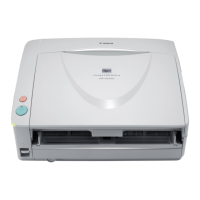
Canon DR-1210C
28 pages
Print Icon
To Next Page IconTo Next Page
Loading...
RELEASE LETTER DR-1210C
Canon Publication Number: 06-DR-1210C Version 1.0
Revises: 1.0
Replaces: None
Total Pages: 28
© 2006 Canon USA, Inc. All Rights Reserved. All referenced product names and
trademarks are the property of their respective owners.
The information contained in this release letter is proprietary and confidential
information of Canon U.S.A., Inc. This document is intended for internal use by
Canon U.S.A. Inc. employees and employees of authorized dealers and resellers
only. Transfer of this document to any other party not specified above without the
written permission of Canon U.S.A. Inc. is in violation of the confidentiality of this
information.
Please utilize this document as your main source of information regarding the
Canon DR-1210C and related accessories. Further information on Canon DR-
1210C may be obtained by contacting your Canon sales representative.

Other manuals for Canon DR-1210C

Questions and Answers

  • C
    Catherine JordanAug 20, 2025
    Why is my Canon DR-1210C Scanner not recognized by my computer?
    • O
      oliviachambersAug 20, 2025
      If your Canon Scanner isn't recognized by your computer, ensure the USB cable is properly connected. If the issue persists, try resetting the scanner and restarting your computer. If this doesn't work, install the scanner driver. If you are still experiencing issues, install a recommended USB card, or use the packaged USB cable or any other appropriate cable on the market.
  • L
    laurie22Aug 22, 2025
    Why is my Canon Scanner scanning completely black or white images?
    • C
      Christopher JonesAug 22, 2025
      If your Canon Scanner is producing completely black or white images, the “Brightness” setting may be incorrect. Change the brightness setting, and adjust the “Contrast” if needed. Also, check and change the “Paper Source” setting.
  • I
    ivanschroederAug 25, 2025
    What to do if the feeder is not connected to my Canon DR-1210C?
    • J
      Jessica PerezAug 25, 2025
      If the feeder of your Canon Scanner is not connected, make sure the ADF cable is connected. You may also need to reset the power or restart the computer.
  • S
    Stacy WhiteAug 26, 2025
    Why is my Canon DR-1210C document feed not working properly?
    • P
      Peter PottsAug 26, 2025
      If your Canon Scanner is not feeding documents correctly, resulting in jams, double feeds, or skew, ensure you are using documents that meet the scanner's specifications or try using the flatbed. Also, make sure the roller unit and separation pad are properly mounted and clean; if they are dirty, clean or replace them.
  • T
    Todd AguilarAug 28, 2025
    Why are my Canon Scanner images skewed?
    • R
      rodrigueztravisAug 28, 2025
      If images from your Canon Scanner are skewed, ensure the document is properly set.
  • T
    trujillostacyAug 29, 2025
    Why is my Canon DR-1210C not feeding the document?
    • M
      michael14Aug 30, 2025
      If the document is not being fed into the Canon Scanner, ensure that the scanner setting is properly set.
  • A
    Albert HunterSep 1, 2025
    How to fix a paper jam in my Canon Scanner?
    • B
      Beth Miller MDSep 1, 2025
      If your Canon Scanner is experiencing paper jams, it might be due to dirty rollers or a dirty separation pad. To resolve this, try cleaning or replacing the roller and the separation pad.
  • A
    Ashley RandallSep 2, 2025
    How to remove spots and streaks from Canon DR-1210C images?
    • M
      marysmithSep 3, 2025
      If you notice spots and streaks on images scanned with your Canon Scanner, the roller unit, separation pad, or reading glass may be dirty. Clean or replace the roller unit and/or the separation pad if you are using feeder scanning. Clean the reading glass. If scratches are found or the back surface is dirty, replace the main body.
  • K
    Kimberly HoffmanSep 5, 2025
    How do I remove black borders from Canon Scanner images?
    • Y
      yporterSep 5, 2025
      If your Canon Scanner is adding black borders around the image, the “Page Size” setting may be incorrect. Change the setting. Also, ensure the document is set at the correct position.
  • K
    Kristen ReidSep 7, 2025
    How to fix missing outer areas on Canon Scanner images?
    • S
      Stacey GarciaSep 7, 2025
      If the outer areas of the image disappear when using your Canon Scanner, adjust the document settings by disabling functions like “Auto-detection”.

Summary

About Canon U.S.A., Inc.

Suggested Retail Price List

Introduction

Market Trends

Overview of the document scanner market and its growth drivers.

Competitive Situation

Analysis of the competitive landscape for document scanners.

DR-Series Scanner Line-up

DR-1210 C Core Scanning Technologies

Flexible Scanning

Details on ADF and Flatbed capabilities for diverse scanning needs.

Fast, High Quality Color Scanning

Information on color scanning speeds and image quality.

User-friendly Operation

Inherited DR-Series Features

Key Capabilities: Hardware

Reliable Paper Feeding

Details on the separation pad and feed roller for consistent document feeding.

Simple Connectivity

Recommended PC Requirements

Key Capabilities: Driver Enabled

3-Dimensional Color Correction

Enhances image quality by correcting RGB color elements and gamma settings.

Punch Hole Removal Function

Removes punch holes from scanned images by analyzing document edges.

Gamma Settings

Contrast Adjustment Technology in Black-and-White Scanning

Key Capabilities: Software Enabled

Easy Installer Tool

Simplifies driver and bundled software installation process.

Capture Perfect 3.0

File Format Support

Details on supported file formats like TIFF, BMP, PDF, and JPEG.

Multi-page vs. Single-page File Format

Explains saving multiple images in one file or as separate files.

Scan Functions

Scan Job

Image File Editing Functions

Image Copy Function

Capabilities for replacing, extracting, or deleting scanned pages.

Insert;Add Image Function

Options for inserting new pages into existing image files.

Image Display Functions

Thumbnail View of Images

Displays reduced views of scanned images for easy navigation.

Split View of Images

Allows viewing multiple images simultaneously in separate windows.

Full-Screen View of Images

Enables viewing images at full screen for presentations.

Searchable PDF File Format Support

PDF File Security

Adobe Acrobat 7.0 Standard

OmniPage SE 4

Editing and Proofing

Advanced Productivity Features

Presto! BizCard Reader SE 5

Maintenance

User-Replaceable Exchange Roller

Information on replacing the Feed Roller Unit and Separation Pad.

DR-1210 C Options and Consumables

Product codes and replacement recommendations for consumables.

DR-1210 C Specifications

DR-1210 C Scanning Speed Table

Systems Support And Services Information

Technical Support for Authorized Servicers

Support details for authorized servicers, including contact and hours.

End User Product Support

Support for end users via Help Desk (CITS), including troubleshooting.

Canon World Wide Web Site

Information on Canon products and driver downloads available online.

Internet Systems and Technical Support

e-Support for Canon USA Authorized Services via the internet.

Service Training and Authorization Policy

Information regarding service training and authorization.

Canon U.S.A Limited Warranty Conditions

Details on the limited warranty for Canon U.S.A. products.

Brochure Ordering

Online Sales Support Materials

Online Sales Training

Canon DR-1210C Specifications

General IconGeneral
BrandCanon
ModelDR-1210C
CategoryScanner
LanguageEnglish

Related product manuals