Loading Plain Paper
You can load plain paper.
Important
• If you cut plain paper to a size of 5" x 7" (13 x 18 cm) or smaller to perform a trial print, it may cause a
paper jam.
Note
• You can use general copy paper or Canon Red Label Superior WOP111/Canon Océ Office Colour
Paper SAT213.
For the page size and paper weight you can use for this printer, see Supported Media Types.
1.
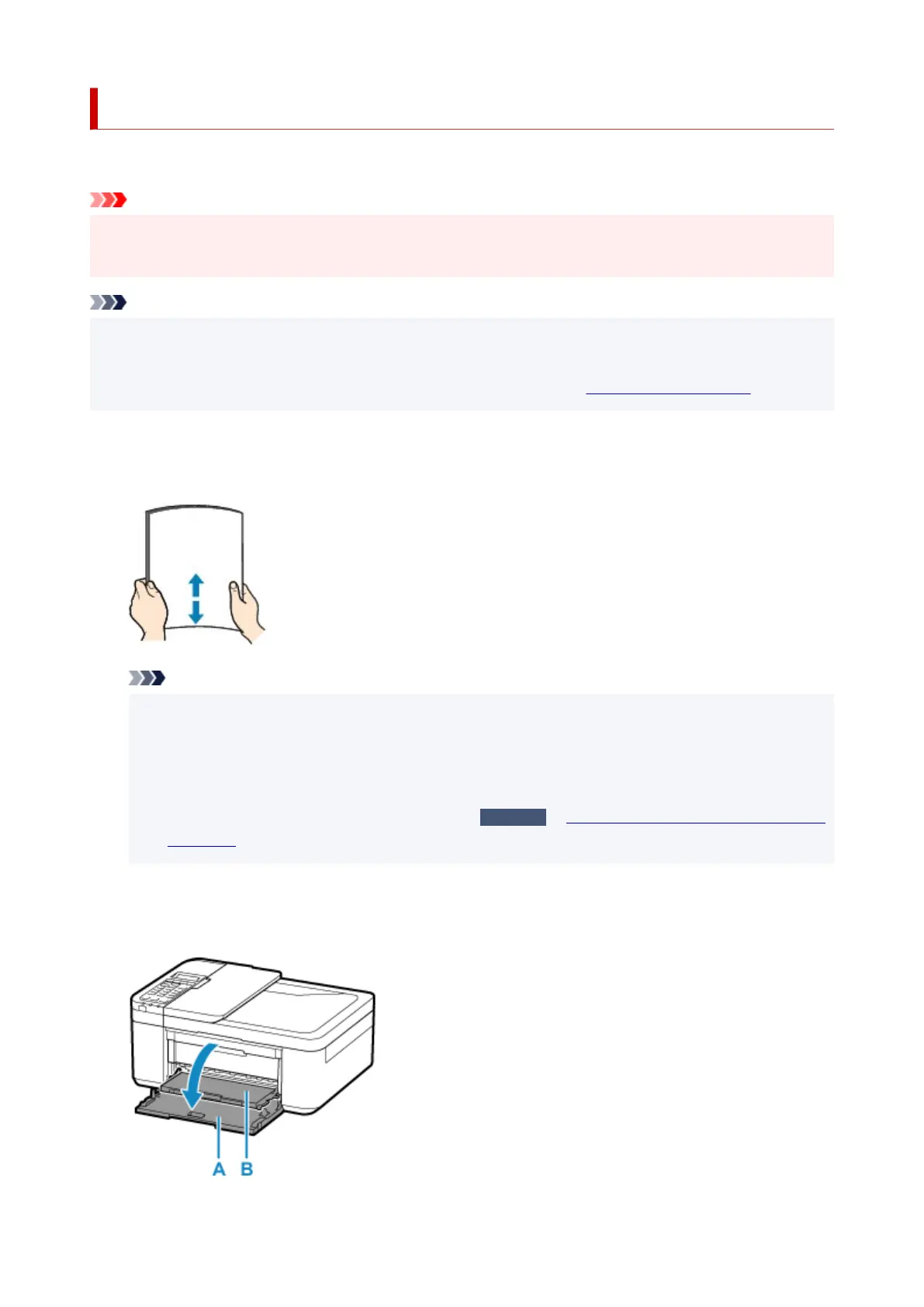
Prepare paper.
Align the edges of paper. If paper is curled, flatten it.
Note
• Align the edges of paper neatly before loading. Loading paper without aligning the edges may
cause paper jams.
• If paper is curled, hold the curled corners and gently bend them in the opposite direction until the
paper becomes completely flat.
For details on how to flatten curled paper, see
Check3
in
Paper Is Smudged / Printed Surface Is
Scratched.
2.
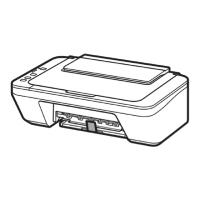
Open the front cover (A) gently.
The paper output tray (B) opens.
82



 To Next Page