1515
Setting the IP Address
Setting the IP Address
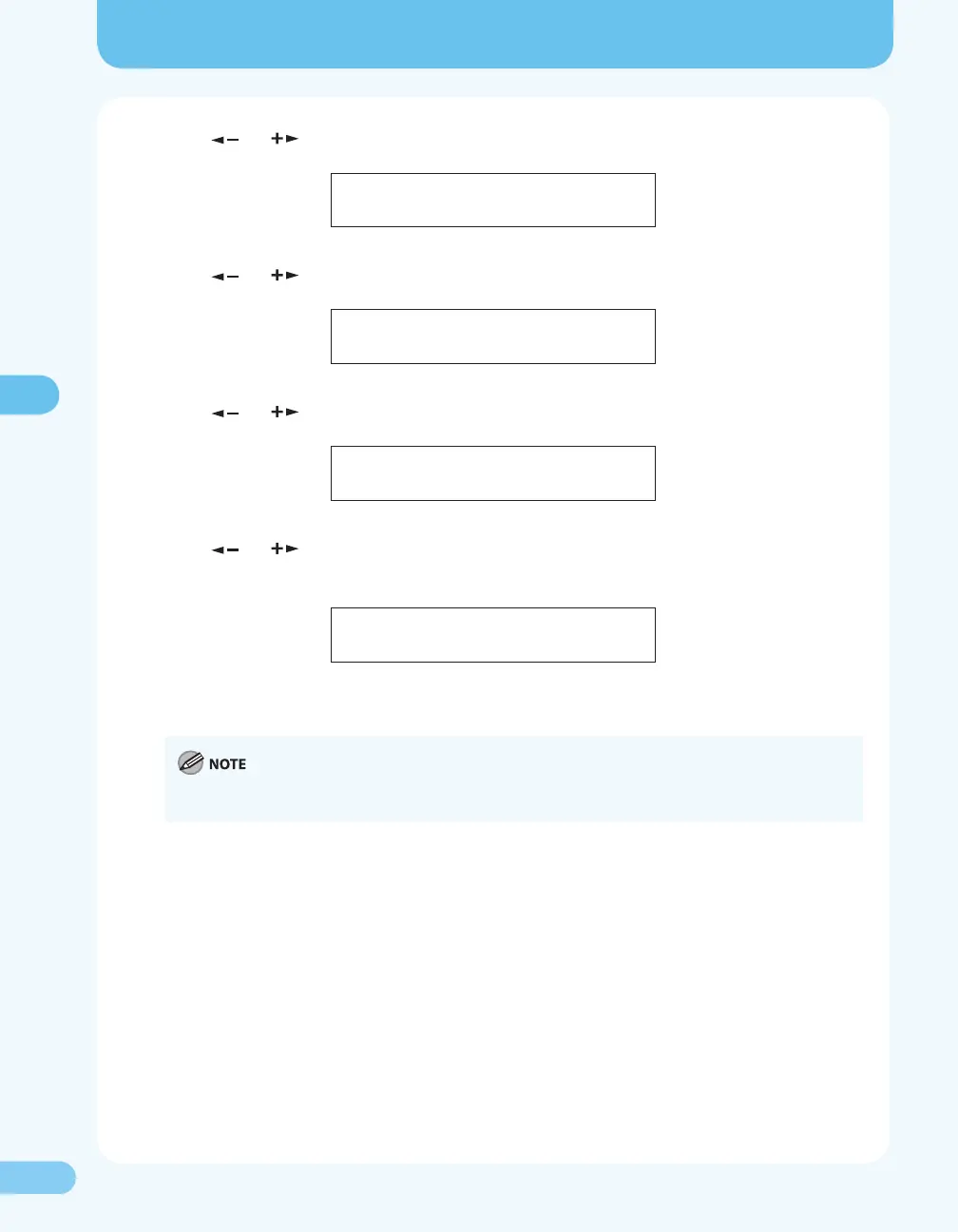
2. Press [ ] or [ ] to select <SYSTEM SETTINGS>, then press [OK].
1 1 . S Y S T E M
A D D . F U N C T I O N S
S E T T I N G S
3. Press [ ] or [ ] to select <NETWORK SETTINGS>, then press [OK].
S Y S T E M S E T T I N G S
5 . N E T W O R K S E T T I N G S
4. Press [ ] or [ ] to select <VIEW IP ADDRESS>, then press [OK].
N E T W O R K
6 . V I E W A D D R E S SI P
S E T T I N G S
5. Press [ ] or [ ] to select <IP ADDRESS>, <SUBNET MASK>, or <GATEWAY ADDRESS>, then
press [OK].
1 . I P A D D R E S S
V I E W I P A D D R E S S
If the machine is communicated with the network properly, the IP address, subnet mask and
gateway address are displayed.
We recommend you to take a note of the IP address you conrmed here, because you need it for “Starting
the Remote UI,” ( P. 17).
6. Press [Stop/Reset] to return to the standby mode.
If they are not displayed, that indicates that the machine is not communicated with the network.
Please check the setting of the IP address.









 To Next Page