20
Appendix
Checking SSID or Network Key for a Wireless LAN Router/Access Point
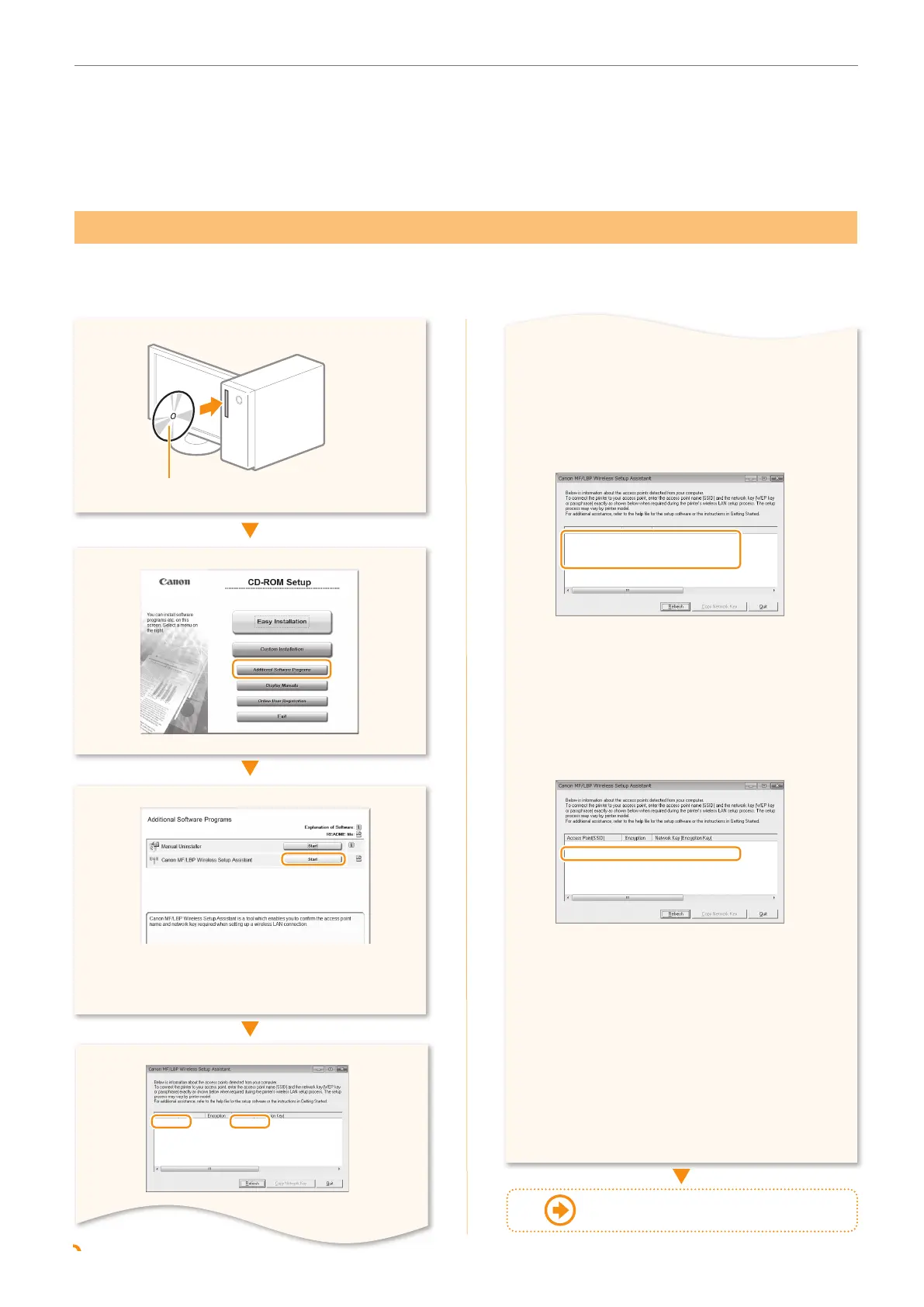
You can check the SSID or the network key using “Canon MF/LBP Wireless Setup Assistant,” which is included in
the supplied User Software CD-ROM with the machine.
• When the License Agreement screen
appears, please read thoroughly, and click
[Yes] to agree.
User Software CD-ROM
▲
SampleEFGHIJ WPA-PSK 543210EDCBA
• Write down the name of the access point
(SSID) and network key on P.6, and then
continue the setup procedure.
If multiple access points are displayed:
Write down all SSIDs that are displayed.
SampleABCD WEP 01234567890123456789ABCDEF
SampleEFGHIJ WPA-PSK 543210EDCBA
SampleK WPA2-PSK 1234ABCD
Perform the procedure up to step
in
“Setting by Selecting SSID (Network or
A
ccess Point)” (P.6).
Select the SSID that matches the one you
wrote down fr
om the displayed SSID in step
.
Write down the network key for the SSID
you selected.
SampleABCD WEP 01234567890123456789ABCDEF
SampleEFGHIJ WPA-PSK 543210EDCBA
SampleK WPA2-PSK 1234ABCD
Perform the procedure from step
in
“Setting by Selecting SSID (Network or
A
ccess Point)” (P.6)”
If the information for the wireless LAN
router is not displayed:
• Click the [Refresh] button.
• If the information is not displayed when
you click the [Re
fresh] button, check if the
computer settings for a wireless LAN router
or access point are complete.
Return to step on P.7
◀
Click!
◀
Click!









 To Next Page